

Inserting music into your images is a creative way to turn a simple picture into a dynamic story, perfect for posting on social media or preserving memories. By combining visuals with music, you can add emotions, show important moments, or set the mood for your audience. So, if you are interested in making your images more creative and wonderful, read this tutorial as we offer the best methods to add music to a photo.

Part 1. How to Add Music to a Photo on Windows and Mac
If you want to add music to photos on your Mac and Windows, you can use Tipard Video Converter Ultimate. This program can offer its MV and Collage feature, allowing you to turn your images into an appealing music video output.
The good thing about this software is that you can navigate all the functions smoothly since its user interface is simple. Plus, you can add as many images as you want. You can also improve the audio and video output for a better playback experience. Aside from that, you can also access the program's batch conversion feature, allowing you to convert multiple files simultaneously. With that, if you need an ideal tool that can let you add music to your photos, look no further than Tipard Video Converter Ultimate.
Step 1 Download and run Tipard Video Converter Ultimate on your Windows or Mac computer.
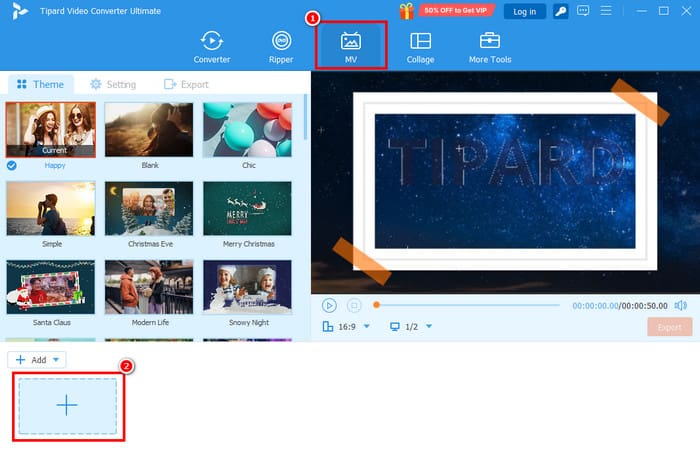
Step 2 From the interface, you can go to the MV feature and hit the Plus button to start adding the image you want to deal with. You can also add as many images as you want.
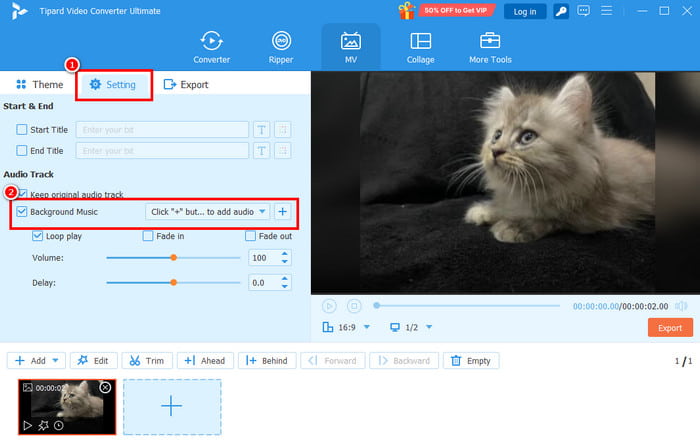
Step 3 After that, proceed to the Settings section and find the Background Music option. Then, tap the Plus button to insert the music from your computer.
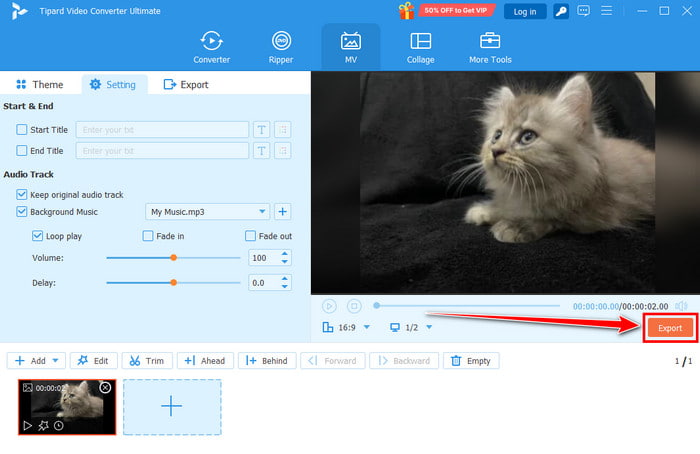
Step 4 For the last process, hit the Export button from the right interface. Once done, go to your computer folder and start playing your image with music.
Part 2. How to Attach Music to a Photo on iPhone and Android
Do you want to learn how to add music to an image using your Android and iOS devices? In that case, you can access CapCut. With this editing application, inserting music into a photo will be a simple task. What we like about this app is that it ensures to give you the best audio and video quality. You can also create a collage to merge multiple images. The best part here is that you can improve your output. You can access video filters, add effects, captions, cropper, trimmer, and more. Thus, if you need an ideal app that can help you achieve your objectives, look no further than CapCut.
Step 1 Download the CapCut app on your mobile. After that, you can start launching it to start the process.
Step 2 After you run the app, start tapping the Plus button and browse the picture you want to edit. You can also add multiple images if you want to.
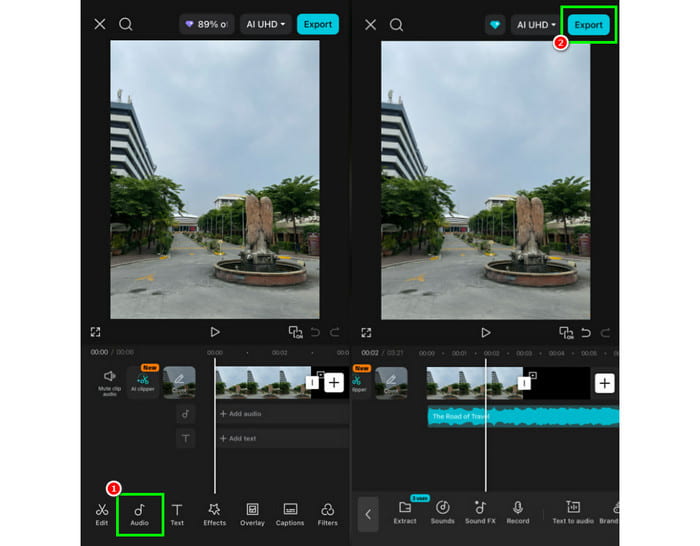
Step 3 Go to the bottom interface and press the Sound function. Then, you can start choosing your preferred audio or photo. Once done, tap the Plus button.
Step 4 You can start pressing the Play button to check your image with music. Finally, hit the Export button above to begin the saving process.
Part 3. How to Add Music to an Image Online
Want to add music to a picture on your browser? You can use Kapwing. This online editor is ideal since it lets you add any sound or music to your images. The best part here is that the tool can offer a stock of audio you can try. This way, there is no need for you to upload any audio file. What we like here is that the interface of the editor is simple to navigate, making it suitable for both skilled users and non-professionals. You can even use other functions to improve your media. You can use the aspect ratio changer, cropper, transitions, layers, and more. The only problem here is that when using the free version, there are various restrictions. You can even get a watermark after the saving process. So, for a better result, it would be better to use the editor's premium version.
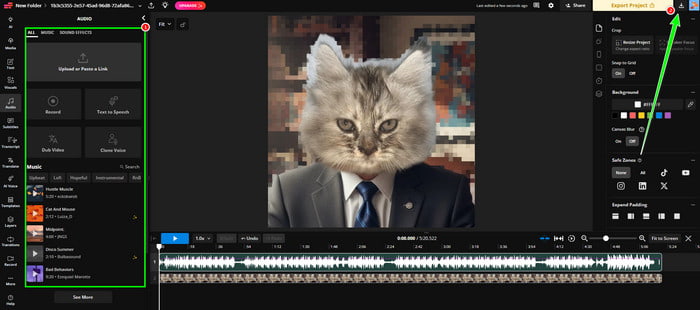
Step 1 Go to your browser and access Kapwing. After that, click the Upload Media button to upload the image.
Step 2 Then, go to the Audio section from the left interface. You can upload the audio from your PC or use a stock audio.
Step 3 Once you're done adding the audio, tap the Download button in the top-right interface. Once done, you can now play the photo with music.
Part 4. How to Add Music to a Photo on Social Media
Do you wonder how to add music to a picture on various social media platforms, like TikTok, Instagram, and others? Well, adding music to a photo is a simple task. The good thing about the platforms is that they can offer all the music you need. You can even access sound effects and trending music. So, to start the method of adding music, you can use the instructions provided below.
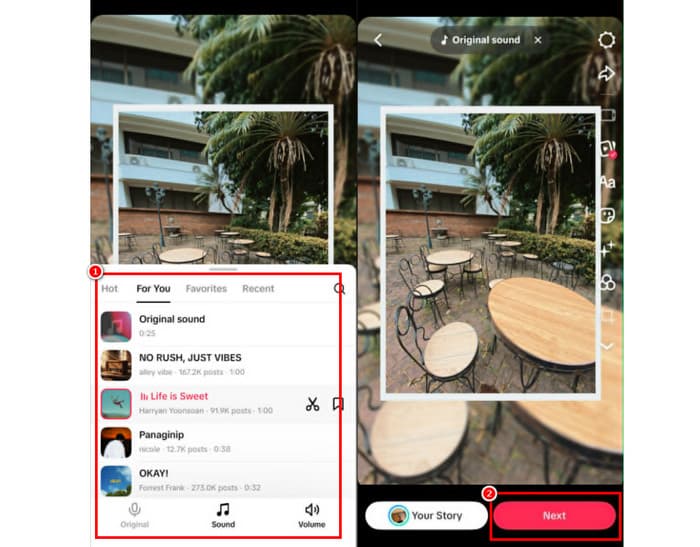
Step 1 You can open your social media, like TikTok, on your phone. After that, tap the Plus button to add the image.
Step 2 Then, you will see the music section from the top part of your photo. Press it and start choosing your preferred music.
Step 3 Once done, you can tap the Next option to proceed with the saving process.
Part 5. FAQs of Adding Music to Photos
Do I need to pay to add music to a photo?
No. There are some editing platforms that can let you add audio to a photo for free. With that, there is no need for you to spend a penny.
What are the best tools I can use to add music to my photos?
There are many editing tools you can use to achieve your goal. You can use Tipard Video Converter Ultimate, CapCut, Kapwing, Media.io, and more.
Can I use any song for my photo?
You can use your audio files. However, if you are planning to add music to a photo and post it on some platforms, like YouTube and Instagram, ensure that the songs are royalty-free to avoid copyright issues.
Conclusion
With this tutorial, you have learned how to add music to a picture. So, use all the methods and see which one suits you. Plus, if you want the best tool that can help you add audio to your images, you can use Tipard Video Converter Ultimate. It can even offer more editing tools you can use to ensure a better and more satisfying media playback.

All-in-one video toolbox: convert, edit, upscale, enhance, and compress your videos easily
100% Clean & Safe
100% Clean & Safe

More Reading



About the Author


 Tipard Video Converter Ultimate