

Want to learn how to use Handbrake to convert a DVD to MP4? Well, Handbrake is among the free-to-use programs you can access on your desktop. It can offer a simple solution for ripping DVDs and transcoding them into MP4 files without affecting the quality too much. It can even let you change or customize some of the settings for better output. So, to learn the best method of converting your DVDs, start reading this tutorial.
Part 1. Convert DVD to MP4 Using Handbrake
Handbrake is a powerful, open-source, and free video transcoder. This software makes it easy to convert DVDs into MP4 files for playback on modern devices and other media players. However, to handle copy-protected discs, you'll need to install libdvdcss. It is a library that enables Handbrake to read and decrypt encrypted DVD content. Traditionally, Windows users relied on a simple .dll file. But newer versions of the library may no longer be distributed in that format, requiring manual compilation or alternative installation methods. With that, by combining a simple user interface with libdvdcss support, you can effectively convert your DVD into a universal MP4 format.
If you want to use Handbrake DVD to MP4 converter, you can follow the simple instructions below.
Step 1 First, you have to download Handbrake on your computer. Then, install and launch it on your screen.
Step 2 After that, you need to download the libdvdcss-2.dll file from a trusted source. Once done, place the file in the Handbrake installation folder.
You have to take note that some distributions no longer support the .dll files. You have to compile libdvdcss from source.
Step 3 After you insert the DVD into your computer, proceed to the program and hit the File button. You can also browse the DVD in your folder and drag it to the program.
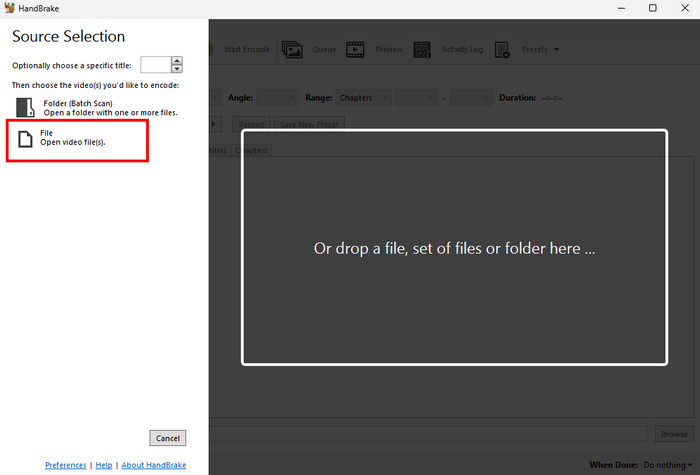
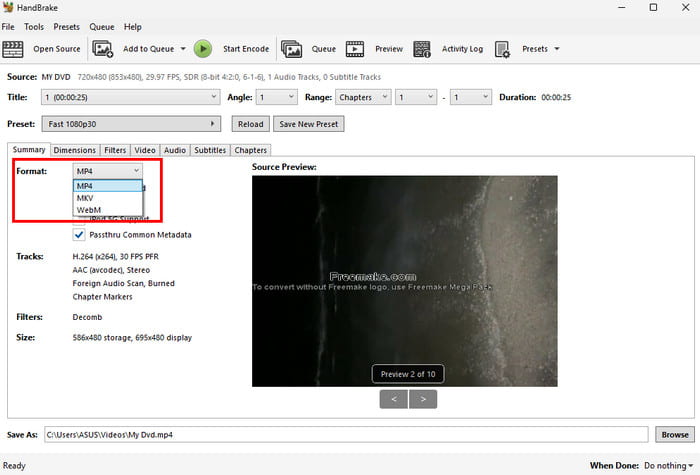
Step 4 Once the DVD is in the interface, go to the Summary section. Go to the Format option and choose the MP4 format.
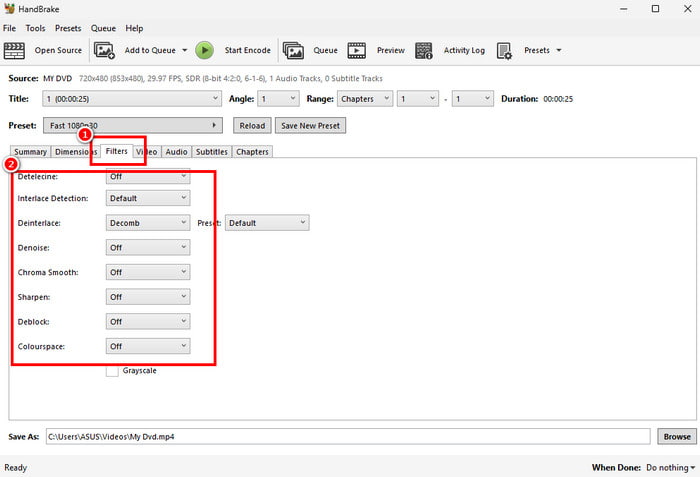
Step 5 Before the conversion process, you can also edit your file. You can proceed to the Filters section and use all the editing tools. You can denoise the video, sharpen, deinterlace, and more.
Step 6 For the final DVD to MP4 conversion process, go to the top interface and tap Start Encode. Once the process is done, go to your folder and check the video.
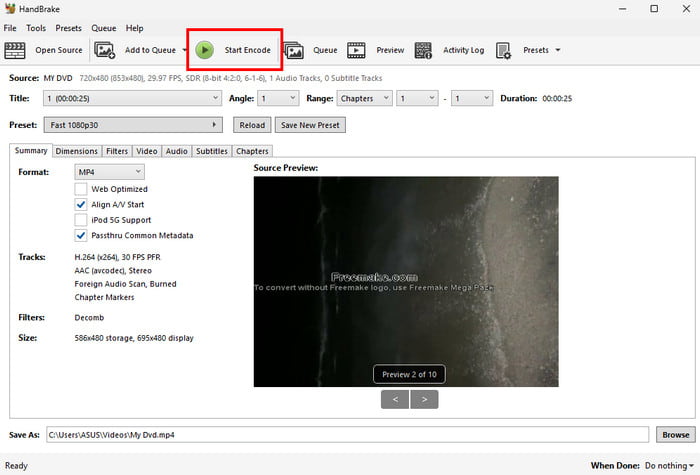
With this process, you can ensure that converting DVDs to MP4 is easy and effective. You can even get a smooth conversion process since the program has a simple user interface. You can even convert more formats to deal with compatibility issues. Thus, if you need an exceptional DVD to MP4 converter, always consider using Handbrake.
Part 2. Best Settings for Converting DVD to MP4 on Handbrake
When using Handbrake to rip a DVD to MP4, choosing the right settings is important. It is to ensure that you get the best balance of file size, quality, and playback compatibility. If you want to see the best settings when converting DVD to MP4 on Handbrake, you can check the simple table we have provided below.
| Setting | Recommended Value | Why it Matters |
|---|---|---|
| Format | MP4 | Universally supported across devices |
| Frame Rate | Same as source | Keeps playback smooth and authentic |
| Video Codec | H.264 (x264) | Efficient compression with excellent quality |
| Constant Quality | RF 18–20 | 18 is near-lossless, 20 balances size and quality |
| Preset | Fast or Very Fast | Faster encoding with good results |
| Audio Codec | AAC (160–192 kbps) | Clear audio, widely compatible |
| Subtitles | Burn-in or soft subs | Burn-in for permanent, soft for optional |
| Deinterlace/Decomb | Enable if interlaced | Ensures clean progressive video |
| Resolution | Keep original (480p) | Avoids unnecessary upscaling |
| Show MoreShow Less | ||
Extra Tips
- Enable Web Optimized if you are planning to upload or stream the MP4 file online.
- For encrypted discs, you have to install libdvdcss. Note that newer versions may not come as .dll files.
- Always keep the Chapter Markers to retain DVD navigation features.
Part 3. Limitations of Ripping DVD to MP4 on Handbrake
Handbrake is an excellent converter for transcoding your DVDs into MP4 formats. However, you must know that there are some limitations that you might encounter. Some of them are:
- DVDs are limited to 480p. It cannot upscale the video, which may not satisfy users when playing the file.
- When choosing a lower RF value to preserve the quality, it can result in a larger file size. When choosing a higher RF, it will sacrifice the detail.
- The performance of the software might be inconsistent. There are times when you can get poor video and audio quality after the ripping process, especially when using the program on a newer computer.
- There is no disc authoring. The program can only convert discs into various formats, like MKV, MP4, and WebM.
- There are times when the Handbrake won't open, which can be disturbing to some users.
Part 4: Best Alternative to Handbrake to Rip Copy-Protected DVD to MP4
Using Handbrake to transcode a DVD to MP4 is ideal since it can give you the result you need. However, after exploring some of its limitations, you might wonder if there is another converter that can replace the program. Well, if you want the best alternative to Handbrake, look no further than Tipard DVD Ripper.
This professional-grade program was designed to make DVD conversion quick, adaptable, and future-proof. In contrast to HandBrake, it can rip DVDs to 500+ formats, including ACI, MKV, MP4, MOV, ProRes, and more. It offers basic editing tools, such as watermark, cropper, effects, and more, to improve the video. Plus, it uses full hardware acceleration, making it more powerful.
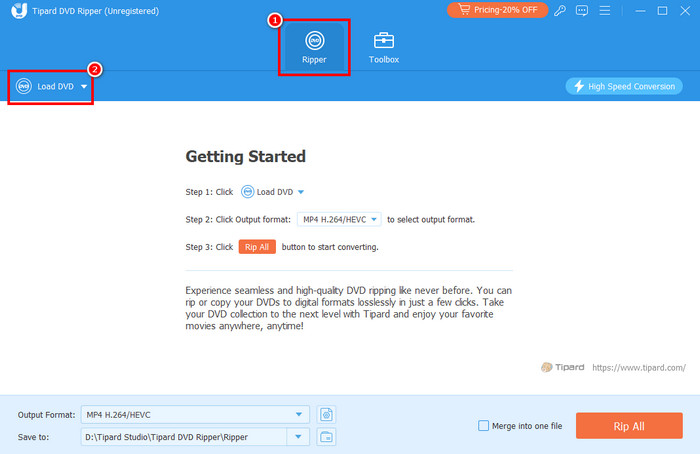
Step 1 Download Tipard DVD Ripper on your computer. Then, launch it to start the DVD to MP4 conversion process. Then, insert the DVD into your computer.
Step 2 From the Ripper section, click the Load DVD to start adding the DVD inside the program's interface.
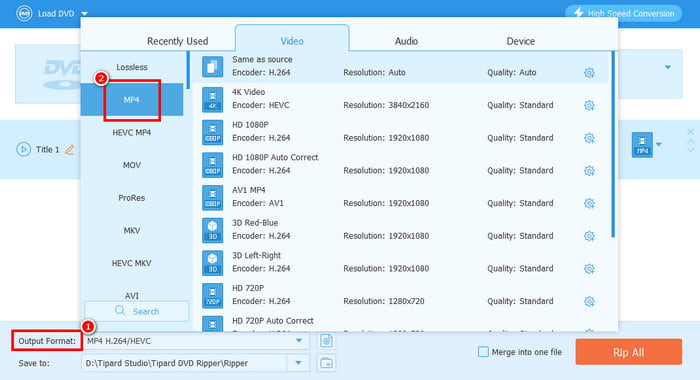
Step 3 Proceed to the Output Format and choose MP4. You can also select your desired codec and quality.
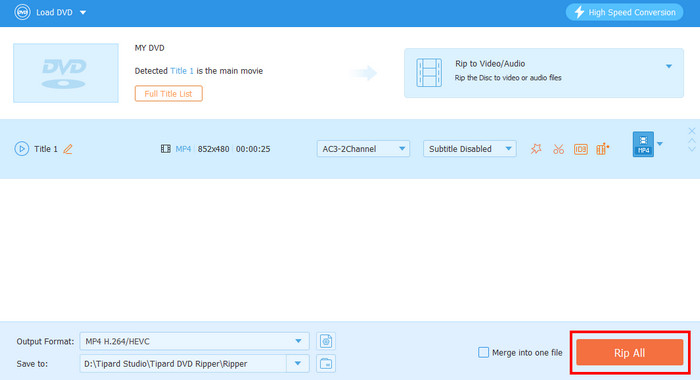
Step 4 Finally, hit the Rip All button below to begin turning your DVD into MP4 format.
Part 5: FAQs about Handbrake DVD to MP4
What format should I choose when converting DVDs?
If you want to experience better video playback, it would be better to select MP4, MKV, and MOV. These formats are ideal since almost all platforms support them. They can even offer better quality for satisfying playback.
Is Handbrake safe to use to convert DVDs?
Definitely, yes. Handbrake is among the safe-to-use converters you can rely on. The program ensures that you can deal with your DVDs and won't share your date without your consent.
Is Handbrake available on both Mac and Windows?
Absolutely, yes. You can install Handbrake on Mac, Windows, and Linux. With that, you can ensure that you convert your files on your desktop.
Conclusion
If you want to convert a DVD to MP4 using Handbrake, there is no doubt that this tutorial can give you the information you need. It can offer the best way to transcode your DVD to MP4, along with its recommended settings and limitations. Plus, if you need an excellent Handbrake alternative, you can access Tipard DVD Ripper. This program can let you achieve the result you want since it can offer all the features you need without any restrictions, making it the most reliable replacement for Handbrake.

Rip DVD to 500+ Video/audio formats with AI Upscaling
100% Clean & Safe
100% Clean & Safe

More Reading


About the Author


 Tipard DVD Ripper