

Bumble is a female-founded dating app and social network. It allows women to make the first move in a respectful online dating space. Similar to other dating apps, Bumble works based on location on both desktop and mobile devices. One key feature is a 24-hour messaging window. After matching, a user has 24 hours to send a message, and the recipient has 24 hours to reply. This article answers whether Bumble notifies screenshots.

Part 1: Does Bumble Notify Screenshots?
Does Bumble alert screenshots? No, Bumble won’t notify anyone when you screenshot a profile or messages. In fact, it cannot detect your actions when screenshotting. Therefore, others won’t get an alert, badge, or log. This is true for profiles, photos, and private chat history. All in all, Bumble has no screenshot detection of any kind.
Part 2: Take Screenshots on Bumble on Windows/Mac/Chromebook
How to Take Screenshots on Bumble Cross-Platform
Tipard Screen Capture is a flexible way to screenshot Bumble profile, photos, messages, and more. It allows you to capture the entire screen or a partial area when accessing Bumble in a web browser. Moreover, it enables you to draw on screenshots directly.
- Take screenshots on Bumble in one click.
- Draw on screenshots easily to add annotations.
- Save screenshots to the clipboard or local hard drives.
- Offer bonus features, like recording the screen.
- Support a wide range of custom options, like codec adjustment.

Here are the steps to take a screenshot on Bumble
Step 1Install the Bumble screenshot tool
Launch the screenshotting tool after you install it on your PC. There is another version for Mac.

Step 2Take a screenshot
Click the Screenshot button with a camera icon at the top right corner, and choose the Screen Capture option. Select the area you want to screenshot on your desktop.

Step 3Edit and save the screenshot
Once you release your mouse, the preview window will appear. View the screenshot and edit it. Finally, click the Save button.
Here are the steps to take a screenshot on Bumble on your phone:
Step 1Connect to your phone
Connect your iPhone or Android phone to your PC with a compatible cable. Run the screenshotting tool, choose the Phone Recorder mode, and choose your phone OS. Follow the onscreen instructions to connect your phone.

Step 2Take a screenshot on Bumble
Visit the Bumble app on your mobile device and locate the screen you want to screenshot. Click the SnapShot button to take a screenshot.

How to Screenshot on Bumble with Shortcuts
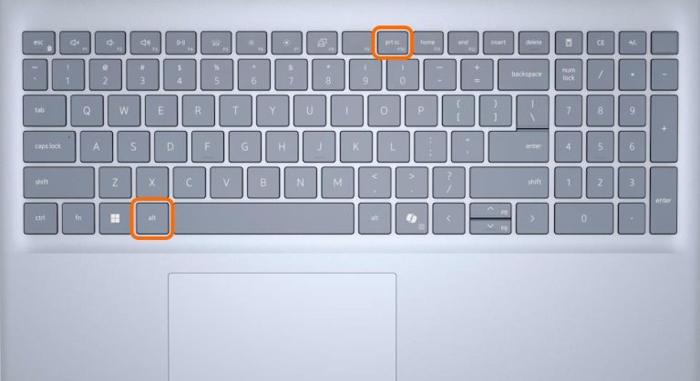
Every computer can take a screenshot on Bumble with a keyboard shortcut, but the keys are different, depending on your operating system. That is an easy way to capture the profile, a photo, or messages in your browser.
Step 1Open a browser.
Step 2Visit Bumble and sign in with your account.
Step 3Locate the page you want to screenshot.
Step 4Press the right keys:
Windows: Alt + Print
Mac: Command + Shift + 4
Chromebook: Ctrl + Shift + Show Windows
Step 5Paste the screenshot into a document and save it to your hard drive:
Windows: Open MS Paint, paste the screenshot, and save it as an image.
Mac: Open Preview, paste the screenshot, and export it.
Chromebook: Open the built-in image editor via the Bumble screenshot notification, paste the screenshot, and save it.
Part 3: Take Screenshots on Bumble on iPhone/Android
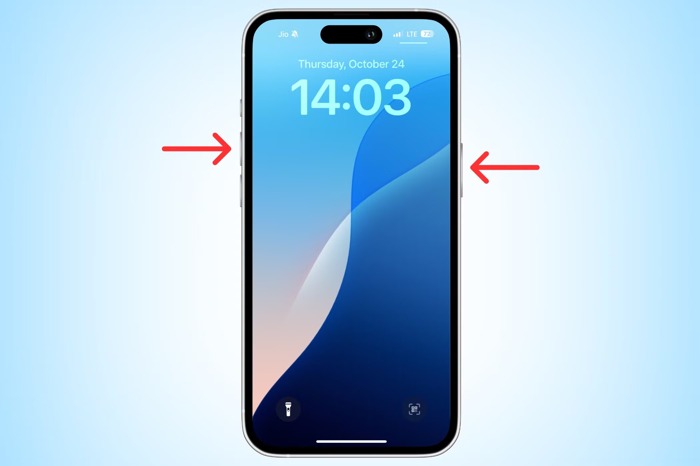
If you visit Bumble on your iPhone or Android phone, you can also take screenshots of your Bumble profile, photos, messages, matches, and more. Depending on your phone brand and model, you can screenshot Bumble on your handset with the physical buttons.
Step 1Run the Bumble app on your phone and log in to your account.
Step 2Move to the screen you want to screenshot.
Step 3Press the buttons:
On an iPhone without the Home button: Press the Side + Volume Up buttons
On an iPhone with the Home button: Press the Home + Sleep/Wake buttons
On a general Android phone: Press the Power + Volume Down buttons
On a Samsung, Pixel, or Moto phone: Hold the Power button and choose Screenshot.
Tip: To take a scrolling screenshot on Android 12 and above, press Power + Volume Down, and tap Capture more.
Step 4Then, go to the Photos or Gallery app.
Step 5Access the Screenshots album to find the Bumble screenshot.
Conclusion
This article explains whether you can screenshot on Bumble. You should understand that this dating app cannot detect your activities on both desktop and mobile devices. Furthermore, you can learn how to capture important information on the dating app on Windows, macOS, ChromeOS, Android, and iOS. Tipard Screen Capture is the ultimate option to screenshot on your computer and mobile device to save matches, profiles, photos, messages, and more on the dating app.

Record full screen, portion, window, game, and phone seamlessly without lag
100% Clean & Safe
100% Clean & Safe

More Reading




About the Author


 Tipard Screen Capture