

Recording your screen is useful for many purposes. It helps save gameplay, tutorials, meetings, and online videos with ease. One tool known to help with this task is DU Screen Recorder.
Have you heard or used it before? If not, this guide can help you learn more about the app. It covers its features, benefits, and limits. It also explains its safety and the alternatives available on different platforms.
Part 1. What Is DU Screen Recorder
DU Screen Recorder is a simple app for recording screens. It allows users to capture videos, live streams, and screenshots. The app works well for beginners and content creators.
Tech specs and facts:
| Developer | DU Recorder Team (DU Recorder © 2019) |
|---|---|
| Supported Platforms | Android, iPhone, Windows, and Mac |
| Main Use | Screen recording, livestreaming, screenshots, and basic video editing |
| Video Quality | Supports HD recording up to 1080p at 60fps |
| Audio Support | Records device sound and microphone input |
| Editing Tools | Trim, merge, add music, text, filters, and speed adjustments |
| Livestream Platforms | YouTube, Facebook, and Twitch |
| Show MoreShow Less | |
Part 2. Core Features of DU Screen Recorder
DU Screen Recorder comes with useful tools. These tools help users record their screens. They also help improve the quality of recorded videos. It combines screen capture and simple editing in one app.
1. Screen Recording
With just one tap, users can record their screen with DU Screen Recorder. It can record gameplay, online videos, video calls, and apps.
2. High Definition Video Output
The app supports high-quality recordings up to 1080p at 60fps. Users can adjust video settings to get clearer results.
3. Video Editing Tools
DU Screen Recorder includes basic editing features. Users can trim clips, merge videos, add music, insert text, and adjust playback speed.
4. Live Streaming
Users can stream their screens straight to YouTube, Facebook, and Twitch. This feature is useful for gamers and content creators.
5. creenshot and Image Editing
The app can capture screenshots. It also includes tools to crop, blur, and combine images.
6. Video Production Services
DU Screen Recorder also provides professional video editing services. It creates promotional videos, intros, outros, and creative video projects for different users.
Part 3. Detailed Review of DU Screen Recorder
DU Screen Recorder gives users an easy way to capture videos and make quick edits. However, it also has some limits that you should know before using it.
Pros of DU Screen Recorder
- Allows direct streaming to popular platforms.
- Users can edit videos without installing another app.
- Records videos up to 1080p at 60fps with clear visuals.
- The one-tap recording system makes it friendly for beginners.
- Users can use DU Screen Recorder on Android to record their screens. It does not need changes to system settings.
Cons of DU Screen Recorder
- Some users worry about data handling.
- Free users may see ads while using the app.
- The editor is good for basic edits but lacks advanced effects.
- The app is no longer on Google Play and may need an APK download.
Is DU Screen Recorder Safe
DU Screen Recorder is generally safe when downloaded from its official source. However, users should be careful when installing the DU Recorder screen recorder APK. Downloading it from unknown websites may cause security risks.
You should also know that some privacy concerns have come up. These privacy issues relate to the app's developer. So, you must check app permissions and avoid giving access that is not needed.
Feature Tests and Performance
We tested DU Screen Recorder's main tools to see how well they work for daily screen recording needs. Good thing, it delivers smooth performance and simple controls for different tasks.
1. Screen Recording Performance
It captures gameplay, tutorials, and app activities with clear video quality. The recording process feels smooth and works well for basic screen capture.
2. Video Editing Performance
The built-in editor handles immediate edits. We used it to trim clips, merge videos, add music, and make simple improvements before sharing.
3. Livestream Performance
The livestream feature makes sharing screens easier. It allows users to broadcast content straight to YouTube, Facebook, and Twitch.
4. Ease of Use Performance
DU Screen Recorder has a simple layout that is easy to understand. We were able to start recordings immediately without dealing with complex settings.
DU Recorder Black Screen Issue
Some users may experience a DU Recorder black screen issue during recording. It can happen because of app restrictions or missing permissions.
Part 4. Top 3 DU Screen Recorder Alternatives on All Platforms
1. Tipard Screen Capture
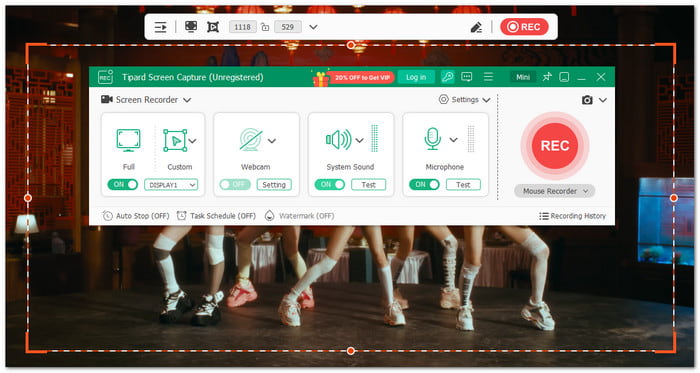
A safe and clean recording program always gives you peace of mind. Unlike DU Screen Recorder, Tipard Screen Capture focuses on user security. It provides a smooth recording experience. It also helps users record videos with more privacy and safety.
It uses modern AV1 and HEVC codecs to make video files smaller while keeping them clear. You can organize your recordings and share them on social media. It also runs smoothly with low system use. With that, you can record without problems.
User Review from Trustpilot:
Users like Tipard Screen Capture because it has easy controls. It provides a smooth recording process. It also includes useful editing tools for improving videos. They also praise its audio recording features and helpful customer support.
2. AZ Screen Recorder
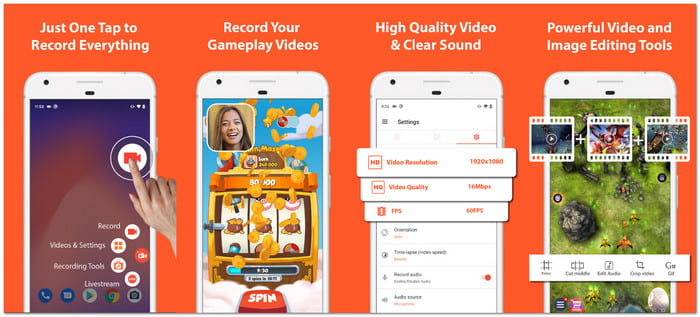
AZ Screen Recorder is an option for DU Screen Recorder on Android and iOS. It can capture gameplay and record Skype calls. It can also record app activities without adding watermarks. There are no time limits when recording videos. It also supports livestreaming and screenshot editing for quick content creation.
User Review from Google Play Store:
Good recording app with smooth performance. Users like the audio controls and easy recording process.
3. Loom
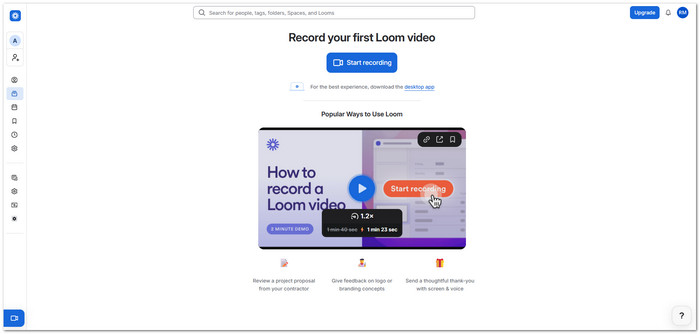
If you do not want to download DU Screen Recorder, you can try an online tool like Loom. It allows you to record your screen, voice, and face at the same time. It also has simple editing tools for quick changes. You can share videos using links. It supports HD recording up to 4K quality. It also provides tools that help teams work together.
User Review from TechJockey:
Users like Loom's simple interface, fast recording setup, and direct video sharing.
DU Screen Recorder Alternatives Comparison Table for Easy Selection
| Factors | Tipard Screen Capture | AZ Screen Recorder | Loom |
|---|---|---|---|
| Ease of Use | Simple to use. | Easy one-tap recording. | Fast and simple setup. |
| Supported Platforms | Windows and Mac. | Android and iOS. | Windows, Mac, Chrome, iOS, and Android. |
| Recording Quality | High-quality 4K recording. | Up to 4K recording. | HD up to 4K recording. |
| Audio Recording | System and microphone audio. | Internal and mic audio. | Voice and system audio. |
| Facecam Support | Webcam overlay available. | Floating facecam window. | Camera bubble recording. |
| Video Editing | Trim, compress, and convert videos. | Trim, merge, and add music. | Trim and add simple edits. |
| Best Feature | Quality, codec support, and easy management. | Mobile recording with no watermark. | Quick video sharing and teamwork. |
| Show MoreShow Less | |||
Conclusion
DU Screen Recorder offers easy recording, HD quality, and useful editing tools. However, safety, ads, and limited advanced features may affect the experience.
If you are not satisfied with DU Screen Recorder for PC, you can try another option. Tipard Screen Capture is a good choice for better performance. It provides high-quality screen recordings for different needs.

Record full screen, portion, window, game, and phone seamlessly without lag
100% Clean & Safe
100% Clean & Safe

More Reading



About the Author


 Tipard Screen Capture