

If you create videos on your phone, you may already be familiar with KineMaster. It is one of the most versatile editing apps on Android and iOS. But as projects grow, small screens become limiting. Editing feels harder. Many users then search for KineMaster for PC or a PC download every day.
But the question is, is there really a PC version? That will be answered in this post, along with its limits and better alternatives.
Part 1. Is KineMaster Available on PC
As of May 2026, there is no official KineMaster app for Windows PCs or desktop computers. KineMaster is only made for Android and iPhone devices. There is no real .exe installer from the official KineMaster website. It answers the question "Is Kinemaster available for PC?"
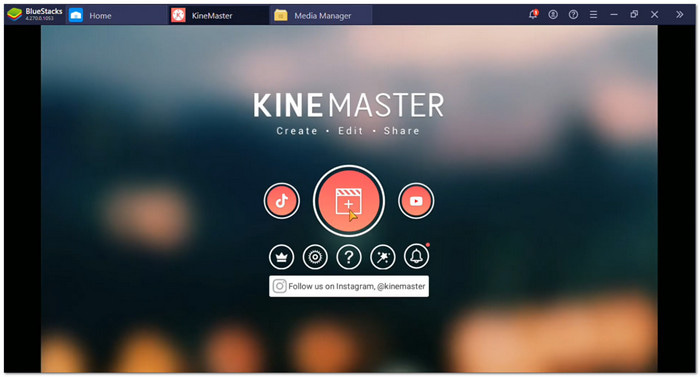
Some users still run KineMaster on a computer by using Android emulators like BlueStacks. It lets the mobile app work on Windows. Still, it is not a native desktop version.
People want KineMaster on PC for a few simple reasons:
- Users may see timelines and clips more clearly on a bigger screen.
- For in-depth editing, a mouse and keyboard feel more convenient.
- PCs are faster at handling complex video editing.
- While working on big projects, some phones are sluggish or crash.
Be careful when searching for "KineMaster for PC." Many websites claim to offer the official desktop app, but most are fake.
These sites often share:
- Malware or viruses
- Fake installers
- Unsafe cracked versions
- Apps that steal personal data
Some pages also promise a "free no watermark" version. Most of these downloads are not safe. They are not official KineMaster software.
Part 2. How to Install KineMaster on PC with an Emulator
You cannot directly use a Kinemaster download for PC the way you would with a typical Windows program. You need an Android emulator first. One of the most popular options is BlueStacks. It lets your computer run Android apps on a bigger screen.
Step 1 Go to the primary BlueStacks website and download the latest version for your Windows PC. Open the installer after the download finishes. Follow the on-screen setup steps. Once done, launch BlueStacks to open the Android-style home screen.
Step 2 Open the Google Play Store inside BlueStacks. Sign in with your Google account. It gives you access to Android apps just like on a real phone or tablet.
Step 3 Type "KineMaster" in the Play Store search bar. Look for the official app from the real developer. Click the Install button, and please wait for the download to finish. After the installation, the KineMaster logo will appear on the BlueStacks home screen.
Step 4 To open the application, click the KineMaster logo. Use your mouse and keyboard to edit videos. To improve editing performance, open the BlueStacks settings and increase the RAM or the number of CPU cores if the application seems sluggish.
Part 3. Limitations of Using KineMaster on PC with an Emulator
Using KineMaster on a PC can be helpful for bigger-screen editing. But since it runs through an emulator, there are still some limits you should know before using it.
1. Performance Problems
Editing may cause the app to slow down or crash. Large projects and 4K movies may cause the emulator to lag. KineMaster may not be compatible with all PC functions.
2. Mobile-Based Controls
KineMaster is designed for touchscreens. Because of this, using a mouse and keyboard may feel less smooth for trimming clips or moving layers.
3. No Official Emulator Support
KineMaster does not officially support emulators like BlueStacks. Some updates may also cause bugs or stop the app from working correctly.
4. Watermark and Safety Risks
Videos exported from the free version include a watermark. To get rid of them, some people download cracked APKs, which are often dangerous and fraudulent. They might have dangerous software, viruses, or malware.
Part 4. Top 3 KineMaster Alternatives on Windows and Mac
With the drawbacks above, it is better to use a real video editor. You can check the options below! They work smoothly on Windows and Mac.
1. Tipard Video Converter Ultimate
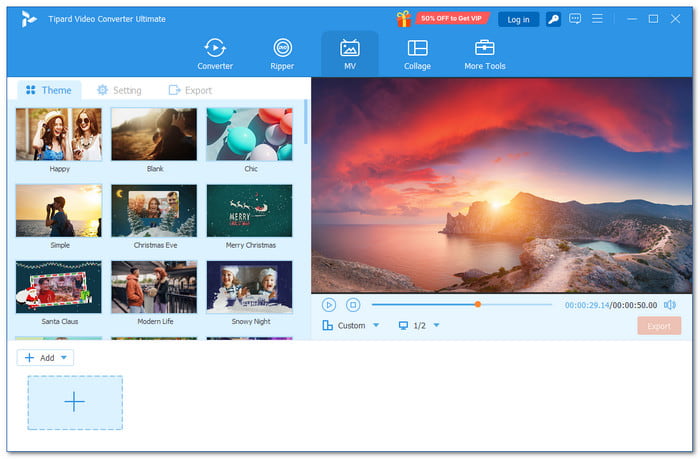
Tipard Video Converter Ultimate offers a seamless, accurate video editing experience, making it a strong alternative to Kinemaster for PC. It means smoother edits with fewer errors and stable output quality. It supports multiple professional and modern video output codecs. It gives you more format choices for different devices and platforms.
It supports batch conversion with a single setting applied to all files, saving time when editing many videos. It also supports full hardware acceleration on Windows and Mac. It speeds up rendering and reduces lag.
Key Features:
- More than 500 file types are supported for wide device compatibility.
- AI stabilization, noise reduction, and upscaling.
- Tools for editing audio, subtitles, cropping, combining, and trimming.
- Collage and MV maker with themes and effects.
- 20+ toolbox tools, like a video compressor and GIF maker.
- Fast conversion with hardware acceleration.
- Simple interface, easy to use.
- All-in-one tool for converting, ripping, and editing.
- Full features need a paid subscription or a lifetime plan.
2. Capcut for Desktop
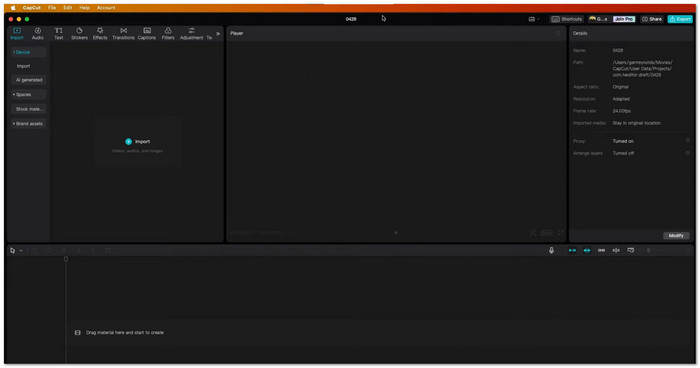
CapCut for Desktop is one of the closest apps like KineMaster for PC users on Windows and Mac. It keeps the simple mobile-style editing layout many creators already know. At the same time, it adds stronger desktop tools, AI features, fast exporting, cloud syncing, and direct sharing for platforms like TikTok and YouTube. It works well for beginners and daily content creators.
Key Features:
- Large collection of effects and filters.
- AI script-to-video generation tools.
- Automatic captions for videos and audio.
- Keyframe animation and motion graphs.
- Smart color wheel and auto adjustment tools.
- Similar feel to mobile editing apps.
- Fast rendering and exporting speed.
- Large stock asset and music library.
- Some tools need a Pro plan.
- Advanced editing is still limited to professionals.
- Users experiencing CapCut not working issues, such as crashes, lag, or the app not opening.
3. DaVinci Resolve
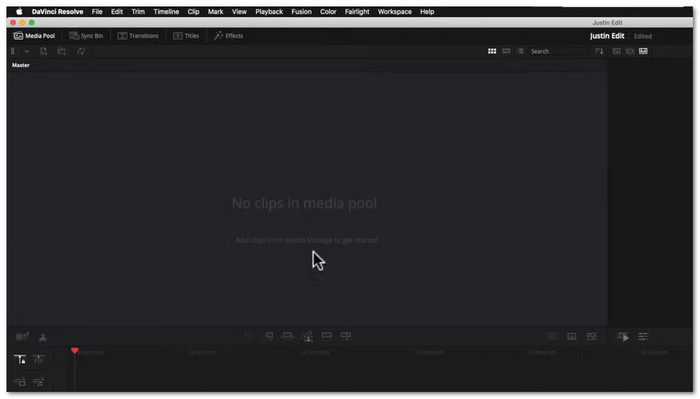
DaVinci Resolve is built for users who want more than basic mobile editing. It is one of the best software like Kinemaster for PC free no watermark options for advanced users. It combines video editing, color grading, visual effects, motion graphics, and audio editing into a single program. Many filmmakers and YouTubers use it because it gives professional-level tools without forcing users to pay for the free version first.
Key Features:
- Advanced color correction tools.
- Integrated motion graphics and visual effects.
- AI-powered editing and search tools.
- Superior tools for editing audio.
- Broad support for import and export formats.
- The free version has many powerful tools.
- Excellent color grading features.
- Strong effects and animation system.
- Needs a strong PC and GPU.
- Harder to learn for beginners.
- It can feel overwhelming at first.
Part 5. FAQs of KineMaster for PC
Is KineMaster or CapCut better?
CapCut is a better video editor for PC. It runs natively on Windows, so it works more smoothly. KineMaster needs an emulator, so it lags.
Is KineMaster completely free?
No, it is not fully free. It has a free version, but it adds a watermark on exported videos. You need to pay to remove the watermark and unlock full features.
What are the disadvantages of KineMaster?
KineMaster does not have an official PC version. You need an emulator to use it on a computer. It can make it slow or cause crashes. The free version also adds a watermark. Some features are only available in the paid plan.
Conclusion
In response to the query, "Is there a KineMaster for PC?" this article revealed that it is limited to using an emulator such as BlueStacks. You do not need to settle for that limited setup. You can use real PC editors instead, like Tipard Video Converter Ultimate. It is more stable, faster, and helps you refine videos with better control and smoother performance.
More Reading




About the Author


 Tipard Video Converter Ultimate