

- Part 1: Bandicut at a Glance
- Part 2: What Is Bandicut?
- Part 3: Bandicut Video Cutter: How Does It Work?
- Part 4: Bandicut Video Splitter: Is It Good for Large Videos?
- Part 5: Bandicut Video Editor: What Else Can It Do?
- Part 6: Bandicut Download: Is It Free?
- Part 7: Bandicut Pros and Cons
- Part 8: The Best Alternative to Bandicut
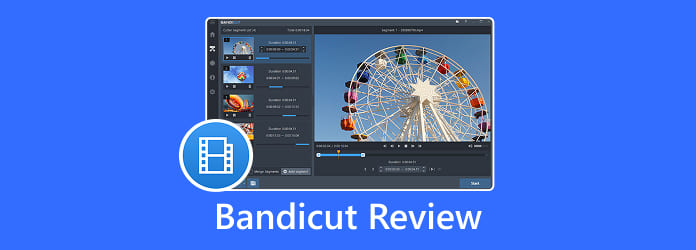
If you are looking for a simple tool to cut, split, or join videos, you may have come across Bandicut. It is designed mainly for fast video cutting and joining, and it is especially useful when you do not need a full professional video editor.
But is Bandicut the right choice for everyone? What can you do with the Bandicut video cutter? Is it for large video files? In this review, we look at its main features, supported platforms, pricing, and version differences, strengths, and limitations. And you will know whether Bandicut is a good choice for you.
- Part 1: Bandicut at a Glance
- Part 2: What Is Bandicut?
- Part 3: Bandicut Video Cutter: How Does It Work?
- Part 4: Bandicut Video Splitter: Is It Good for Large Videos?
- Part 5: Bandicut Video Editor: What Else Can It Do?
- Part 6: Bandicut Download: Is It Free?
- Part 7: Bandicut Pros and Cons
- Part 8: The Best Alternative to Bandicut
Part 1: Bandicut at a Glance
| Feature | Bandicut |
|---|---|
| Main purpose | Video cutting, splitting, and joining |
| MP3 extraction | Yes |
| High-Speed Mode | Yes |
| Frame-accurate cutting | Yes |
| Hardware acceleration | Yes |
| Supported input formats | Common video formats, including MP4, AVI, MOV, MKV, WebM, MPEG, MPG, VOB, WMV, TS, and M2TS, among others. |
| Video conversion | Basic; only support AVI, MP4, WebM, and MKV |
| Advanced video editing | Limited; only keyframe editing |
| Platform | Windows Only |
| Best for | Fast and simple video cutting and merging |
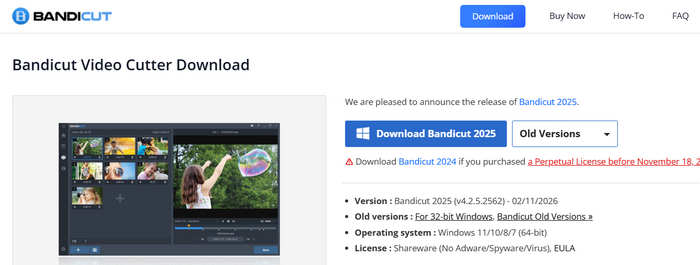
2026 Status Quo: On the official Bandicut webpage, you may see that the latest version of Bandicut is still 2025. You can also find older versions. Anyway, it means that the developer has been suspending updates for almost 1 year.
Part 2: What Is Bandicut?
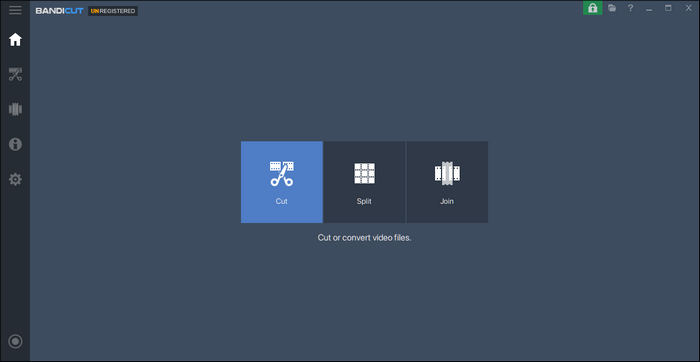
Bandicut is a Windows video cutter and joiner developed for quick video editing. Its main purpose is to let users cut the ends from a video, split a large video into smaller clips, trim out unwanted parts, or combine multiple video files.
Unlike traditional video editors that may need to render an entire video after every change, Bandicut offers a High-Speed Mode. This mode can cut and join compatible videos while minimizing re-encoding. This feature can preserve the original video quality and speed up the editing process.
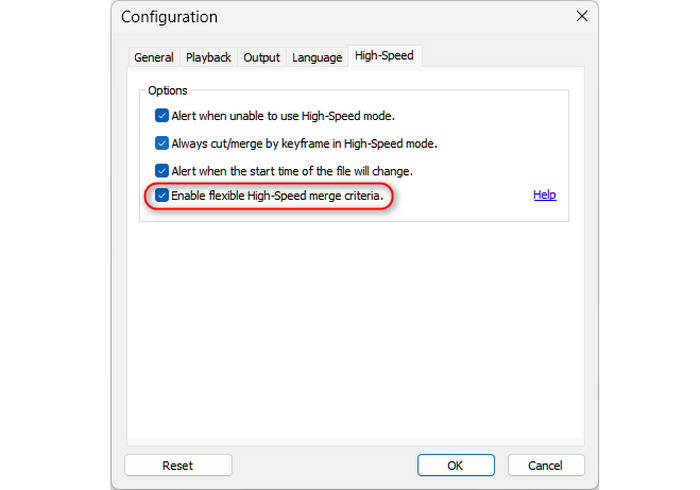
If you turn on the High-Speed mode in Configuration in Bandicut, you can enjoy a seamless process in tasks such as:
- Removing unwanted sections from a recording
- Cutting a long video into smaller clips
- Removing advertisements or unnecessary parts
- Joining several video clips
- Extracting audio from a video
- Preparing simple clips for sharing
If you only need these functions, Bandicut can be easier than a large professional video editor.
Part 3: Bandicut Video Cutter: How Does It Work?
The Bandicut video cutter is probably the software's most important feature.
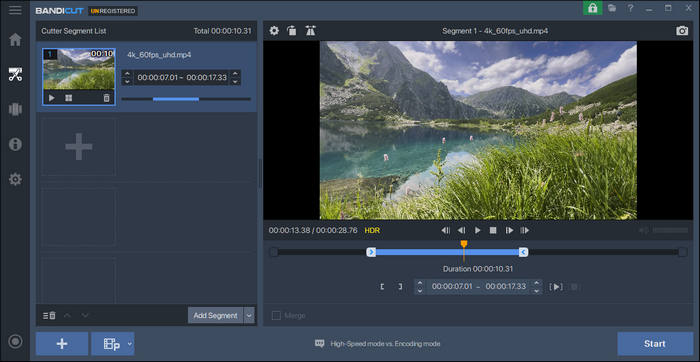
The basic workflow of Bandicut Video Cutter is simple. You import a video, drag the controllers to choose the section you want to keep or remove, and then export the result. You can specify the beginning and ending points of a section and then process the video.
Bandicut Video Cutter also supports frame-by-frame cutting. This can be useful when you need to find a specific moment instead of cutting approximately by seconds, which will make you a professional editor.
High-Speed Mode
One of Bandicut's key features is its High-Speed Mode. Instead of fully re-encoding the entire video, Bandicut can process compatible sections without unnecessary rendering. This can make video cutting much faster and help preserve the original video quality.
However, there is an important point to understand: High-Speed Mode is not the same as universal lossless editing.
Its availability depends on the input format, codec, and editing operation. Bandicut also provides an Encoding Mode when users need broader compatibility or want to change video properties such as codec, size, or quality.
Important Notes: In our test, a 4K UHD AV1 video with HDR will drain the High-Speed mode in Bandicut on a mid-level PC.
Part 4: Bandicut Video Splitter: Is It Good for Large Videos?
Bandicut can also work as a video splitter.
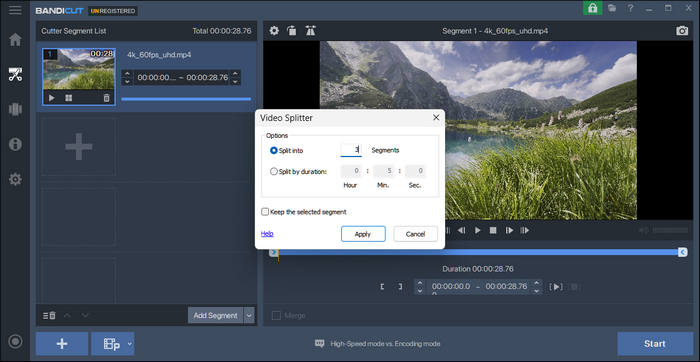
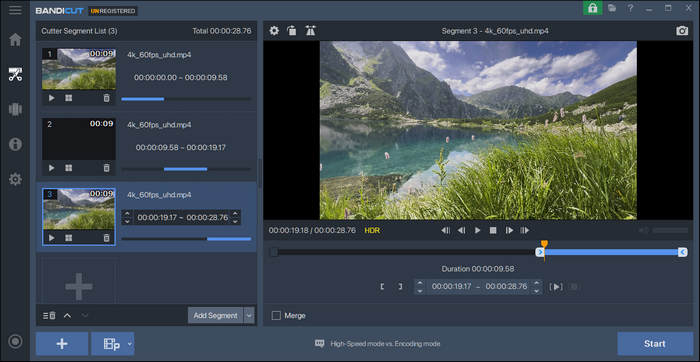
If you have one large video file and want to divide it into several smaller clips, Bandicut provides a straightforward workflow. This can be useful for long recordings, gameplay videos, lectures, camera footage, or other large files.
For example, you may want to:
- Divide a long video or recording into several smaller clips.
- Separate different scenes from one long video.
- Create shorter clips for social media.
- Split a large file into more manageable pieces.
Testing Result: Bandicut can smartly split a video. However, when we input a large 4K UHD video, it lagged for a while before showing the splitting interface.
Part 5: Bandicut Video Editor: What Else Can It Do?
The phrase Bandicut video editor can be slightly misleading if you expect a traditional full-featured video editing application.
Bandicut does provide several useful editing functions, including:
- Combining videos or recordings from Bandicam
- Removing unwanted sections
- Changing playback speed
- Extracting MP3 audio
- Hardware acceleration
However, Bandicut is not designed to compete directly with advanced editors and converters that provide large timelines, complex transitions, advanced color grading, multi-layer compositing, or extensive effects. However, Bandicut is better viewed as a fast video cutter and joiner than as a complete professional video editor.
- Who should use Bandicut: If your main goal is to cut a video quickly without re-encoding.
- Who shouldn't use Bandicut: If you want to cut, convert, compress, enhance, and edit videos in one application.
Part 6: Bandicut Download: Is It Free?
Users searching for Bandicut download will find a free version that can be downloaded from the official Bandicut website.
Bandicut currently provides a free version for Windows, and its official website lists compatibility with Windows 10 and Windows 11. The full version requires $38.47 for a lifetime license or $25.16 per year for subscription.
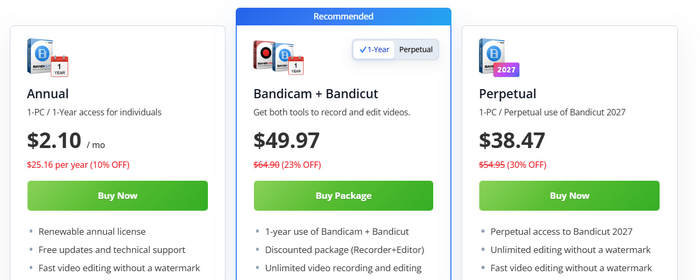
Conflicts in the version of Bandicut: From the official Bandicut download page, you'll see that the latest version is 2025, but in the purchase page, you can see the latest version is 2027. So, we recommend that you use the free version of Bandicut first and then decide whether use it or not.
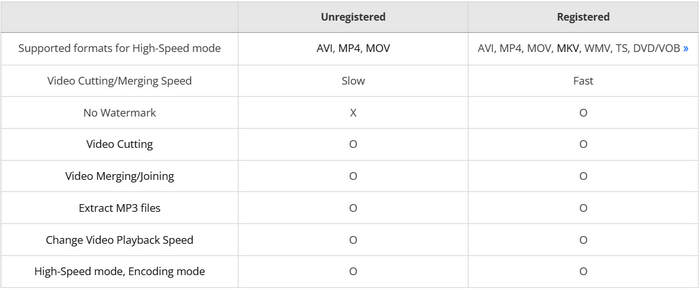
Also, you should distinguish between the free version and the full version. For example, Bandicut's official documentation shows that High-Speed Mode has different supported formats and codec limitations in the free version. The free version's High-Speed Mode supports AVI, MP4, and MOV, while some codecs and formats require the full version or Encoding Mode.
Is There a Bandicut for Mac?
No, there is no native Bandicut for Mac version. Bandicut is designed for Windows. Its official system requirements focus on Windows operating systems.
So if you want a Bandicut app for Mac, you should not assume that a third-party download claiming to be the official Mac version is genuine.
Mac users who want similar functions need to look for a Mac-compatible video cutter or an alternative video editing application. Instead, you should switch to a Bandicut alternative on macOS.
Part 7: Bandicut Pros and Cons
After looking at the main functions and some of our real-world testing results, we can summarize Bandicut's advantages and limitations.
- Simple and easy-to-understand interface
- Fast video cutting and joining
- Frame-accurate cutting
- Support MP3 extraction
- High-Speed Mode and hardware acceleration for compatible files
- Supports many popular and standard video formats for input and output
- Lightweight compared with professional video editors like Premiere Pro
- Mainly focused on basic video editing
- Advanced editing tools are limited
- Output format support is more limited than an all-in-one converter
- Windows-focused
- Not designed as a complete video conversion and enhancement suite
The most important conclusion is that Bandicut is not necessarily a bad video editor. Instead, it has a narrower product focus.
Part 8: The Best Alternative to Bandicut
If you are looking for a Bandicut alternative, Tipard Video Converter Ultimate is worth considering. The two products have different priorities. Bandicut focuses on fast cutting, splitting, and joining. Tipard Video Converter Ultimate combines video conversion with a wider set of editing, compression, enhancement, and media-processing tools.
- Offer a frame-by-frame video editor tool with simple workflow.
- Support all types of input and output video formats and configurations.
- Support batch conversion and editing to quickly edit multiple videos.
- Provide advanced hardware acceleration to smoothly edit videos with or without re-encoding.

Tipard Video Converter Ultimate supports more than 500 output formats and provides batch conversion, codec and bitrate controls, video compression, editing tools, AI enhancement, and DVD ripping. That makes it a better fit for users whose needs go beyond basic cutting.
Bandicut vs. Tipard Video Converter Ultimate
| Feature | Bandicut | Tipard Video Converter Ultimate |
|---|---|---|
| Video cutting | Yes | Yes |
| Video splitting | Yes | Yes |
| Video joining | Yes | Yes |
| Video conversion | Limited | Yes, have a dedicated video converter |
| 4K/8K video support | Yes, but will cause lags on low-end PC | Yes, smooth and fast |
| H.264/HEVC/AV1 | Only H.264 | Support all |
| Video compression | Basic | Yes, with a slider |
| AI video enhancement | No | Yes |
| Video filters | Limited | Yes |
| Crop/rotate | Limited | Yes |
| Watermark tools | Limited | Yes, add and remove watermarks |
| DVD ripping | No | Yes |
| Platform | Windows only | Windows and macOS |
Conclusion
Bandicut is worth considering if your main requirement is simple and fast video cutting. Its High-Speed Mode, frame-level cutting, splitting, joining, and hardware acceleration make it useful for users who do not want a complicated video editor. However, Bandicut is not a complete replacement for an all-in-one video converter and editor.
If your workflow includes converting, compressing, and enhancing, Tipard Video Converter Ultimate is a strong Bandicut alternative. It combines video editing with 500+ output formats, batch conversion, modern codec support, hardware acceleration, video compression, AI enhancement, and additional media tools.

All-in-one video toolbox: convert, edit, upscale, enhance, and compress your videos easily
100% Clean & Safe
100% Clean & Safe

More Reading


About the Author


 Tipard Video Converter Ultimate