

You can play a Video_TS folder on your computer. But it does not work well on phones. So you may ask, what should you do next?
The answer is simple: convert Video_TS to MP4.
MP4 works on almost all devices. You can play it on Windows, Mac, Linux, phones, and TVs without issues. There are 4 easy ways you can rely on in this write-up. They are simple and work well for beginners and experienced users.
Do you want to do it now? If yes, please read until the end.

Part 1. What Is a Video_TS Folder
If you have copied or opened a DVD on your computer, you may have seen a folder called Video_TS. This folder is an important part of a DVD. It stores the video, audio, subtitles, and DVD menu files needed for playback.
VOB, IFO, and BUP files are typically found in a Video_TS folder. The movie content is stored in the VOB files. Playback data is stored in the IFO files. The BUP files work as backup files in case something goes wrong.
Most Video_TS folders come from DVDs. However, many devices today do not support this format well. That is why many users convert Video_TS to MP4 for easier playback and sharing.
Part 2. The Easiest Way to Convert Video_TS to MP4
There is no easier way to convert Video_TS to MP4 than using Tipard DVD Ripper, as it offers one-click conversion for a full Video_TS folder. It lets you convert Video_TS to MP4 with subtitles and also edit or export them for better control.
It also supports MP4 presets for iPhone, iPad, Android, TVs, and more for smooth playback. Not only that, it can compress large Video_TS folders into smaller MP4 files. You also need to know that it uses full hardware acceleration for faster conversion speed.

- Supports 500+ formats like MP4, AVI, MKV, MOV, and ProRes.
- Adjust output settings like resolution, frame rate, and bitrate.
- Up to 30× faster ripping with high quality.
- Extra tools like video enhancer, compressor, and metadata editor.
- Editing tools for rotation, crop, effects, filters, and watermark.

Learn how to convert Video_TS to MP4 using Tipard DVD Ripper below:
Step 1 First, download and start using Tipard DVD Ripper on your Windows or Mac.
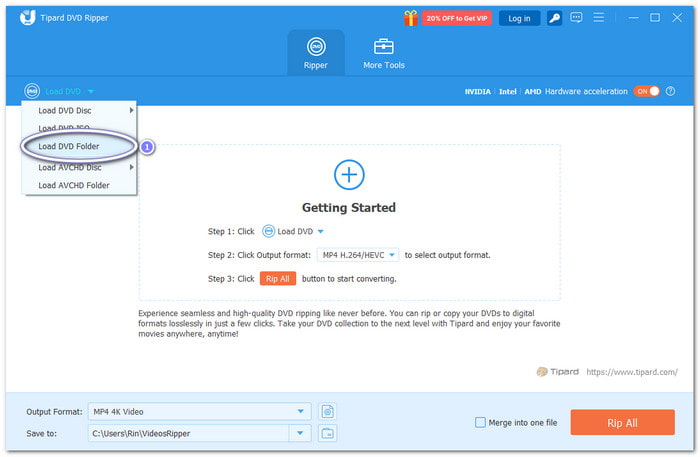
Step 2 What you need to do now is load your Video_TS folder. Just click the Load DVD button at the top left. Then, choose Load DVD Folder. Find your Video_TS folder on your device and click Open.
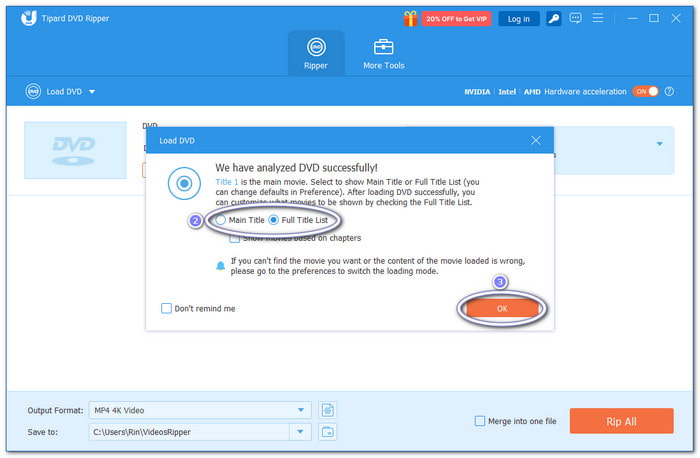
Step 3 Tipard DVD Ripper will scan your folder. Now, select the Main Title or choose the Full Title List if needed.
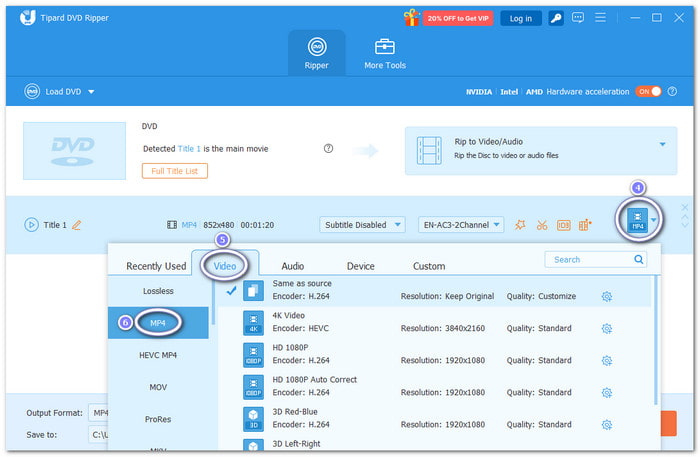
Step 4 Once everything is loaded, open the Profile drop-down menu. Head to the Video category and choose MP4 as your output format.
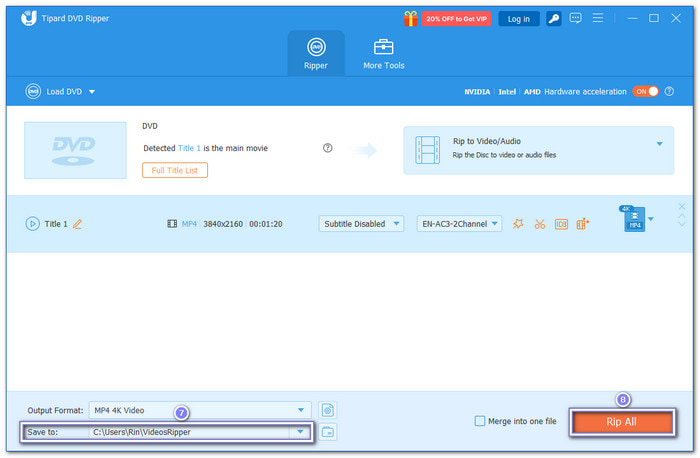
Step 5 Now, click the Save to option and choose a folder where your MP4 file will be saved. At last, press the Rip All button, and please wait for the progress indicator to reach 100%. Your MP4 file will be ready after that!
Part 3. How to Convert Video_TS to MP4 with VLC
This DVD player can also act as a converter for old DVD folders. It lets you convert DVD Video_TS files to the MP4 format. It is useful when you want a basic conversion without installing an extra program or learning complex tools.
Step 1 Download and install VLC on your computer. Make sure it supports your computer version before installing.
Step 2 Load the Video_TS folder. Click File in the top menu. Then, choose Open Disc. A new display will appear. Select Disable DVD menus. After that, choose the Open VIDEO_TS / BDMV folder and browse your Video_TS folder.
Step 3 Check the streaming option. Look for Stream Output or conversion options inside the display. It tells VLC that you want to convert the file instead of just playing it.
Step 4 Set the output format. Click Settings. Choose File as output. Press Browse and pick where to save your MP4 file. Set the encapsulation method to MPEG-4. Adjust video and audio settings if needed, like codec and bitrate.
Step 5 Start the conversion. Click OK. Then, go back to the main screen and click Open. VLC will begin converting Video_TS to MP4, so please wait until it finishes.
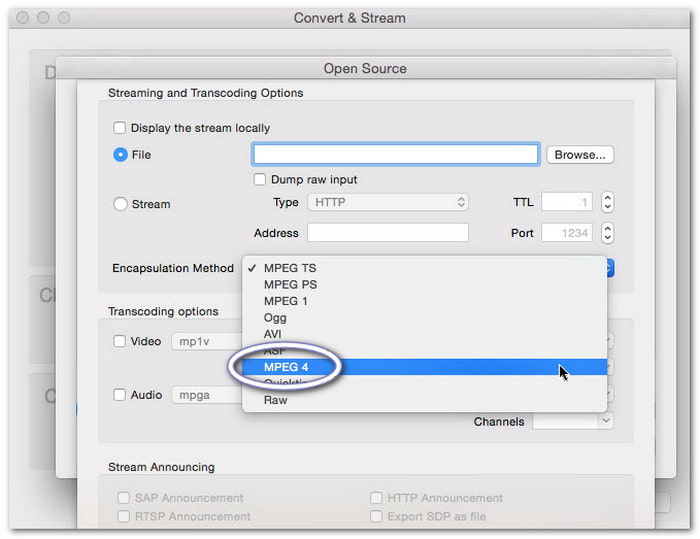
Good points and bad points: It is free and works on Windows, Mac, and Linux. It supports many file formats and has built-in conversion tools. However, it can be slow. It may take longer when managing large DVD folders.
Part 4. How to Convert Video_TS to MP4 with HandBrake
HandBrake is designed to convert a DVD folder to MP4 with clear output settings. It works best when you want more control over the finished video and the files are unprotected.
Step 1 Download HandBrake from the primary website, and it will run automatically after installation.
Step 2 Import the Video_TS folder. Click Open Source. Then, choose your Video_TS folder from your files. HandBrake will scan it automatically.
Step 3 Select the correct title. A Video_TS folder may contain multiple titles. Use the Title drop-down to pick the main video you want.
Step 4 Set the MP4 format. Choose a preset from the right side if needed. Go to the Summary panel. Make sure the format is set to MP4. It ensures the output file is correct.
Step 5 Choose output and start. Click Browse to pick a save location and name your file. Then, press Start Encode. HandBrake will begin converting Video_TS to MP4.
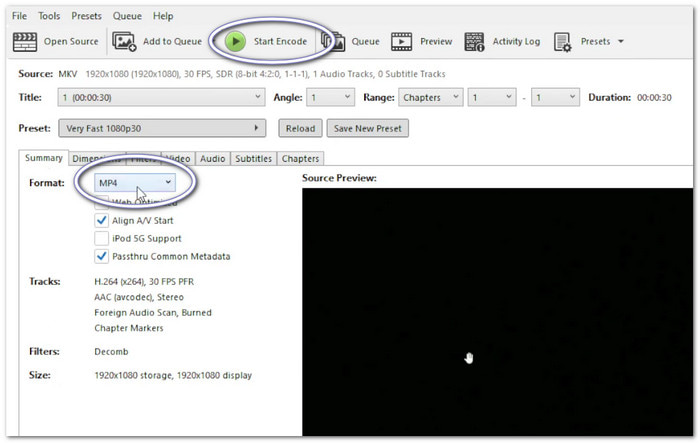
Good points and bad points: It is free and open-source and works on major systems. It offers many settings for video clarity and size. But it cannot rip a copy-protected DVD. It also does not allow video preview during conversion.
Part 5. How to Convert Video_TS to MP4 with FFmpeg
Advanced users who wish to use typed commands to convert a DVD folder to MP4 frequently use FFmpeg. Although it offers flexibility, proper operation requires a few basic technical steps.
Step 1 Install FFmpeg on your computer. Make sure it is added to your system path so it works in the terminal or command prompt.
Step 2 Open Terminal or Command Prompt. Go to the folder where your Video_TS files are stored. You can use the cd command to move there.
Step 3 Find your VOB files. A Video_TS folder contains VOB files like VTS_01_1.VOB. These are the video parts you will convert.
Step 4 Run the conversion command. Type a command like this: ffmpeg -i "concat:VTS_01_1.VOB|VTS_01_2.VOB" -c:v libx264 -crf 22 -preset slow -c:a aac -b:a 128k output.mp4. Replace file names based on your folder.
Step 5 Please wait for the process to finish. FFmpeg will start converting right away. When it ends, your MP4 file will be saved in the same folder or chosen path.
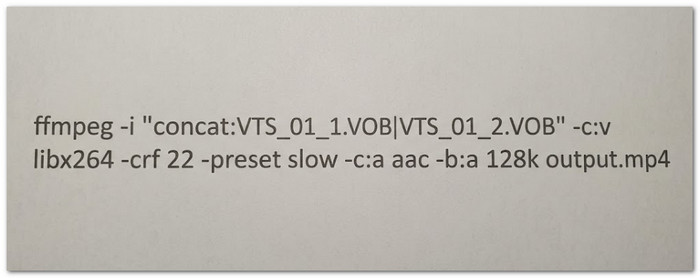
Good points and bad points: It is free, open-source, and supports many formats. It works on Windows, Mac, and Linux. But it can be hard for beginners. It also requires command-line knowledge to use properly.
Part 6. FAQs of Converting Video_TS to MP4
Why does my Video_TS folder have many VOB files?
DVD movies are usually divided into several VOB files. It helps store large videos in smaller parts. It also helps the DVD play smoothly on different DVD players.
Does converting Video_TS remove DVD menus?
Yes. MP4 files do not support DVD menus like Video_TS folders do. After conversion, you will only keep the video, audio, and subtitles in most cases.
What is the best codec for converting Video_TS to MP4?
H.264 is one of the best codecs for Video_TS to MP4 conversion. It gives good video quality and a smaller file size. It also works well on most phones, TVs, and computers.
Conclusion
Learning how to convert Video_TS to MP4 gives you easier playback and better device support.
To do it easily, you can use Tipard DVD Ripper. It supports more than just MP4 output; it also works with formats like AVI, MKV, and MOV. More than that, it can keep subtitles, offers better control, and uses hardware acceleration.
Rip DVD to 500+ Video/audio formats with AI Upscaling
100% Clean & Safe
100% Clean & Safe

More Reading


About the Author


 Tipard DVD Ripper