

Want to use HandBrake to convert VOB to MP4 format? Well, using HandBrake is a practical and free way that can help you achieve the result you want. With its smooth and simple conversion process, we can tell that it is among the most reliable converters for desktop. So, if you want to use the program to convert your files, you are in the right place. Check everything in this guide and learn how to convert a VOB file into MP4 format on HandBrake.

Part 1. How to Convert a Single VOB File to MP4 with HandBrake
VOB files are the raw video containers used on DVDs. They are often bulky and incompatible with some media players and other modern platforms/devices. The good thing here is that HandBrake is capable of transforming your VOB files into MP4 format. Plus, the software is 100% free, making it accessible to all users. What makes the converter ideal is its simple user interface, smooth conversion, and capability to offer basic editing functions. You can compress videos on HandBrake, crop, trim, merge, and more. It also ensures that you get the best quality for a better viewing experience.
You can check/follow the steps below to learn how to convert VOB files to MP4 on HandBrake.
Step 1Download and install HandBrake on your computer. Then, start launching it to begin with the VOB to MP4 conversion process.
Step 2 From the primary user interface, start clicking the File button to add the VOB file you want to transcode.
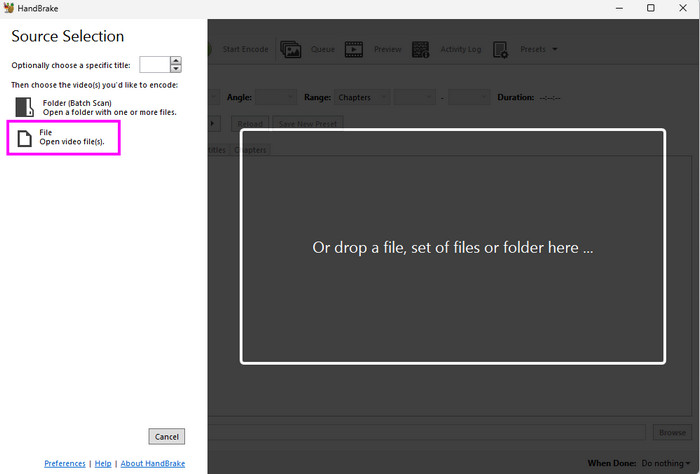
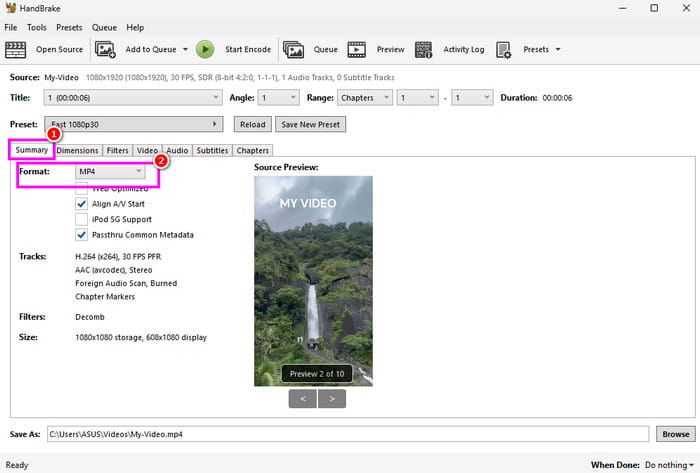
Step 3After inserting the VOB file, proceed to the Summary > Format section and choose the MP4 format.
Step 4You can also go to the Preset section and choose your desired preset. You can select Very Fast 1080p, Very Fast 2160p60 4K AVI, and more.
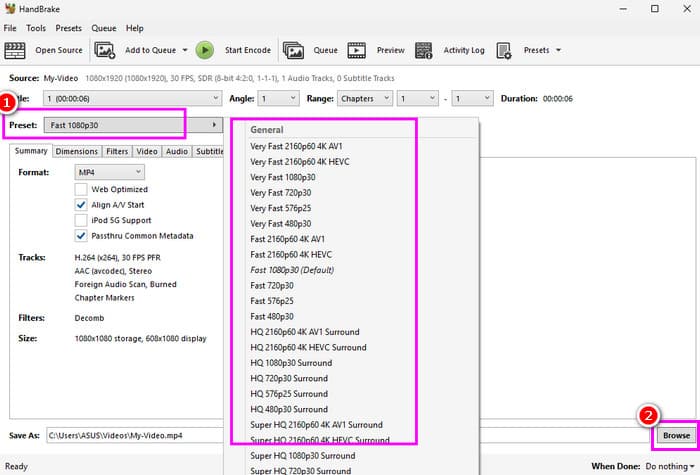
Then, proceed to the Browse option to select your desired destination folder.
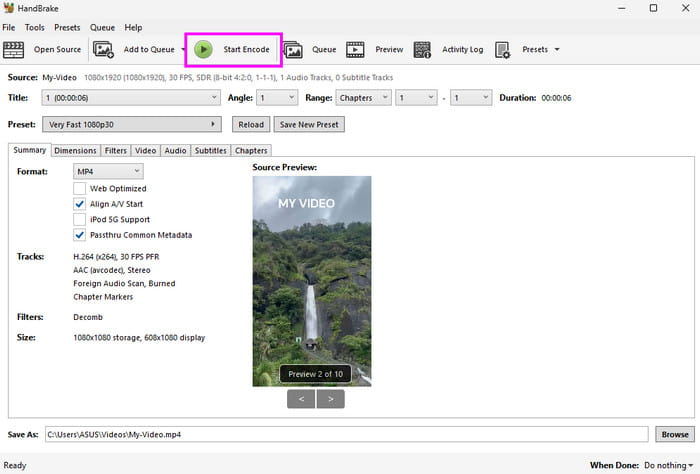
Step 5Finally, you can start with the conversion process by clicking the Start Encode button above. Once done, proceed to the designated folder and start playing the converted video.
Part 2. How to Convert Multiple VOB to a Single MP4 with HandBrake
Wondering if you can transcode multiple VOBs into a single MP4? Well, DVDs often split a single movie across several separate VOB files, which is inconvenient to manage individually. The good thing about HandBrake is that it is capable of dealing with multiple VOBs and turning them into a single MP4 as long as they are part of the same title. It is because the converter reads the DVD's internal title structure rather than each file in isolation. This process is also ideal for preserving a full movie or long recording without manual splicing.
To use Handbrake to convert multiple VOB files to a single MP4, you can check the steps below.
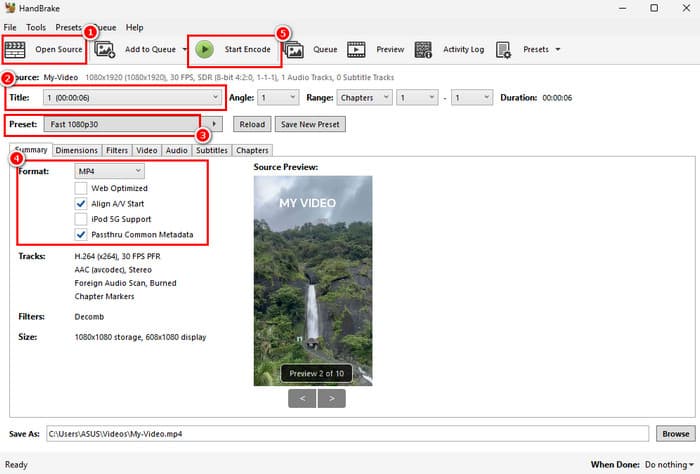
Step 1Launch HandBrake and tap the Open Source option to select the Folder that contains multiple VOB files.
Step 2After that, go to the Title section and choose the title that represents the combined video.
Step 3From the Summary > Format section, choose MP4. You can also select your preset and adjust settings based on your needs.
Step 4Finally, hit the Start Encode button to start converting multiple VOBs into a single MP4 file.
Part 3. Can HandBrake Batch Convert VOB to MP4
Handbrake is capable of offering its batch conversion feature. With this feature, you can convert multiple VOBs to MP4 format. This process is ideal if you want to save more time while dealing with numerous files. The best part here is that you can customize each file based on your needs. You can select different presets, quality, FPS, trim videos on Handbrake, and more for each video. Plus, the process of converting multiple files is smooth, making it the best tool for users.
To learn how to turn VOB to MP4 on Handbrake, especially when dealing with multiple VOBs, you can check the steps below.
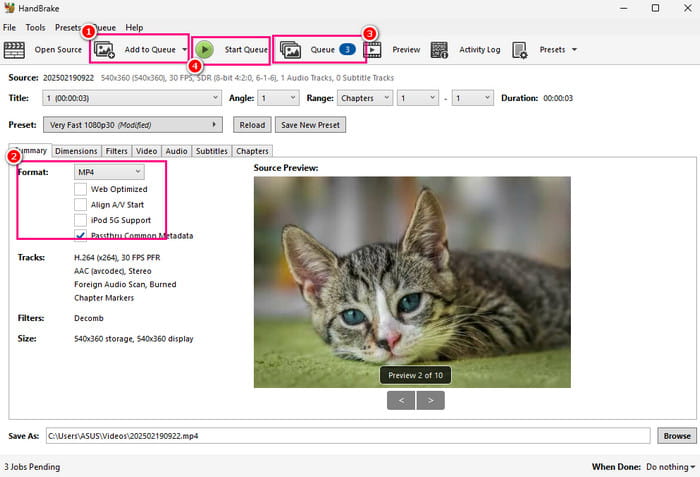
Step 1Start adding the VOB file and start choosing the MP4 format under the Summary section.
Step 2Once done, click the Add to Queue. The file will be moved to the Queue section. Then, start clicking the Open Source > File button to add another VOB file and do the same process.
Step 3You can go to the Queue section to see all the files you have added. Once you are done customizing each video, hit the Start Queue button to convert them at once.
Part 4. Ideal HandBrake Settings to Convert VOB to MP4
When converting VOB to MP4 using HandBrake converter, you must know that using the best setting can result in a satisfying viewing experience. So, check the guide below to learn the best settings to convert VOB to MP4 when using HandBrake.
- Format: The recommended format is MP4 for better compatibility.
- Video Codec: H.264 for broad compatibility, or H.265 for smaller file sizes at similar quality.
- Audio Codec: AAC for compatibility, at 128-192 kbps bitrate.
- Quality (RF): RF 18-22 to balance the video quality and file size.
- Framerate (FPS): Always choose the "Same as source" with "Variable Framerate." This can avoid video and audio sync issues.
- Preset: "Fast 1080p30" or "HQ 1080p30 Surround" as reliable starting presets.
Part 5. The Best HandBrake Alternative to Convert VOB to MP4
While HandBrake is a reliable converter for turning VB to MP4 format, some users might find its interface intimidating and outdated. Also, there are times when the software is not performing well. With that, if you need an alternative converter, we suggest using Tipard Video Converter Ultimate. This program is perfect since it can give you all the features you need. It also has an engaging user interface that users might enjoy operating. Plus, with its Ripper feature, you can directly turn your VOB from DVDs to MP4 with different output presets. You can even merge VOB files into one MP4. It is also capable of converting your VOB files to VIDEO_TS, making it more reliable.

- Directly turn your VOB from DVDs to MP4 with different output presets.
- Merge VOB files into one MP4 file easily.
- Convert your VOB files to VIDEO_TS format.
- Offers an engaging user interface and smooth conversion.

To learn how to change VOB to MP4 using Tipard, see the methods below.
Step 1Download Tipard Video Converter Ultimate on your desktop. Then, start with the VOB to MP4 conversion procedure.
Step 2From the UI, navigate to the Converter section and start adding the VOB files by hitting the Add Files button.
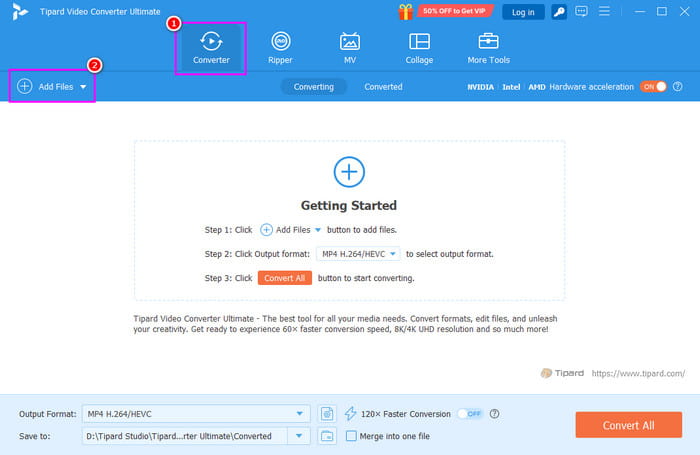
You can also use the Ripper feature if you want to directly convert your DVD into a digital format.
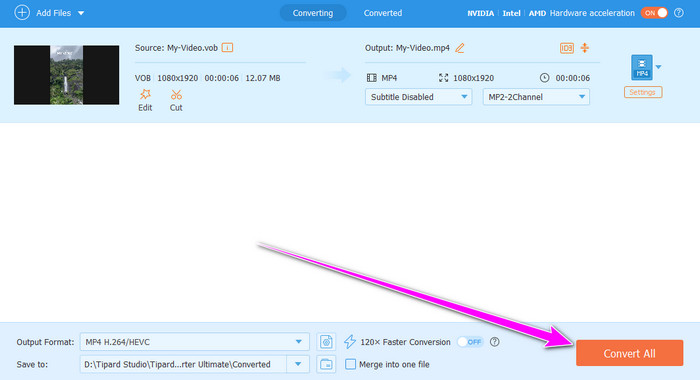
Step 3Go to the Output Format section and choose MP4, along with your desired preset and quality.
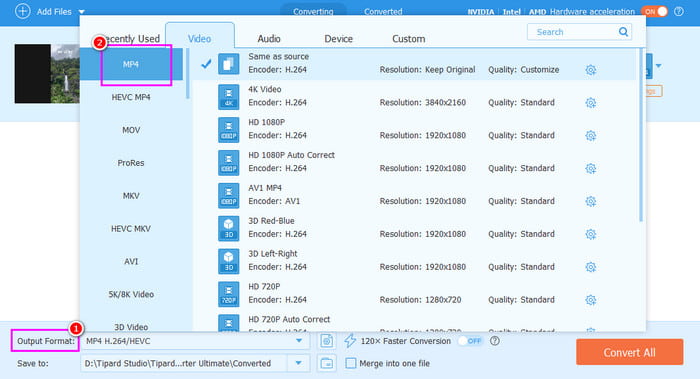
Step 4For the final process, click Convert All to begin converting your VOB files to MP4 format.
Conclusion
Now, you have learned how to convert VOB to MP4 on HandBrake. With that, if you want to transcode your VOB files or digitize your DVDs, always rely on the methods we have provided in this tutorial. Plus, if you need an alternative to HandBrake that can offer a faster and smoother conversion, you can access Tipard Video Converter Ultimate. This converter ensures that it gives you the result you need after the conversion, making it a powerful VOB to MP4 converter for users.
All-in-one video toolbox: convert, edit, upscale, enhance, and compress your videos easily
100% Clean & Safe
100% Clean & Safe

More Reading



About the Author


 Tipard Video Converter Ultimate