

Afraid of losing 3D effects while duplicating 3D Blu-ray discs? With the right 3D Blu-ray copy software, you can easily back up your movies with depth and impact. Whether you prefer copying directly to a disc or saving it on the hard drive, the best tools guarantee zero quality damage and maintain the original 3D structure. In this guide, you will find information, tips, and tricks regarding everything 3D technology and the best software for duplication.

Part 1. What You Need to Know Before Copying a 3D Blu-ray
A 3D Blu-ray movie is a high-definition film encoded with stereoscopic 3D effects designed to create an immersive viewing experience. Unlike standard 2D Blu-ray movies, 3D Blu-ray adds depth perception, making objects and characters appear as if they extend beyond the screen.
Characteristics of 3D Blu-ray Movies
- Delivering visuals in the Full HD (1080p) standard or even 4K UHD for a more stunning presentation.
- Providing a three-dimensional quality by exploiting the angle of vision.
- Permits independent storage of the left and right images without losing quality.
- Can be played on ordinary Blu-ray players in 2D mode.
Can You Copy 3D Blu-ray Discs?
Yes, you can copy 3D Blu-ray discs using specialized software. Some ordinary disc copy tools can only copy Blu-rays with no 3D effects, but a reliable software can keep the 3D effects. Therefore, you should prepare:
- Professional 3D Blu-ray copy software.
- An optical drive that supports 3D Blu-ray playback.
- A blank or rewritable Blu-ray disc or sufficient storage space on your hard drive.
Part 2. How to Copy a 3D Blu-ray Without Losing Quality
For the easiest way to copy your 3D Blu-ray disc to another disc with 3D effects, Tipard Blu-ray Copy is the software for the job. This 3D Blu-ray copy software can also keep the original video quality, remove or keep the menus, compress BD-50 to BD-25, and more.
Moreover, Tipard Blu-ray Copy can bypass Blu-ray copy protections, like AACS, BD+, Cinavia, and Blu-ray region locks, to copy your Blu-rays easily while keeping the 3D effects. You can also back up your 3D Blu-rays as ISO images or BDMV folders. BDMV backups are also easier to play.

- Ensures lossless quality when duplicating 3D Blu-ray movies for a perfect viewing experience.
- Supports a 1:1 ratio copy, maintaining BD50 to BD50, BD25 to BD25, or BD50 to BD25 structure.
- Offers Full Disc, Main Movie, Clone, and Write Data modes for flexible backup options.
- Allows backing up Blu-ray content as an ISO file or folder on your computer.
- Supports regular Blu-ray formats, ensuring compatibility with various Blu-ray discs.

Step 1 Get the 3D Blu-ray Copy Software Installed
Download and install the Tipard Blu-ray Copy software on your PC. Launch the application and insert your 3D Blu-ray disc into your optical drive.
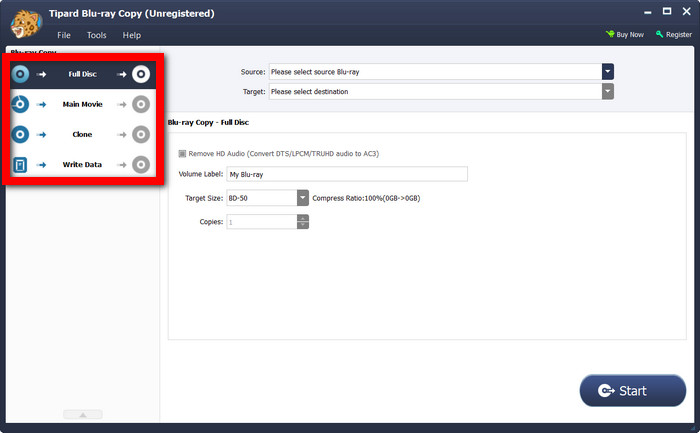
Step 2 Copy Mode Selection
Select from the following four options:
- Full Disc: This mode copies the entire 3D Blu-ray movie (disc, ISO, or BDMV).
- Main Movie: This mode can smartly select the main movie in your 3D Blu-ray disc/ISO/BDMV.
- Clone: It makes an exact copy of the 3D Blu-ray disc.
- Write Data: This option is used to copy the 3D Blu-ray folder to a physical disc.
Choose your target Blu-ray disc. You can also copy the 3D Blu-ray as a Blu-ray folder or ISO file.
Step 3 Copy Setting Adjustments (Optional)
You can change the compression parameters and turn on Dolby AC3 audio transformation to save space without losing too much quality.
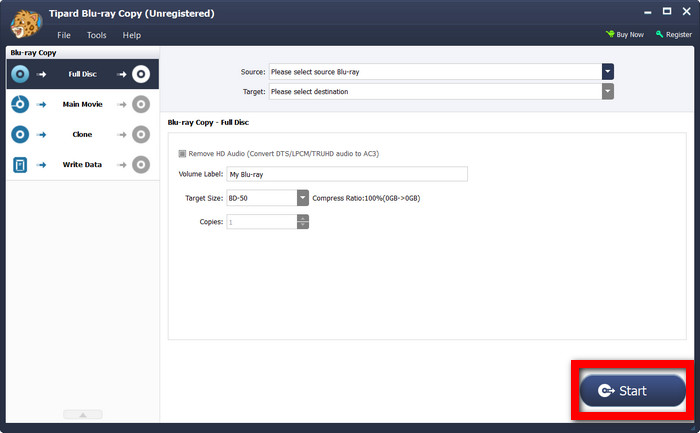
Step 4 Wait for the Completion
By clicking on the Start button, the copying process will start. Tipard Blu-ray Copy will copy your 3D Blu-ray disc quickly.
When Tipard Blu-ray Copy can load your Blu-ray disc, it means it has bypassed the Blu-ray copy protections and region locks.
Part 3. How to Copy 3D Blu-ray to a Hard Drive as a 3D Video
MakeMKV can quickly copy and store 3D Blu-ray discs on your hard drive without losing quality. It saves the original 3D structure and effects of the movie, so that you can play the ripped MKV video without needing a 3D Blu-ray player. Additionally, MakeMKV is straightforward and user-friendly, with fast Blu-ray decryption. It is a powerful and free tool to copy 3D Blu-ray movies to 3D MKV videos.
Step 1 Go to the official MakeMKV website, download it, and install the program on your computer.
Step 2 Place the 3D Blu-ray disc into your Blu-ray drive. Open MakeMKV, and it should automatically recognize the disc. Click the Open Disc button to search for the Blu-ray content.
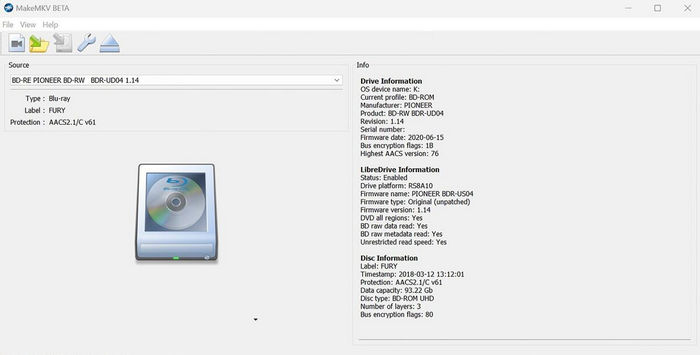
Step 3 MakeMKV will show all available titles, subtitles, and audio tracks. Select the main movie title, and do not forget to choose a 3D video in the proper format.
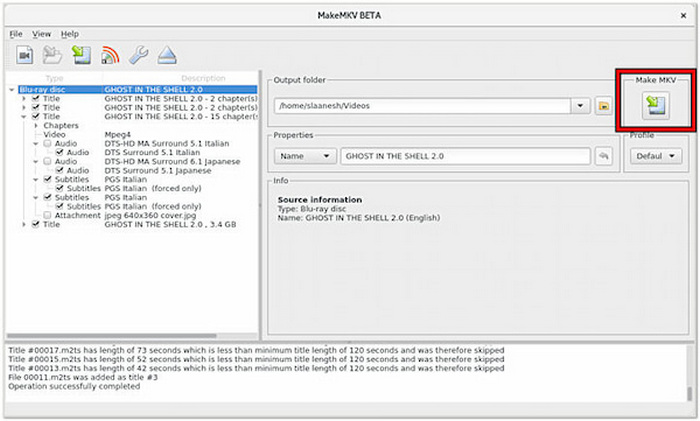
Step 4 Pick a destination folder on your computer. Click the Make MKV to start copying the 3D Blu-ray to your hard drive. After everything is done, you will find a 3D MKV file waiting for you in the destination folder.
Part 4. FAQs of Copying 3D Blu-ray
Is it illegal to rip Blu-rays for personal use?
The legality of ripping Blu-rays for personal use varies by country. In the U.S., owning a Blu-ray does not automatically allow you to bypass its copy protection to make a personal backup. The DMCA generally prohibits circumventing technological protection measures, although certain exemptions apply to specific uses. Check your local copyright and anti-circumvention laws before ripping protected Blu-rays.
Why is 3D not popular anymore?
3D has become less popular mainly because it requires compatible TVs, players, glasses, and other equipment, while many viewers prefer the convenience of high-quality 2D content. 3D glasses can also be uncomfortable for some people, and the limited availability of new 3D TVs and content has further reduced its mainstream appeal. However, 3D Blu-ray remains an option for viewers who enjoy stereoscopic movies and have compatible equipment.
Is Blu-ray 3D discontinued?
Blu-ray 3D as a format has not been officially discontinued worldwide, but new 3D Blu-ray releases have become much less common than standard Blu-ray and 4K UHD Blu-ray releases. Support for 3D has also declined among TV manufacturers and streaming services, making 3D Blu-ray a niche format today. However, existing 3D Blu-ray discs, players, and compatible displays can still be used.
Conclusion
This post shows you how to easily copy a 3D Blu-ray disc. Tipard Blu-ray Copy has built-in Blu-ray decryption capabilities to help you preserve the quality of your 3D content in another disc or as ISO/BDMV folder. You will be able to enjoy your favorite 3D movies anytime, anywhere.
More Reading


About the Author


 Tipard Blu-ray Copy