

"I am new to YouTube, and I figured out that there are different ways to upload videos. I wanted to know the ideal YouTube aspect ratio to make my videos look right on every screen."
As a beginner in the YouTube creator world, it is best to understand these aspect ratio standards. We are here to help with that. In this guide, we will cover a complete YouTube aspect ratio guide, explain why the right aspect ratio is crucial, and show you how to edit or change videos with the right aspect ratio easily.
Are you ready for all of this? If yes, please keep reading!
Part 1. YouTube Aspect Ratio Guide in 2026
Getting your video to look right on YouTube starts with using the correct aspect ratio. The right size keeps your video from looking stretched or cropped. Here is what works best:
16:9 - Standard for long videos and full-screen playback on desktop and TV. Most YouTube content uses this.
9:16 - Perfect for YouTube Shorts aspect ratio and mobile-first content. Videos take up the full screen on phones.
4:3 - Older videos or some animations. Works but may show black bars on the sides.
1:1 - Square videos. Useful for social media repurposing or small embeds.
YouTube automatically adjusts playback, but starting with the right ratio saves time and keeps your video sharp.
Part 2. Why the Right Aspect Ratio is Crucial for YouTube
Using the right YouTube video aspect ratio is not just about looks. It impacts how viewers watch and engage with your content.
- Better viewing experience - Videos fill the screen without black bars. It keeps viewers focused.
- Higher retention - A stretched or cropped video can push people away. The right ratio keeps viewers watching.
- Professional appearance - Your channel looks more polished with consistent sizes.
- Platform optimization - YouTube prioritizes videos that fit common ratios, especially for Shorts and mobile viewing.
Part 3. 16:9 vs. 9:16 for YouTube Long Video and Shorts
Long videos usually use a 16:9 video ratio, while Shorts use a 9:16 video ratio. You can turn parts of your long videos into Shorts to attract more viewers.
- 16:9 - Works for tutorials, vlogs, and full-length videos. Desktop viewers see everything clearly.
- 9:16 - Best for highlights, funny clips, or quick tips. Mobile viewers get full-screen engagement.
- Repurposing content - Take the best moments from a 16:9 video and crop them to 9:16 for Shorts. It brings traffic to your main channel.
Part 4. Easily Edit or Change YouTube Videos with the Right Aspect Ratio
16:9, 9:16, 4:3, and 1:1 are all supported by Tipard Video Converter Ultimate, so you can easily change your YouTube aspect ratio. You can batch edit and convert multiple videos at once, saving time. It also offers AI-driven tools to enhance video quality automatically. With these features, your videos will look professional and fit any screen.
Key Features:
- Supports many input and output formats for videos.
- Side-by-side preview of original and edited video.
- Broad range of aspect ratios: 16:9, 4:3, 1:1, 9:16, etc.
- Editing tools include crop, rotate, filter, watermark, trim, and more.
- Enhance video quality by upscaling resolution and reducing noise.
See how to do it step by step below:
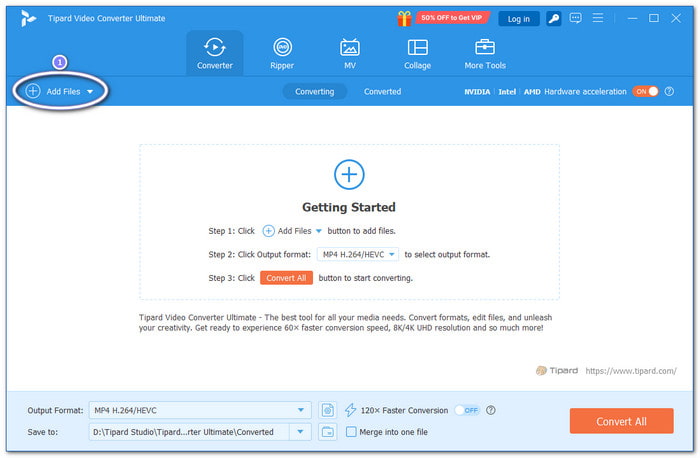
Step 1 Download, Install & Launch
To begin with, download Tipard Video Converter Ultimate from the official website. Install it on your computer. Once it is ready, open the program. You will see a clean interface waiting for your video.
Step 2 Add Your Video
Hit the Add Files button or drag your video straight into the program. You can add one video or many at once. It is where your editing journey starts, and you can see your videos lined up in the list.
Step 3 Choose the Right Aspect Ratio
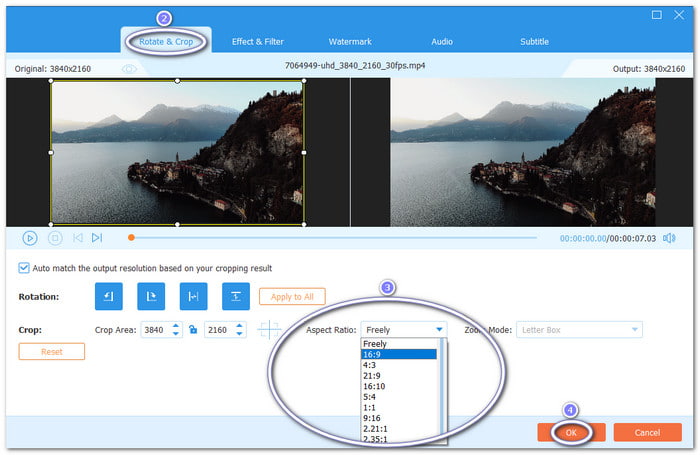
After your video appears in the list, click the Edit button under it. It will automatically take you to the Rotate & Crop tab. Click the Aspect Ratio drop-down menu. For the YouTube ratio, you can pick:
- 16:9 - Standard for long videos and full-screen playback.
- 9:16 - Best for YouTube Shorts.
- 4:3, 1:1 - Good for older videos or social media.
- 21:9, 16:10, 5:4 - For special widescreen or cinematic looks.
- 2.21:1, 2.35:1, 2.39:1 - For cinematic movies.
The cropping frame will adjust automatically. Once you are good with how it looks, click OK to apply the changes.
Step 4 Select Format & Export
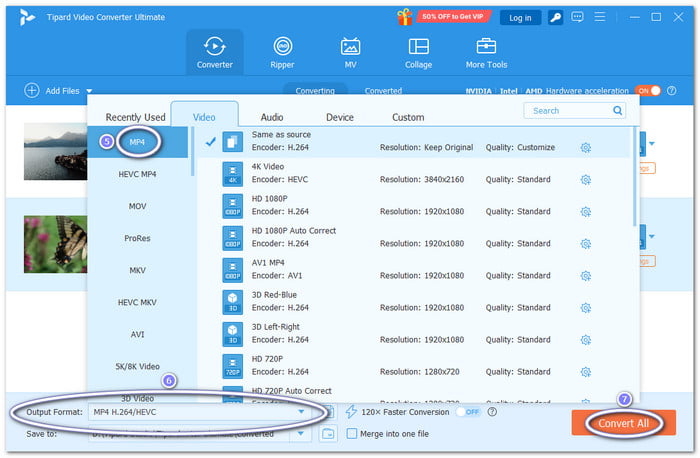
At the bottom-left corner, pick the output format. The best YouTube formats are MP4, MOV, AVI, or WebM, with MP4 being the safest choice for upload. Once done, click the Convert All button to process your video. Your file will be ready to upload with the perfect aspect ratio, looking great on any device.
That is how simple it is! Not only can you get the perfect YouTube video aspect ratio, but you can also use Tipard Video Converter Ultimate to set the ideal Instagram aspect ratio for posts, stories, and Reels.
Part 5. Tips for Handling Different Ratios like a Pro YouTuber
Managing multiple aspect ratios can be tricky, but pros have simple habits that help:
1. Plan before shooting
Know if your video will be long, Short, or both. Shoot with that in mind.
2. Frame carefully
Keep important subjects in the center. It helps when cropping from 16:9 to 9:16.
3. Use editing tools
Software like Tipard Video Converter Ultimate, CapCut, Premiere Pro, or Final Cut lets you modify ratios without losing clarity.
4. Keep text safe
Titles and captions should be inside a safe area. Avoid edges where cropping happens.
5. Repurpose smartly
Highlight the best moments from long videos to make Shorts. Always make them engaging and fast.
6. Check previews
Watch your video on desktop and phone before uploading to avoid mistakes.
7. Stay consistent
Keep ratio styles consistent across series or playlists. It looks professional and builds your brand.
Pro YouTubers treat aspect ratio as part of storytelling, not just a tech setting. Correct ratios make your video easier to watch, share, and enjoy.
Conclusion
When you are uploading to YouTube, you are not just sharing a video. You also need to consider the aspect ratio so it looks good on every screen. Fortunately, you now know the YouTube video aspect ratio, so you can make sure your videos fit perfectly.
To get it right, you can use Tipard Video Converter Ultimate. It offers dedicated YouTube presets and editing tools to refine your video before uploading. With that, it will look professional, engage viewers, and play correctly on any device.
More Reading

About the Author


 Tipard Video Converter Ultimate