

A slideshow is a presentation that allows you to add or show a series of text, images, and even videos. It is commonly used for school, work, and other presentations that are essential. Commonly, the slideshow contains individual slides that can contain effects and transitions.
Are you interested in making one? Multiple online tools can make a slideshow! In this article, the five best online slideshow makers are listed. The best offline tool is also introduced as their best alternative. Scroll below to know the full details.

Part 1. Top 5 Online Slideshow Makers
Countless online tools can make slideshows. In this case, we will help you discover the top five online tools to make the mentioned file. Continue browsing to discover them.
1. CapCut
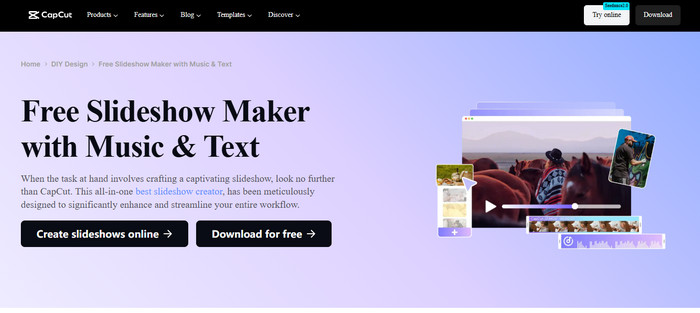
CapCut is known as an all-in-one editing tool. It is commonly designed for short-form content, including slideshows. It works on mobile, desktop, and browsers. However, CapCut is not working when there is a slow internet connection due to its dependency.
Key Features:
- It builds a slideshow with templates.
- Supports multi-layer editing.
- It has keyframes and animation effects.
- Supports audio sync and beat matching.
- Extremely fast creation.
- It has rich visual effects.
- Supports AI-powered editing tools.
- Beginner-friendly interface.
- Internet dependence.
- Limited advanced editing control.
- Quality compression.
- Advanced assets are paid.
2. Adobe Express
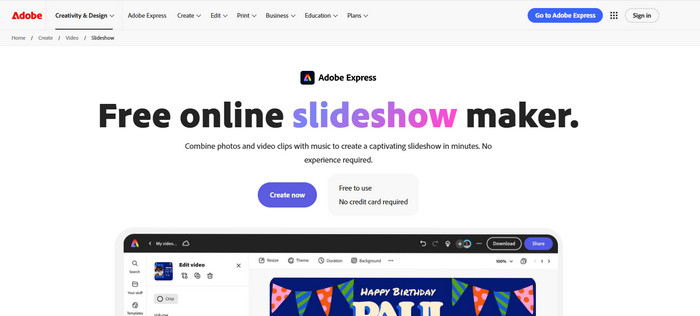
Adobe Express is another web-based tool that allows its users to create basic slideshows. It includes short videos and presentations. It is built for quick content creation for beginners and professionals. It is also part of the Adobe ecosystem.
Key Features:
- A scene-based slideshow builder.
- Supports text and branding tools.
- Supports one-click resize.
- Supports music and voice integration.
- Very easy to operate.
- Supports ready-made scenes.
- Has access to Adobe stock and fonts.
- It is not a full video editor.
- It has limited customization.
- Slow performance for multi-screen projects.
3. Slidesgo
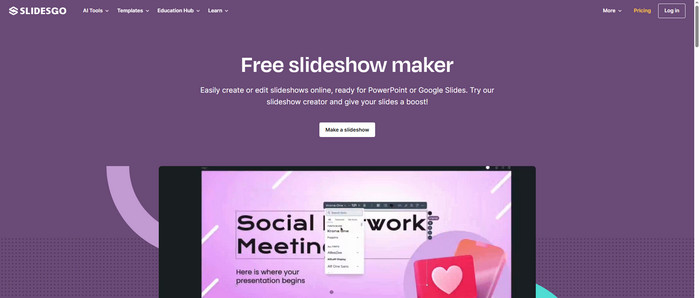
Slidesgo helps users to create slideshows, which they can use pre-designed templates. Also, it supports AI-generated slides. The online tool supports thousands of templates from different topics. It works with Google Slides, Canva, and Microsoft PowerPoint.
Key Features:
- Supports video quality enhancer.
- Supports visual and infographic elements.
- Has multi-format editing and export.
- Enables theme and style customization.
- Supports a huge template library.
- AI-powered slides generation.
- It has built-in visual assets.
- Limited deeper customizations.
- AI outputs are not accurate.
- Has restrictions from its free version.
4. Clideo
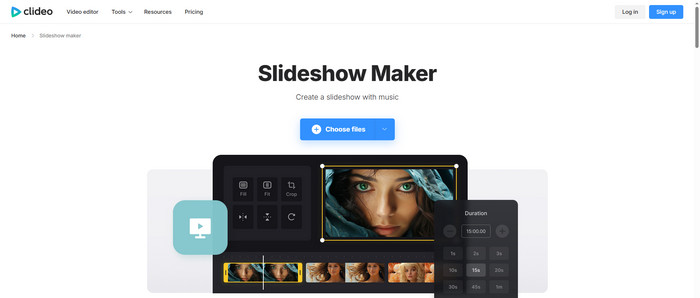
Clideo is a full web-based tool that works on different devices. It focuses on simple workflows and quick edits for your videos and images. You can also add GIFs and music to your slideshows. It offers separate tools for the presentation.
Key Features:
- It can combine music, videos, and photos.
- Supports basic editing tools integration.
- Allows you to add music tracks, including trimming them.
- Supports multiple export and format options.
- No installation required.
- Supports the drag-and-drop method.
- Supports multiple media formats, including JPG, PNG, and more.
- Slow processing and upload process.
- Supports limited editing features.
- Has watermarks in the free version.
5. Microsoft PowerPoint Online
Microsoft PowerPoint Online runs on different web browsers, including Google Chrome, Safari, Mozilla Firefox, and more. It lets you build slideshows that can be done with an internet connection. It is designed for reports, presentations, and storytelling.
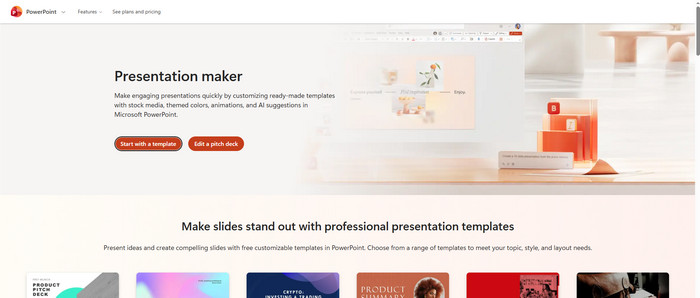
Key Features:
- Supports a slide-based editing system.
- Supports built-in themes and templates.
- Allows you to use content tools and text.
- It has basic animations and transitions.
- Supports real-time collaborations.
- Strong tools for presentations.
- Automatic saving to cloud services.
- Limited animation depth.
- Fewer features than the desktop version.
- Performance depends on the browser.
Part 2. How to Create a Slideshow Online with Music and Effects
Canva is known as a graphic design service. It can be used as a free online slideshow maker with music and effects. The tool allows you to add multiple videos and photos to your slideshow. You can also add texts, music, effects, and other elements. Please use the tool by referring to the steps below for a successful process.
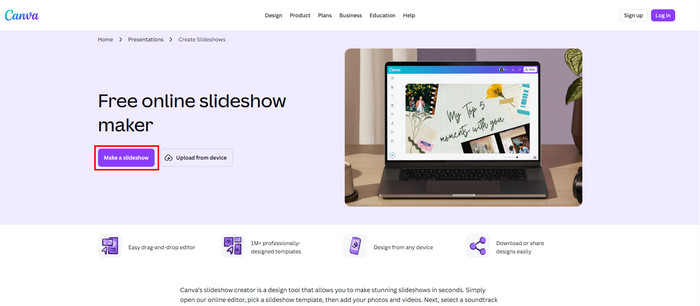
Step 1 Visit the website of Canva on your browser. After that, click the Make a Slideshow button on the left. Enter the email address you'd like to use to sign in or sign up. You can choose from the templates it supports.
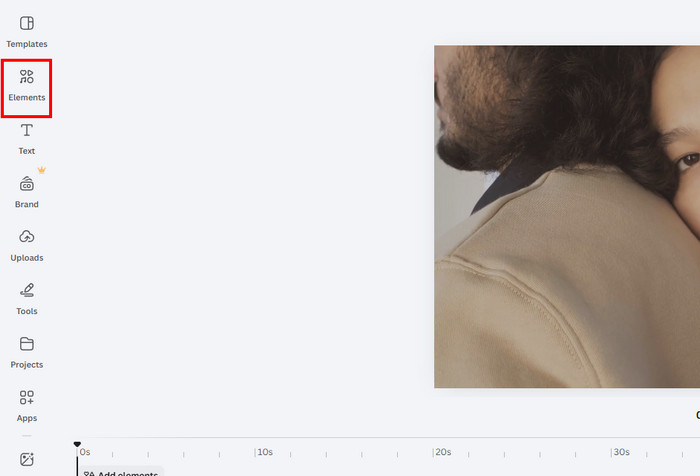
Step 2 To import a picture or videos, click the Plus button at the bottom left. Click the Elements button and choose the Audio button. Import your music. Select the Video button and choose your effects.
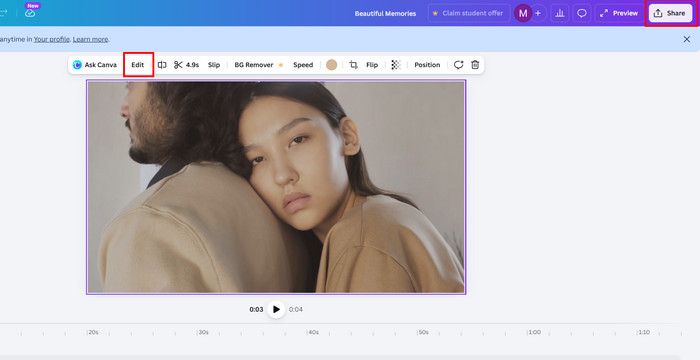
Step 3 Click the Text button. You may also edit the pictures or videos by clicking the Edit button at the top of the file options. Finally, click the Export button at the top right.
Part 3. Limitations of Online Slideshow Maker
Regardless of how convenient and advanced online slideshow makers are, there are limitations you need to know about them. In this case, you will know the process they cannot do. See them from the list below.
1. Internet Dependency
Internet dependency is the main limitation of an online slideshow maker. Without an internet connection, they will not function.
2. Limited Supported Formats
Most online slideshow makers only offer a few audio, video, and image formats. They focus on one to three formats due to limitations, especially the free versions.
3. Performance Issues
Small projects are convenient to process on a paid or free online picture slideshow maker. However, large projects let you experience a performance issue on the mentioned online tools.
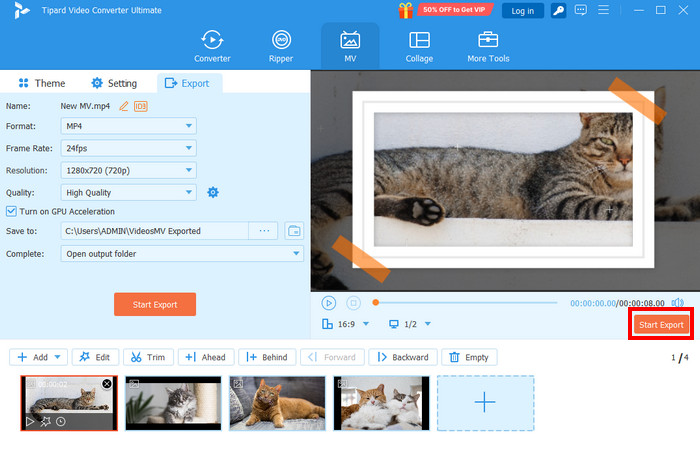
These disadvantages are common in an online slideshow maker tool. Why not use Tipard Video Converter Ultimate? The tool keeps your data and privacy secure, which some online tools cannot provide. Also, it supports full hardware acceleration, which makes the process faster, including importing and exporting. Besides that, the tool does not require an internet connection. It also supports many output formats and codecs, including AVI, MKV, MOV, MP4, ProRes, and more. See how to make a slideshow with this tool easily.
Step 1 Download, install, and open Tipard Video Converter Ultimate on your computer. Then, click the MV button at the top center. It will reveal the features you can use. Click the Add or Plus button at the bottom right. Select the files you want to add to the slideshow to import them.
Step 2 The files will appear at the bottom, including the slideshow preview on the right. Select the mood of your slideshow from the Theme section on the left. Click the Settings button to adjust the other options on your slideshow.
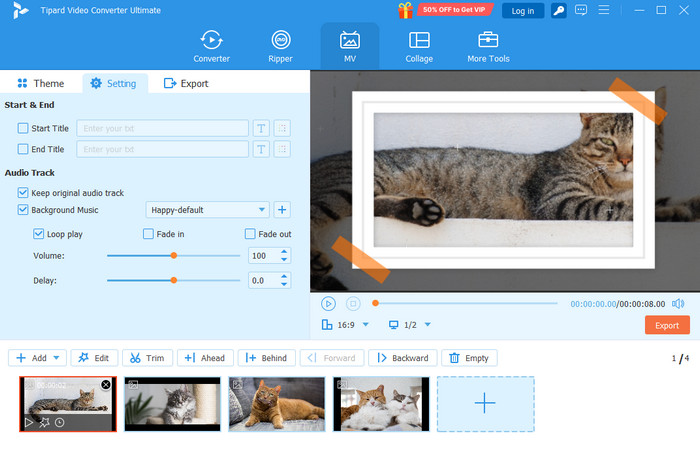
Step 3 Click the Edit button at the bottom. Use the Rotate & Crop, Effect & Filter, Watermark, Subtitle, and Audio tabs to edit your slideshow. Click the OK option to apply the changes. Finally, click the Start Export button.
Part 4. FAQs of Online Slideshow Maker
What makes a slideshow effective?
It is important to use key phrases and only include important information about the main topic to make the slideshow effective. Also, limit putting words in all capital letters. Additionally, space on the slideshow can enhance its readability.
How many slides for a 5-minute slideshow?
Having a 5-minute slideshow requires a few slides from the presentation. It is recommended to have 5 to 6 slides.
What is the best online slideshow maker?
In our conclusion, we chose Tipard Video Converter Ultimate. It is due to the simple interface and procedure it offers to the users. Importing and exporting procedures are also quick because it does not rely on an internet connection.
Conclusion
All in all, you can use a paid or free online sideshow maker. This post presents the five best ones. Tipard Video Converter Ultimate can be used as an offline program that can be the best alternative to online tools to make slideshows, meeting most of their limitations. Download the tool to explore more features that are not present in online tools.
More Reading




About the Author


 Tipard Video Converter Ultimate