

If you need to fix a YouTube video that looks sideways or upside down, this write-up is for you. You will learn how to rotate a YouTube video on iPhone, Android, and desktop. You will also learn how to rotate a YouTube video for editing before uploading.
The goal is clear. You want your video to play in the right direction every time. No wrong angles. No confusing view.

Part 1. How to Rotate a YouTube Video While Watching
Watching a video in the wrong direction can feel annoying. That is why many users search for "How can I rotate a YouTube video while watching?" The good news is you can fix the view fast. The steps depend on the device you use. Follow the guide below!
1. On iPhone (Using the YouTube App)
Step 1 Open the video in the YouTube app.
Step 2 Turn your phone sideways to switch to full screen.
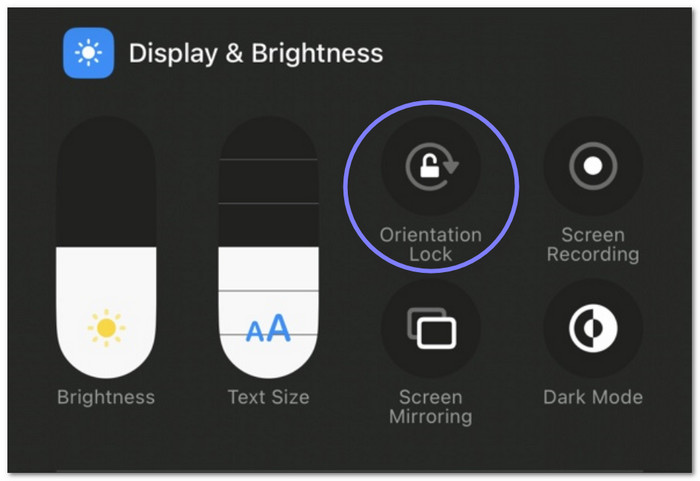
Step 3 If the screen does not rotate, open Control Center and turn off Orientation Lock.
Step 4 Turn your phone again until the video faces the right way.
YouTube follows your phone's screen settings. It does not have its own rotate button.
2. On Android (Using the YouTube App)
Step 1 Play any video in the YouTube app.
Step 2 Rotate your phone to landscape mode.
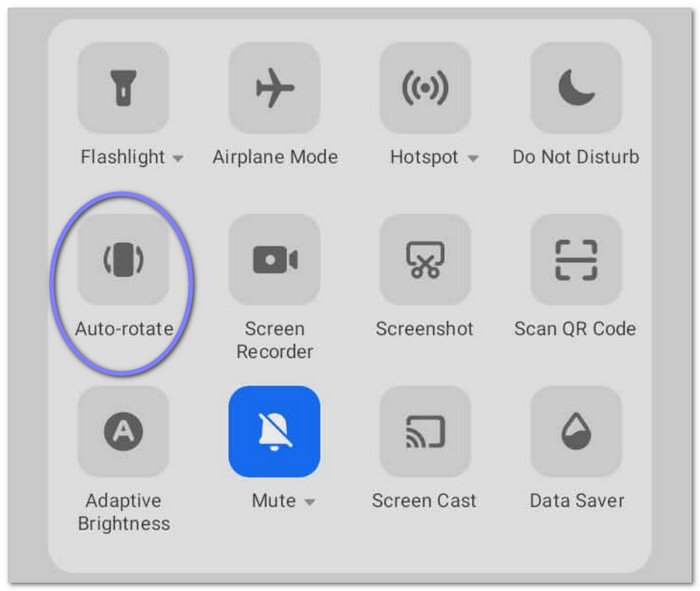
Step 3 If nothing changes, swipe down and turn on Auto-rotate.
Step 4 Rotate your phone again to fix the view.
Some Android phones show a small rotate symbol. Tap it if it appears.
3. On Windows or Mac (Using Google Chrome or Safari)
Step 1 Install a YouTube video rotater, like the Rotate That Video Player extension from the Chrome Web Store.
Step 2 Open YouTube in Chrome or Safari and play your video.
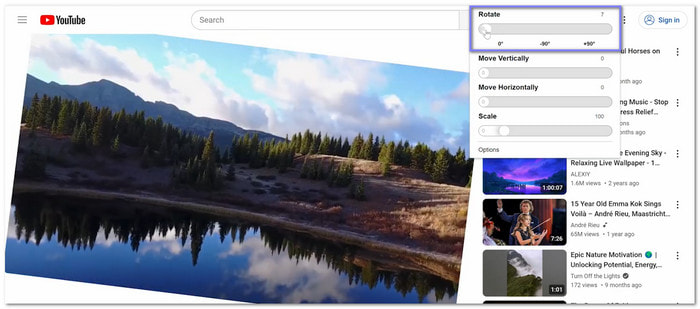
Step 3 Go to the upper right corner and click the R button in the toolbar.
Step 4 Choose a rotate option like 90° or -90°. Keep clicking until the video looks right.
The video will rotate inside the player right away. No need to reload the page.
Part 2. How to Rotate YouTube Videos for Editing
Fixing the angle is one of the first things to do when you need to rotate YouTube video content for editing or viewing. A wrong view can make your video look bad. It is where Tipard Video Converter Ultimate can help.
It offers a dedicated video rotator, where you can turn your video with one click. You can also flip your clip horizontally or vertically, which helps fix mirrored clips or wrong camera angles. Worrying about losing quality? You do not have to. It proudly keeps the original video clarity after rotation.
Another impressive thing about it is that it supports batch editing. It allows you to refine multiple videos in one go. Such a time saver, right? Just follow the guide below and get started right away!
Step 1 Head to the Tipard Video Converter Ultimate's primary website to download and proceed to install it.
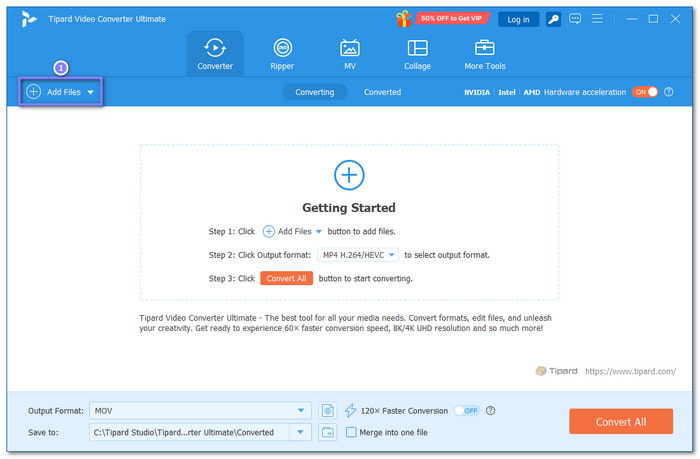
Step 2 Click Add Files on the main screen. Then, choose the YouTube video you want to edit. Make sure the video is already saved on your computer. Once added, you will see it in the file list.
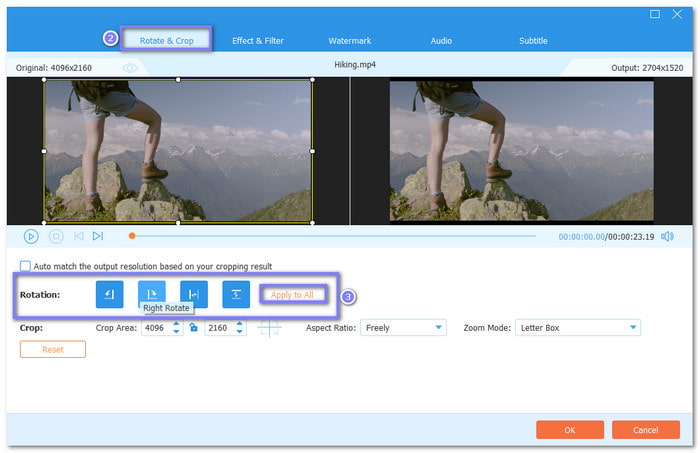
Step 3 Click the Edit button beside it, and you will be directed to the Rotate & Crop section. You will see the Rotate buttons. Click them to turn the video 90° to the left or right. Keep clicking until the angle looks correct. If you added many videos, click Apply to All so the same rotation works on every file.
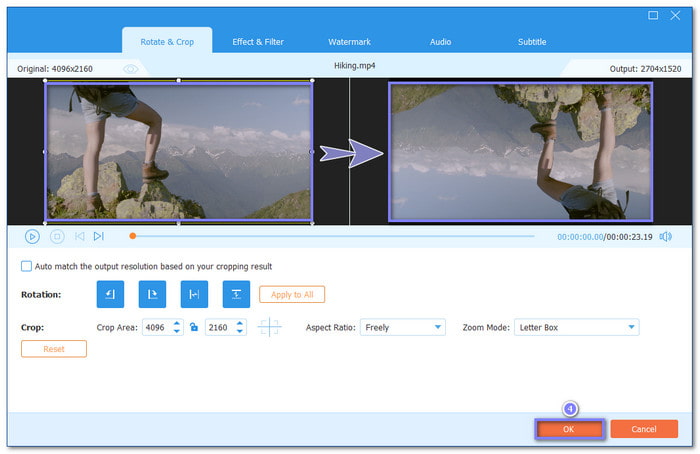
Step 4 Check the preview window on the side. Watch how the video looks after each change. Make sure the angle is now correct. Once you are happy with it, click OK to save the edit and go back to the main screen.
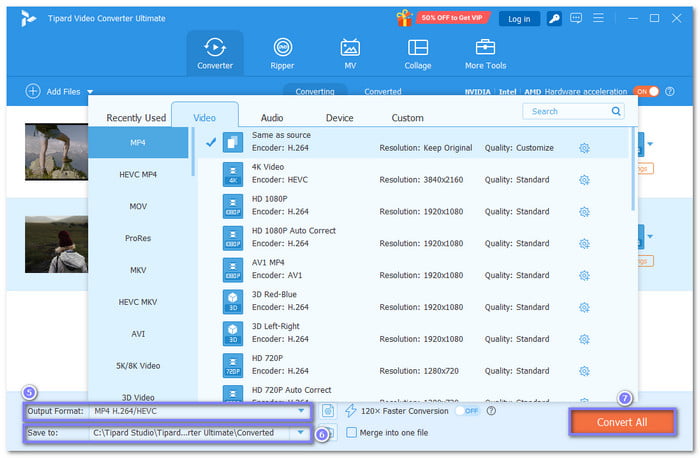
Step 5 Choose the format you want for your video. You can also pick a folder where you want to save it. Once everything is ready, click the Convert All button. Please wait a bit until it finishes, then your prorated videos are ready to use.
Part 3. Tips for Rotating Videos with Good Results
Rotating videos is easy. But getting a clean result needs the right steps. If done wrong, you may see black bars, low clarity, or cut parts. Below are simple tips to help you get better results:
1. Fix Aspect Ratio
Match project size with your video. A 9:16 video should not stay in 16:9. It will show black bars. If that happens, you will need extra steps to remove the black bars. In that case, use Zoom to fill the screen.
2. Keep Video Quality
Keep the same resolution when exporting. Example: 1080p stays 1080p. Do not reduce quality. It can make the video look blurry. Use MP4 (H.264) for better results and wide support.
3. Use Proper Tools
Do not use simple players like VLC. They only rotate for viewing. Use a real editing program, like Tipard Video Converter Ultimate, so the rotation is saved.
4. Edit Only Needed Parts
If only one part is wrong, do not rotate the whole video. Split the clip first. Then, fix only that section.
5. Always Preview
Check the video before exporting. Make sure it is straight, and nothing is cut off. Fix errors early to avoid redoing the export.
Part 4: FAQs on How to Rotate a YouTube Video
Why won't YouTube rotate?
YouTube follows your device settings. If screen rotation is off, the video will not rotate. Turn on auto-rotate on your phone. Also, check the rotation lock in your quick settings. On a desktop, YouTube does not auto-rotate videos at all.
Is there a way to flip a YouTube video?
Yes, but not inside YouTube itself. You need a video editor. Tools like Tipard Video Converter Ultimate can flip videos vertically or horizontally. It helps fix mirrored or upside-down clips before exporting.
How do I change YouTube from vertical to horizontal?
You cannot directly change this inside YouTube. The video aspect ratio depends on how it was made. To fix it, download the video and edit it first. Use a video editor to rotate or crop it. Then, export it in 16:9 format for horizontal viewing.
Conclusion
This post answered how I can rotate a video on YouTube. You can do it on iPhone, Android, Windows, and Mac.
If you ever need to rotate a YouTube video for editing, you can count on Tipard Video Converter Ultimate. It lets you rotate videos left or right with ease. You can also flip videos vertically or horizontally. It helps you get a clean and perfect video view before saving or sharing.
More Reading



About the Author


 Tipard Video Converter Ultimate