

When it comes to how to play MKV files on iPhone, many users struggle when their downloaded movies or shows will not open. This guide provides simple solutions to watch MKV videos smoothly on iPhone or iPad anytime, anywhere.

Part 1. Why iPhone and iPad Cannot Play MKV Files
There are many default limitations on iPhones and iPads, which is why they cannot play MKV files. This is why iPhones and iPads cannot support MKV files by default:
1. Unsupported Formats: MKV formats are not supported by the integrated media player in iOS devices, the media player in iPhones and iPads. Only formats such as MP4, MOV, and M4V are supported.
2. Unsupported Codecs: MKV files may come with audio or video codecs that the iOS cannot recognize.
3. Damaged MKV Files: MKV files that are corrupted due to improper downloading or an error in transferred files cannot be able to be played.
4. Conversion May Not Work: If the original file is corrupted, there is no point in trying a conversion, so conversion of files to PDF formats will also not work.
5. Video Repair Is Needed: As for MKV files, they do not play due to the video needing to be repaired. Tipard FixMP4 will fix the issues in files to ensure their use.
Part 2. Play MKV on iPad and iPhone with Third-Party Players
Since MKV files are not supported natively on iOS devices, the easiest alternative is to use a third-party media player. These applications are built to support a variety of video formats and codecs, and as such will allow you to play MKV files on your iPhone or iPad without having to convert the files first.
Option 1: Play MKV Using VLC for Mobile
VLC for Mobile is a free and open-source media player that is trusted by millions of users. It also supports MKV files, along with many other video formats, providing smooth and hassle-free playback of videos on iOS devices.
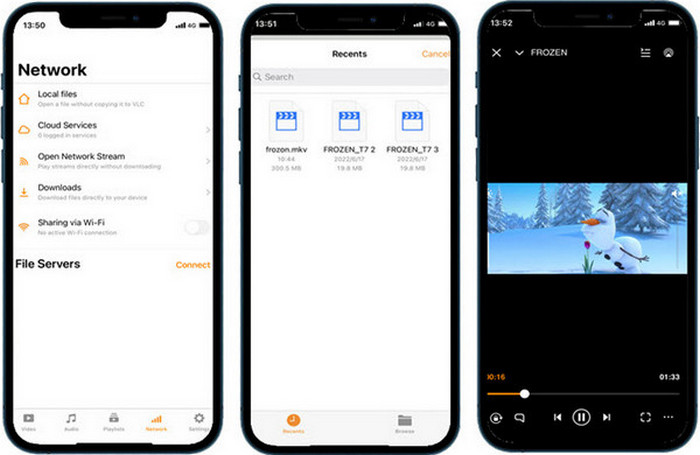
Step 1 Go to the App Store to download VLC for Mobile.
Step 2 Go to the Files app and find the MKV video you wish to open.
Step 3 Click on the Share button and select the app VLC from the list.
Step 4 The MKV file will open and will start playing in the VLC app.
Option 2: Play MKV Using MX Player
Because of its wide format support and its easy-to-use interface, MX Player is one of the best media players that can open MKV files. This also gives iPhone and iPad users one more option to watch videos without having to convert the formats to something iOS is able to use.

Step 1 Go to the App Store and download MX Player.
Step 2 Open the app for the first time and allow the app access to your files if the app prompts you.
Step 3 In MX Player, you can either upload the MKV file by accessing the file from your device or from the cloud, or you can select the MKV file that is already in the app.
Step 4 To begin playback of the video in MX Player, click the video file.
Part 3. Convert MKV Files to iOS-Compatible Formats for Playback
Tipard Video Converter Ultimate
Tipard Video Converter Ultimate efficiently converts videos into formats that can play on iPhones and iPads. Users can change the format, compress, and improve the videos while keeping the quality the same. Advanced features and a user-friendly interface make the product easy and quick to change all MKV videos to iOS compatible.

- MP4, MOV, or M4V with original or higher quality.
- Improve resolution or reduce file size without losing clarity.
- Convert multiple videos at once.
- Pre-set settings for smooth playback on iPhone and iPad.
- Trim, crop, add filters, watermarks, subtitles, or adjust effects.
Step 1 Download and Install
Access the Tipard Video Converter Ultimate official website to obtain the platform-specific version and follow the guide to complete the installation.
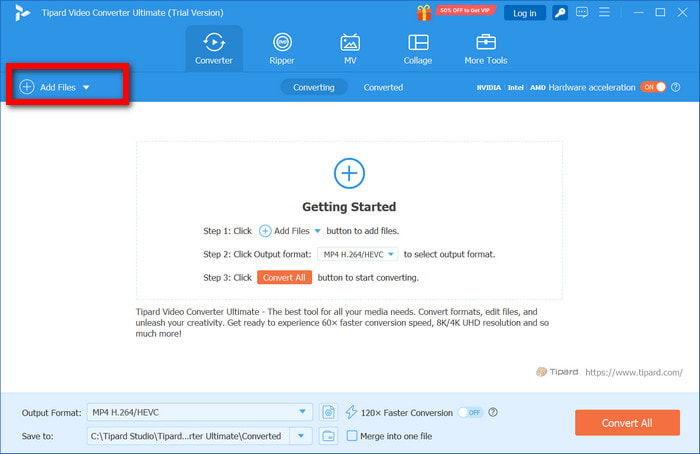
Step 2 Open and Run the Application
Double-click to open Tipard Video Converter Ultimate. Then, click the Add Files button in the left corner to select the MKV videos you wish to convert to.
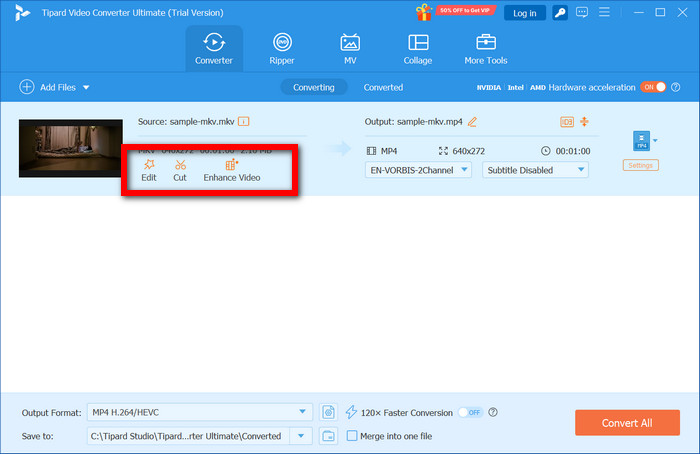
Step 3 Modify the quality of the Video
Click on Edit, Cut, or Enhance to make modifications, such as cropping or rotating the videos.
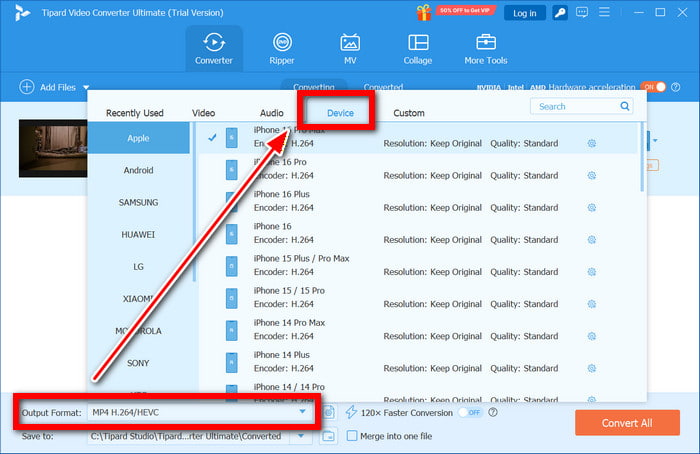
Step 4 Choosing Your Desired Output Format
To select Output Format, head to Device > Apple, and choose an iPhone or iPad model.
Step 5 Destination Folder
On your computer, you can create a new folder or select an existing one to save the converted files via File Location.
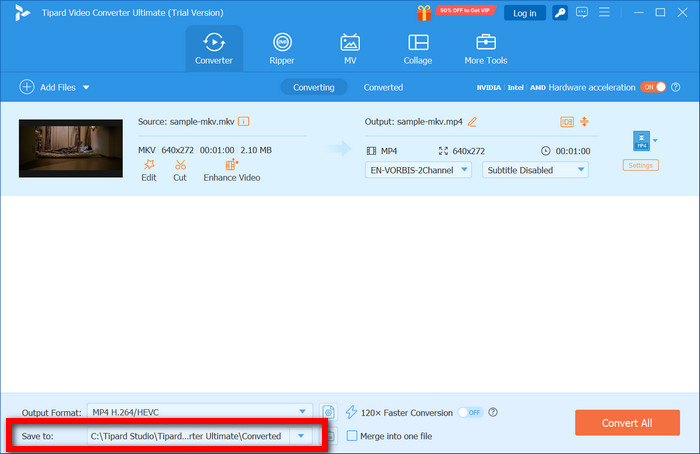
Step 6 Begin the Conversion Process
To convert your MKV files to compatible formats, click Convert All.
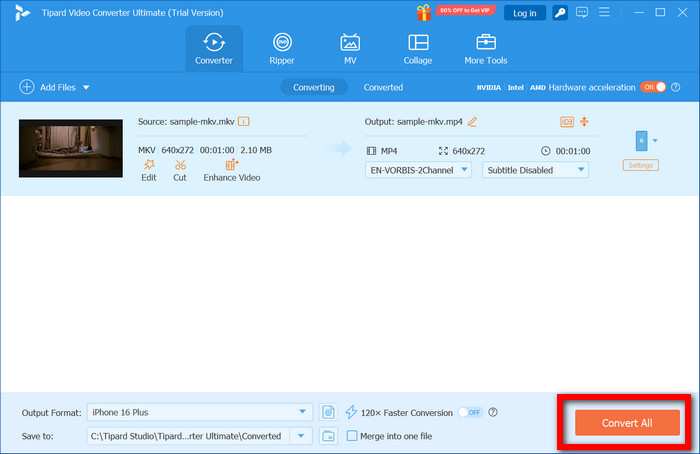
HandBrake
You can convert MKV files to formats compatible with iPhone and iPad for free using HandBrake, a free and open-source video converter. It is lightweight, simple to use, and allows you to adjust the bitrate to balance video quality and file size.
Step 1 Go to the official HandBrake website. Download the program and install it on your computer, which can be either Windows or macOS.
Step 2 Open HandBrake and click on Open File to choose the MKV video you want to convert.
Step 3 Go to the Summary tab and select MP4. This is important to guarantee that you will be compliant with the iOS guidelines.
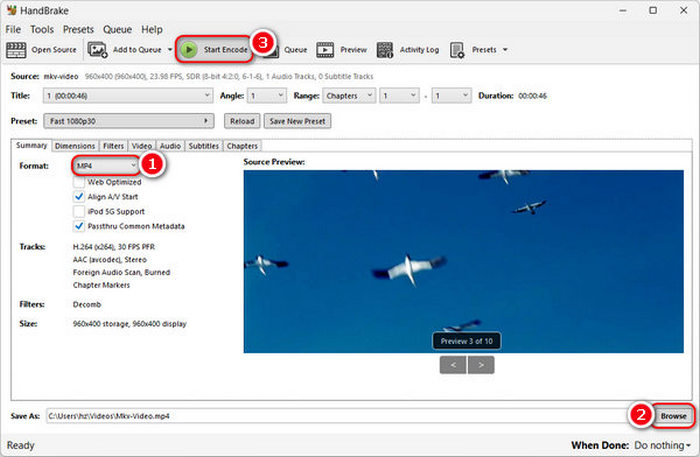
Step 4 Under Video, select H.264 or H.265 for the codec and make the necessary adjustments to frame rate, quality, or resolution.
Step 5 Browse to select where the converted file will be saved.
Step 6 Click on Start Encode to begin the conversion for the MKV file.
Part 4. FAQs on How to Play MKV Files on iPhone
How to play MKV files on iPhone from Telegram?
Launch Telegram and find the MKV video. Select the video and click on the Share option. Choose a video player like VLC or MX Player. The video will play without any need for conversion.
How to import MKV files to an iPhone?
You are able to do this using iTunes, Finder, iCloud Drive, Dropbox, or any other cloud service. Sync the MKV video to your desired service, and on your iPhone, use a third-party player like VLC or PlayerXtreme to access the video.
Can I convert MKV to MP4?
Yes. You can use Tipard Video Converter Ultimate for iPhone-compatible high-quality conversion, or use the free option HandBrake. You can convert MKV files to formats compatible with iPhone and iPad for free using HandBrake, a free and open-source video converter. It is lightweight, simple to use, and supports video correction and bitrate adjustment to balance quality and file size.
Conclusion
To play MKV on iPhone and iPad, users can rely on compatible players, converting files to supported formats, or repairing damaged videos. With these solutions, you can enjoy your favorite movies and shows smoothly on your iOS devices anytime.
More Reading




About the Author


 Tipard Video Converter Ultimate