

Key Takeaways
To play AV1 videos smoothly, a compatible media player or AV1 codec is required. Key points include:
- AV1 Codec: AV1 is a royalty-free codec that offers higher compression and quality than HEVC and VP9 when it comes to high-resolution videos.
- AV1 Players: AV1 Player download Tipard Blu-ray Player, VLC, Google Chrome, AV1 Video Extension (Microsoft Store), MPV, Kodi, and PotPlayer.
- Playback Methods: With Tipard Blu-ray Player, you can open AV1 videos and control playback, adjust video effects and filters, and edit playlists.
- GPU Decoding: By offloading work to the CPU, it smooths the playback of big AV1 videos.
AV1 Player technology delivers high-quality video playback with superior compression efficiency. This guide explores the top AV1 players, step-by-step playback methods, and essential FAQs to help users enjoy smooth AV1 video experiences.

Part 1. Top 7 AV1 Players on All Platforms
1. Tipard Blu-ray Player
Tipard Blu-ray Player provides excellence in video and audio in a smooth display. This player provides support for AV1, Blu-ray, and DVD, as well as high-resolution up to 4K and 8K videos.
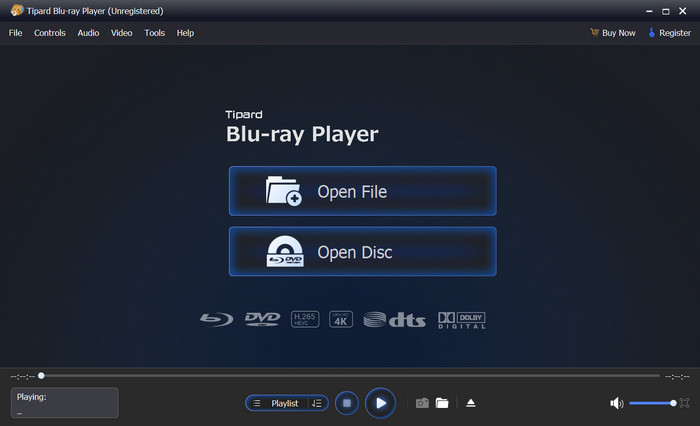
Platforms: Windows 11/10/8/7 and macOS.
Key Features:
- AV1 codec support in multiple containers.
- Plays video formats and codecs with no restrictions.
- Hardware decoding support.
- Handles large AV1 videos without high system resource usage.
- Plays Blu-Ray discs, folders, and ISO files without restrictions.
- Smooth playback for large files.
- Support for encrypted Blu-Ray discs.
- No need to install additional codecs.
- The user interface is simple and clean.
- After the trial, a paid license is required.
- No version for Linux.
2. VLC Media Player
VLC Media Player also decodes AV1 and handles almost every video or audio format. It is free and open-sourced, meaning you do not have to pay for proprietary codecs to get it to work. It uses the FFmpeg libraries and utilizes hardware acceleration.
Performance: VLC is very reliable for streaming AV1 locally or on the net. The only time VLC tends to fail is with ultra-high bitrate or 4K+ files when the GPU is stressed. The user interface is rather bland and has very few features to enhance the playback experience.
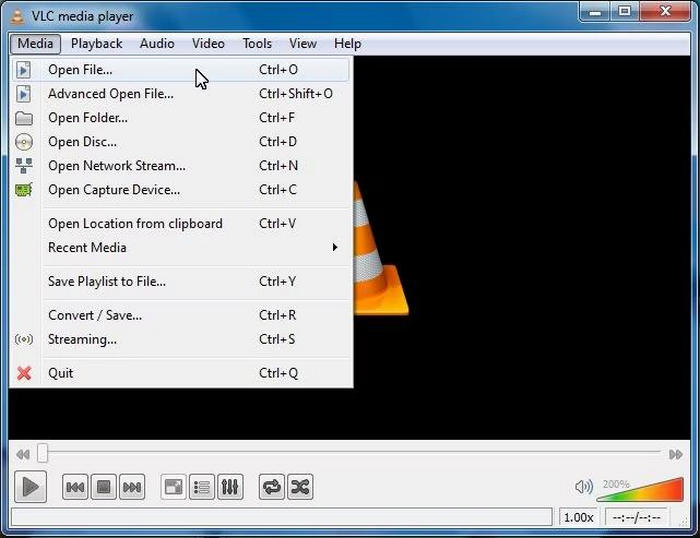
Platforms: Windows, macOS, and Linux.
Key Features:
- No need to download anything for AV1 to be decoded.
- Plays almost all audio and video formats.
- Subtitle support available.
- Streaming support available.
- Completely free.
- Compatible with all operating systems.
- Consistent and lightweight performance.
- The interface of the VLC DVD player appears to be outdated compared to modern media players.
- Blu-Ray playback features are available, but underwhelming.
3. Google Chrome
Chrome has AV1 decoding built in, so videos using it do not require extra players or codecs, resulting in instant video playback. Chrome also has Drag-and-drop playback for local files. Chrome also has streaming.
Performance: Streaming AV1 files is effortless. There is little to no stress on the CPU. The downside to streaming is that the browser lacks controls for playback, frame-accurate seeking, and hardware acceleration (tuning).
Platforms: Windows, macOS, and Linux.
Key Features:
- Native AV1 decoding support
- Drag-and-drop playback functionality.
- No extra media software required.
- The current operating system is quick and easy.
- There is no charge, and it is easy to find on the internet.
- Limited options for users when starting and pausing videos.
- The operating system is created for something other than being a media player.
4. AV1 Video Extension (Microsoft Store)
AV1 Video Extension provides AV1 decoding for Movies & TV apps, enabling seamless, hardware-accelerated AV1 video streaming. This solution is theft, as it is site-optimized and has no third-party apps or plugins.
Performance: Highly stable with AV1 video, and little CPU resources are used to ensure no stutters.
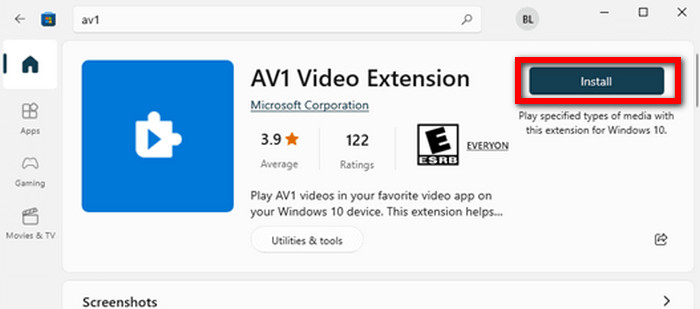
Platforms: Windows 10 and Windows 11.
Key Features:
- Offers the AV1 codec,
- Offers integration with other Windows applications.
- Offers playback to be smooth and not require other add-ons to be live.
- Free and official solution for Windows.
- Optimized for system performance.
- Only available on Windows 10/11.
- Requires manual installation from the Store, similar to installing the HEVC Video Extensions for additional codec support.
5. MPV
MPV is great for all OS, and provides an inter-app player that is open source and is designed with the MPV player at the back and as a focus. There is an engine for scripting that allows for advanced customization of MPV, AV1 decoding, NV ebug, and Au decl, with high perf from MPV.
Performance: Designed for high bitrate AV1. It is excellent for multi-decoding, NV, and multiple-stream decoding. There is no front-end, which is a problem.
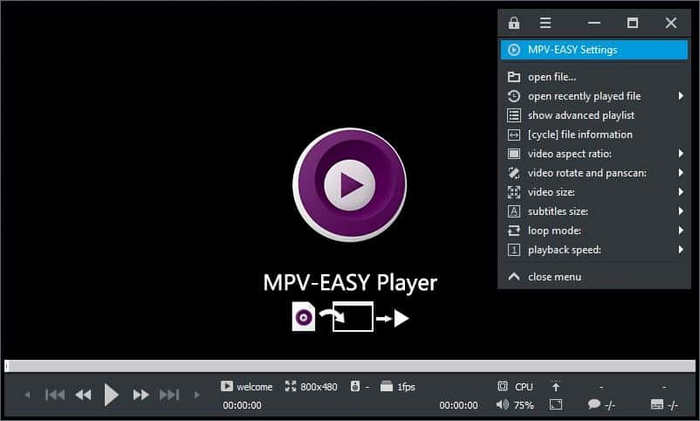
Platforms: Windows, macOS, and Linux.
Key Features:
- Offers a good engine for AV1
- Offers high-performance playback.
- It offers scripts to be used by advanced users.
- Fast and resource-efficient.
- Free and open-source.
- It is not easy for beginners.
- There is no option on MPV for a graphical interface on a high-performing system.
6. Kodi
Kodi is a player for AV1 and an entire library manager. Stream add-ons and remote features to control the player via Windows, Mac, Linux, and Kodi.
Performance: Decodes AV1 with new hardware but no stutters yet. Low systems can. There are great add-ons to extend time, but they can take time to customize.
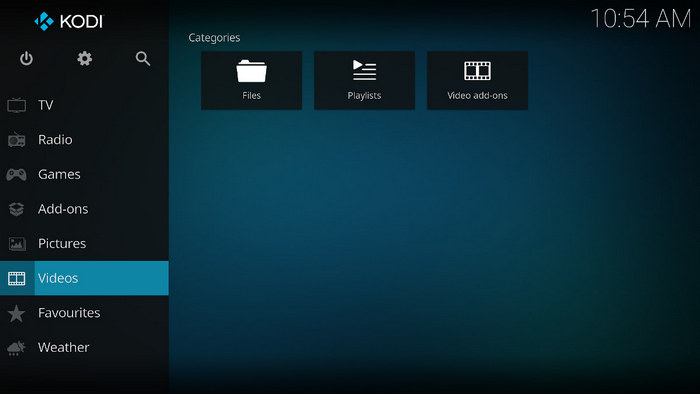
Platforms: Windows, macOS, Linux, and Android.
Key Features:
- Supports the AV1 codec.
- Full media library organization.
- Streaming and add-on compatibility.
- Great alternative for home theater systems.
- Highly customizable environment.
- Setup can take a while.
- Lower-end systems may lag.
7. PotPlayer
PotPlayers AV1 capabilities include advanced hardware acceleration, high-resolution rendering, and playback streaming. Advanced options include scaling, color adjustments, and audio bitstream controls.
Performance: Playback of 4K AV1 videos is very smooth, with no stuttering, even at high bitrates. The interface is overwhelming for inexperienced users, but power users appreciate the endless possibilities for optimization.
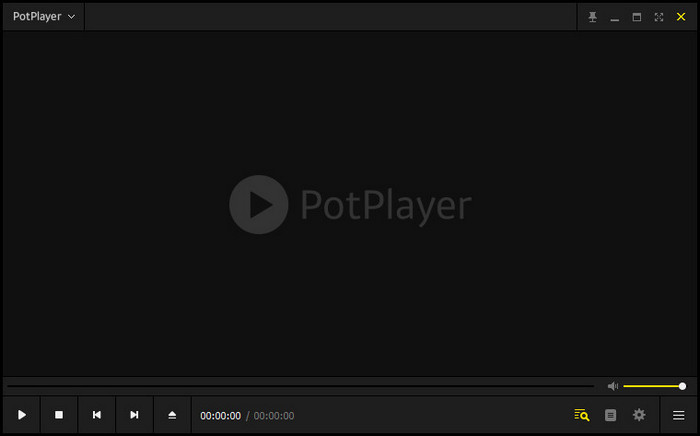
Platforms: Windows.
Key Features:
- Hardware acceleration and AV1.
- Playback controls and advanced features.
- Broad format assistance.
- Smooth playback for high-resolution videos.
- Extensive customization features.
- Windows-only software.
- Interfaces may appear complex for new users.
Part 2. How to Play AV1 Video
Step 1 Install the Tool
Go to the official site and get the Tipard Blu-ray Player. Run the installer and install according to the steps. Once installed, run the application.
Step 2 Load the AV1 Video File
On the interface, click the Open File. Select the AV1 video to be played, and click Open.
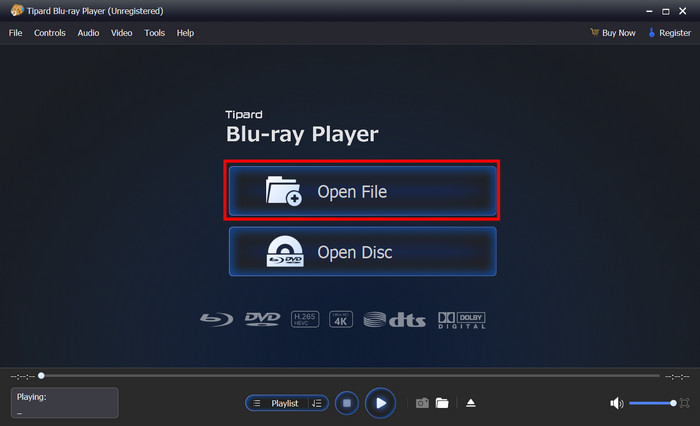
Step 3 Start Playing and Use the Controls
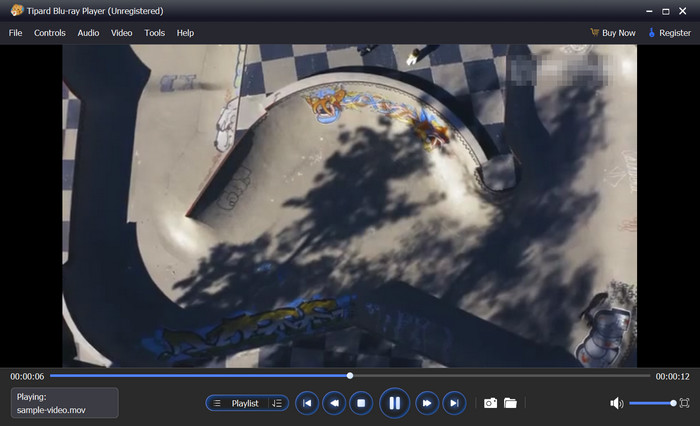
The AV1 video will start to play. The controls can be used to stop, fast-forward, pause and rewind the video. Take care to adjust the volume, subtitles, audio tracks and video effects.
Step 4 Playback Settings (Optional)
If you have large AV1 files, smoother playback can be achieved by enabling hardware acceleration. You can brighten, increase contrast, or adjust the viewing aspect ratio. You also have the option to create or manage playlists for continuous playback.
Part 3. FAQs of AV1 Player
Which is better, MP4 or AV1?
AV1 can be much better in terms of compression and overall visual quality, especially at lower bitrates, but the trade-off is that it is not as widely compatible as MP4 is. AV1 is best when used for streaming as long as you have a compatible player.
What are the disadvantages of using AV1?
With AV1, you may need hardware acceleration in order to avoid lagging and delayed frame rendering (decoding). A hardware decoder (decoder) is required to remove lag, delayed frames during playback. AV1 is not universally available. AV1 is very inefficient when used on backed hardware, and decoding the frames also requires considerable processing. You may need to avoid devices with lower tolerances.
Why is AV1 not popular?
Encoding is more difficult with the AV1 codec, which requires more processing. Users tend to stay with MP4 or HEVC formats. The 1st design devices do not have the new formats, or the new devices are not in use.
Conclusion
An AV1 codec player will allow you to play videos in high quality on different devices without any differentiation. The best examples of this are the Tipard Blu-ray Player and VLC, which also offer the best compatibility and performance to play AV1 videos without any differences.
More Reading


About the Author


 Tipard Blu-ray Player