

You are just in the middle of a thrilling movie until your VLC media player suddenly stops. Despite being the best open-source media player, users may suddenly face unwanted crashes on their go-to media player. Yet, you do not have to give up if this occurs frequently, as it can be ended when the right troubleshooting is performed. In this walkthrough, here are the possible ways and reasons or indications why VLC Media Player keeps crashing, and the corresponding solutions to make your files playable.

Part 1. Indications of VLC Not Working Well
When the VLC media player is not working, it may be frustrating as it interrupts you from enjoying watching or listening to your files. Issues and crashes may involve the following scenarios when using the open-source media player.
1. VLC Media Player suddenly quits in the middle of playback: Have you ever experienced going to the exciting part of the video until VLC Media players quit without notice? Or you may play a video, but some details appear late, like a subtitle delay.
2. VLC stops when high-resolution videos are played: Although your video file is a supported format of the tool, 4K and higher resolution videos will not just play.
3. VLC Media Player does not launch when attempting to open it: Despite restarting your computer and relaunching the app, it does not work anyway.
4. VLC Media player quits when you open the video as the default player: VLC player does not open after several attempts, there is no sound on VLC media player, or a black screen is all you see instead of videos.
Part 2. Reasons Why VLC Keeps Crashing
VLC has surpassed the test of time, which is why most people prefer using it. However, when crashes often hinder our playback experience, it is time to troubleshoot the main root of the problem. Below are the following reasons why the VLC player is not working. And the corresponding solutions:
1. Software Requires Update - sometimes, VLC may crash when software requires an update. As we know, older versions of software may contain bugs or may not be compatible with the device. Therefore, updating VLC to a newer version may resolve this case. To do this, go to Help > Check for Updates on your VLC software.
2. Installation Problems - An incorrect installation of VLC may lead to crashes and instability of the software when used. If you have tried all ways but are still faced with the issue, you can uninstall the program and try to install it properly.
3. Hardware Problems - lower-end computers may find it hard to work with hardware acceleration and may not be compatible with advanced audio and video codecs.
4. Corrupted Files - malware invasion is also often the reason why VLC keeps crashing. An unwanted virus destroys your files, making them unplayable. System firmware may also repeatedly block the program when it detects unwanted malware.
5. High CPU Consumption - Playing movies or even your favorite audio may not be smooth when played in VLC due to too much CPU power being consumed. To resolve this problem, try closing tabs, other applications, or lowering the resolution of the video. This way, your CPU can keep up with the file size and duration of your videos.
Part 3. How to Fix VLC Keeps Crashing on Windows, Mac, and Android
1. Fix Hardware Acceleration - If that is the case, go to Tools > Preferences > Input/Codec. Afterward, enable the DirectX Video acceleration and hit Save. Once done, close the VLC player and launch it again.
2. Reinstall VLC Player - If VLC does not work when you try to launch it, try uninstalling the tool and reinstalling it. Go to Applications. Find VLC Media Player and right-click it. Then Uninstall. Click Accept on the pop-up window to remove VLC from your device. Afterwards, run the installer of the tool and follow the installation prompts properly and check if VLC crashes are resolved.
3. Change Incompatible Formats - Some formats are incompatible with the player, especially when VLC is not updated. To overcome VLC crashing, convert your files to compatible formats like MP3 for audio and MP4 for videos.
4. Space Up Cache - cache is built up through time as we play files with the tool, which may also lead to VLC crashing. The tool gathers cache in order to reuse the information of the file when played again in the future. Click Tool > Preferences and change the tab from Simple to All. Afterward, go to Input/Codecs and change to File caching.
Part 4. The Best VLC Alternative to Play Videos Smoothly
Fear not of failing to play your videos when vlc keeps crashing. Tipard Blu-ray Player is yet another software that lets you experience a smooth playback of different types of videos. Coming with advanced features, this offline player is able to support all types of video and audio formats, like MP4, FLAC, MOV, WebM and more. On top of that, this tool works seamlessly for users who wish to save a playlist. Proving its robustness and versatility, Tipard Blu-ray Player supports ISO folders and even reads Blu-ray and DVD/ UHD discs.
On the other hand, this interface welcomes every type of user, from beginners to avid music/movie lovers. Tipard Blu-ray Player offers keyboard shortcuts for faster access to functions, and gives users an outstanding playback experience by letting them manage a playlist or even a library of videos. So, here is the guide on how to use the Tipard Blu-Ray player as an alternative when faced with a problem where the VLC media player keeps crashing.
Step 1 Install the Best Media Player
Click the suitable Download button on your device and get the installer of Tipard Blu-ray Player. Next, run the installer and wait for it to launch on your screen.
Step 2 Load Files
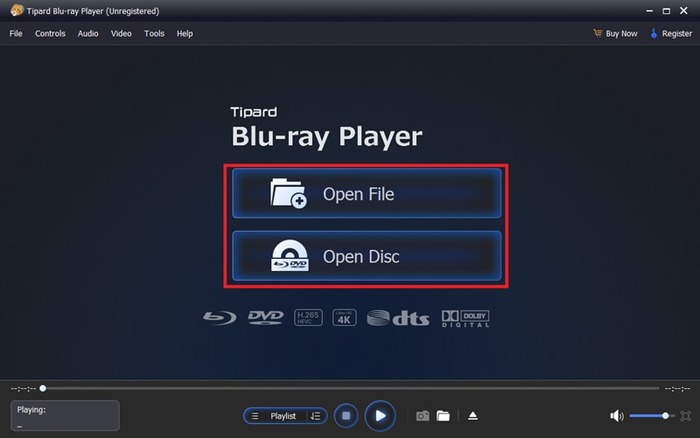
Once the VLC alternative is opened, click the Open File to select the video/audio for playback. On the other hand, you can use the program as your Default player.
Step 3 Add Subtitle to Video
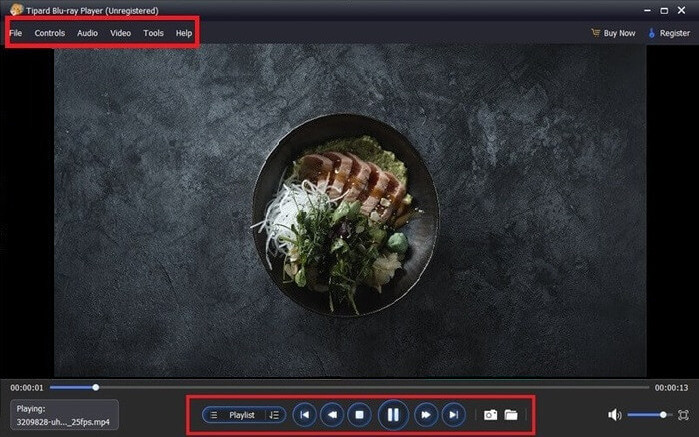
If you have a subtitle for your video, go to Tools and click Subtitle. Then select the file for your subtitle move and wait for it to load.
Step 4 Utilize Function
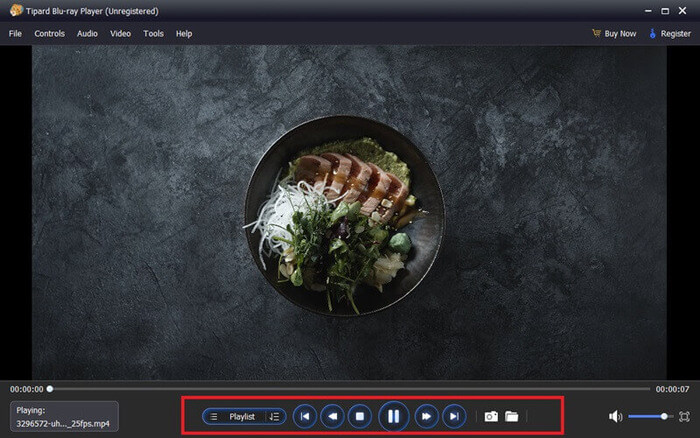
Once your files are on the player, you can explore the tool just as you would use any other media player. When you move your cursor, the functional buttons will show up, displaying the Play, Stop and Next buttons and more.
Conclusion
You have learned in this post the ultimate troubleshooting guide that will be handy in a VLC crashed situation. If issues persist, using alternative media players like Tipard Blu-ray Player will help you watch seamlessly. Like VLC, this media player supports all kinds of digital formats, ranging from the most compatible like MP4 to lossless files. Moreover, you may also add subtitles to your movies and create a playlist.
More Reading



About the Author


 Tipard Blu-ray Player