Plex is known for its broad format support, but some users report that Plex struggles to play 4K HEVC on Apple TV, PC, and some other devices. Does Plex support HEVC or not? How can we get Plex to play HEVC properly? Find the answers in the article.

Part 1. Does Plex Support HEVC/H.265? Quick Answers
Can Plex Play HEVC/H.265?
Yes. Plex can Direct Play or Direct Stream HEVC as long as the client supports HEVC encoding. That is to say, whether you can directly play HEVC without transcoding depends on your device, not Plex.
Does Plex Support HEVC/H.265 Transcoding?
Yes. If your device doesn't support HEVC, Plex will fall back to transcoding: it converts HEVC to a compatible format in real time as the video plays. This requires hardware that supports 10-bit HEVC, and it can use quite a lot of resources.
Part 2. Why Does Plex Fail to Play HEVC?
Why does Plex have playback errors on HEVC? There are many possible reasons, like file corruption or bandwidth issues, but the problem is mostly about transcoding.
Many older smart TVs, basic Fire Sticks, older Rokus, browsers (Firefox & older Chrome), and budget devices do not support HEVC. Even some modern devices might have incomplete support that doesn't include 10-bit.
When your client device can't directly play HEVC, Plex transcodes it. But this is demanding for your hardware. If your CPU & GPU are not powerful enough, or if the hardware acceleration is disabled, the transcoding process can be extremely slow, or even fail.
Sometimes Plex still transcodes 4K HEVC even though the client device does support HEVC. It tries to provide smooth playback by automatically adjusting video quality. This raises the chance of your system resources getting worn out.
Part 3. Fix Plex HEVC/H.265 Stutter: Quick Troubleshooting
Check the HEVC file status.
You can do this by testing it in another media player, like VLC. If it plays normally, we can say that the problem is on Plex. If it fails to play, you'll need to fix the file or use another one.
Make sure HEVC video encoding is enabled on Plex.
Go to Settings > Transcoder to turn on Enable HEVC Video Encoding. Plex will then auto-transcode HEVC when your device supports it.
Check Plex's video quality settings.
Go to Settings > Quality/Video. Set the quality to Original/Maximum and disable auto-adjust. This prevents Plex from auto-adjusting the quality by transcoding.
Enable hardware acceleration on Plex.
On Plex, go to Settings > Server > Transcoder, and enable Use Hardware Acceleration When Available. This helps reduce CPU usage. Hardware transcoding requires a compatible device and, for many hardware-transcoding features, a Plex Pass.
Part 4. Fix Plex HEVC/H.265 Stutter: Convert to MP4 H.264
If the troubleshooting solutions are not working, you still have a last resort that always works: convert the HEVC to MP4. MP4 is among the best-adapted video formats. By converting beforehand, you can avoid transcoding using up your CPU. You don't have to pay for a costly device upgrade to solve the problem.
Tipard Video Converter Ultimate is the solution. It can convert 4K/8K videos to and from 500+ formats, including HEVC and MP4, without quality loss. As a powerful all-in-one video toolbox, it also allows you to crop, rotate, adjust volume, and add effects to the video all in one go. Using hardware acceleration, the software processes lightning fast. It'll be a breeze to enjoy a cinematic 4K HEVC playback on your Plex Apple TV at home.

- Convert 4K HEVC/H.265 video to any formats.
- Process at 120x faster speed using hardware acceleration.
- Enhance HEVC resolution and audio quality with AI technology.
- Crop, rotate, and add filters to HEVC files before exporting.

Step 1 Download and install Tipard Video Converter for Windows or Mac.
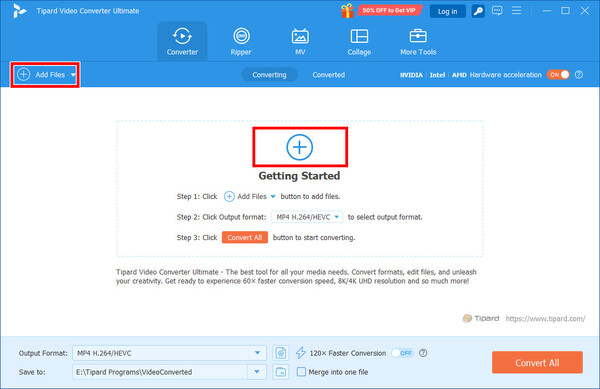
Step 2 Launch the converter. To import your HEVC video from local folders, click Add Files at the top left, or the big Plus button in the center.
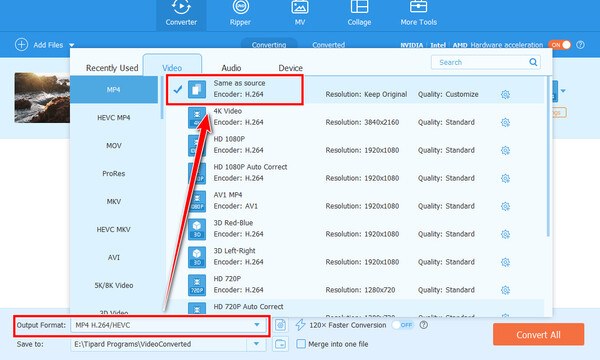
Step 3 After your file is added, click the Output Format button to open the drop-down. There, in the Video tab, select "Same as source MP4 H.264". This option preserves the original video quality and converts it to MP4 H.264.
Step 4 This step is optional: if you want to edit the video, click the Edit button with a wand. You will open a workboard where you can do basic editing. When you're done, click OK.

Step 5 Click on the folder button next to the Save to box. Select a saving location, then click Convert All. You can then find the converted HEVC video in the selected folder.

Conclusion
Plex supports HEVC, both playback and transcoding, but the real-life performance depends on your client device. To ensure better playback, we suggest 4 basic solutions and an ultimate fallback: Tipard Video Converter Ultimate. We hope this article helps you enjoy your movies.

All-in-one video toolbox: convert, edit, upscale, enhance, and compress your videos easily
100% Clean & Safe
100% Clean & Safe

More Reading




About the Author