

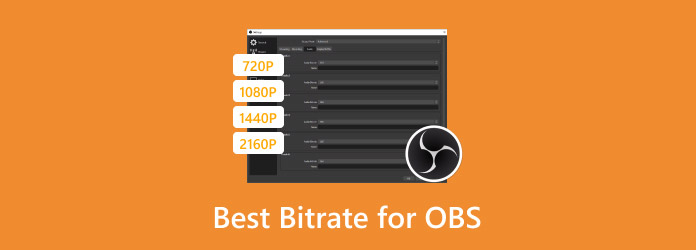
What is the best bitrate for sharp video on OBS? Well, selecting the best bitrate is one of the most necessary steps. It can help you achieve high-quality and smooth streams. Plus, bit rate directly affects both streaming stability and video clarity. It makes it essential to balance frame rate, resolution, and internet upload speed. Thus, if you want to learn more about the appropriate bitrate for OBS, read everything in this post.
Part 1. Understanding Bitrate: How it Impacts Your Recording
Bitrate is one of those technical terms/jargons that sounds more complicated than it actually is. But it is easily the most important setting for balancing quality and file size.
Think of bitrate as the "pipeline" for your data. A wider pipe lets more information travel through per second, resulting in a clearer picture or sound.
What Exactly is Bitrate?
The bit rate is the amount of data processed per unit of time. It is measured in bits per second (bps). But for modern recordings, we usually talk about "megabits" for video and "kilobits" for audio. In video, bitrate dictates how much detail is preserved in every frame. When the bitrate is too slow, it can lead to pixelation. A higher bitrate can preserve fine textures, sharp edges, and gradients, but with a larger file size.
On the other hand, for audio, the bitrate determines the recording's fidelity. 120 kbps is the standard, especially for basic web streaming. For higher quality, the bitrate must be 256 to 320.
To learn the best video bitrate for OBS, consult the simple table below.
| Content Type | Resolution | Recommended Bitrate |
|---|---|---|
| Standard Video | 1080p (30fps) | 8-10 Mbps |
| High Action Video | 1080p (60fps) | 12-15 Mbps |
| 4K Ultra HD | 2160p (60fps) | 45-60 Mbps |
| Podcast/Voice | Mono/Stereo | 96-160 Kbps |
| Music | Stereo | 256-320 Kbps |
Part 2. Best OBS Bitrate Settings for Recording and Streaming
To obtain the best result in OBS, you need to separate your settings into two categories. The first is recording, where quality is the priority, and the second is streaming, where stability and bandwidth are the main focus.
Recording Settings (High Quality)
Want the best OBS setting for recording? Instead of using Constant Bitrate (CBR) for high-quality recording, you should use a quality-based rate control. Some of them are CRF for x264 or CQP for NVIDIA/AMD. This way, you can get the greatest visual results without wasting storage space.
The ideal CQ/CRF level is between 16 and 23. 16 offers better quality for intricate games or expert editing. Then, 20–23 is ideal for tutorials and regular gameplay. To reduce CPU strain, select the NVENC (H.264/AV1) encoder. Additionally, recording in the MKV format ensures your data is saved even if the program crashes. It makes it simple to remux the video to MP4 later within OBS.
Streaming Settings (Stability)
Streaming requires Constant Bitrate (CBR). It is to ensure the video doesn't stutter for viewers due to data usage spikes. To get the best frame rate and bitrate, use the table below as a guide.
| Resolution | Frame Rate | Recommended Bitrate | Best For |
|---|---|---|---|
| 1080p | 60 FPS | 6,000 - 8,000 Kbps | High-motion gaming (Twitch/YouTube) |
| 1080p | 30 FPS | 4,500 - 6,000 Kbps | Slower games or "Just for chatting." |
| 720p | 60 FPS | 3,500 - 5,000 Kbps | Low-bandwidth internet stability |
| 1440p | 60 FPS | 12,000 - 16,000 Kbps | YouTube (Twitch generally caps at 6-8k) |
To get the best bitrate for video in OBS, you must first determine your objective: streaming or recording. Thus, check the details above and get the recommended bitrate for you.
Part 3. Troubleshooting OBS: Common Bitrate Issues
In this section, we will show you various bitrate issues when using OBS. We will also provide the best solution to address the issues. So, read here and learn everything.
Pixelated or Blurry Video
Cause: The bitrate was set too low for the chosen frame rate and resolution.
Solution: Increase the bitrate to match the output quality.
Dropped Frames during Streaming
Cause: The bitrate is too high for your internet upload speed.
Fix: Test your connection speed and lower the bitrate to stay within 70% to 80% of available upload bandwidth.
Buffering for the Viewer
Cause: Excessive Bitrate that exceeds platform or viewer connection limits.
Solution: Adjust bitrate to recommended platform settings. For example, Twitch must have 6000 kbps.
Bitrate Fluctuation
Cause: Inconsistent or unstable internet connection.
Solution: Always ensure you have a reliable, stable internet connection. You can also use a wired connection and enable OBS's Dynamic bitrate option, or lessen the frame rate and resolution.
Audio Desync or Poor Sound Quality
Cause: The audio bitrate is set too low or does not match the video settings.
Solution: For standard streaming audio, you can use 128-192 kbps. It ensures sync properly with the video.
If you encounter any issues when using OBS, you can use all the troubleshooting strategies from this section. That way, you can ensure a better streaming and recording experience.
Part 4. OBS Alternatives to Achieve Pro-Level Quality
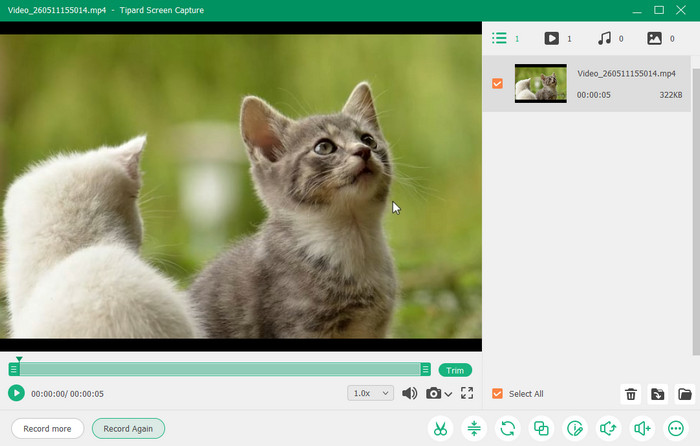
While OBS Studio offers unparalleled customization, the steep learning curve and the constant need to troubleshoot bitrates can be a challenge. Tipard Screen Capture is an ideal, powerful alternative that delivers a professional outcome without the technical overhead.
This program supports a compatible audio and video recording bitrate. While some recorders can cap out at 1080p, this software can record in full 4K resolution. It ensures a better viewing experience during playback. Aside from that, it can also support the AV1 codec. It is a game-changer for modern creators. It is because the codec offers superior compression. It can deliver high visual quality at significantly lower bitrates than H.264. It makes your files smoother and easier to upload. If you need the best OBS alternative, look no further than Tipard Screen Capture.
Conclusion
Thanks to this post, you have explored the best bitrate settings for OBS, especially for recording and streaming. You even learn how bitrate affects your recordings and the various troubleshooting methods you can use if you encounter bitrate issues in OBS. Lastly, if you need the best OBS alternative, Tipard Screen Capture is the best option. This program ensures you get the correct bitrate when recording both audio and video. It can even offer basic editing features to improve your file's playback. Thus, always rely on this software for a better experience.

Record full screen, portion, window, game, and phone seamlessly without lag
100% Clean & Safe
100% Clean & Safe

More Reading

About the Author


 Tipard Screen Capture