

Key Takeaways
- OBS can record audio with the best quality.
- OBS Studio can offer an easy-to-use interface for a smooth audio-recording process.
- Tipard Screen Capture is the ideal replacement for OBS for an easier recording procedure.
Want to record audio only on OBS? Well, the good thing about OBS is that it is not just an ideal tool for streaming and recording video. It can also help you record your audio after some configuration. So, if you want to learn how to record your audio, read everything in this tutorial. You will also learn the best alternative to use for a better and easier audio-recording process.
Part 1. Can OBS Record Audio Only
Wondering if you can record your audio when using OBS Studio? Well, the good news here is that the task is possible. OBS can also record your audio with the best quality. However, you must know that it requires setup to achieve your preferred result. You must know that by default, the program is designed for video streaming and recording. So, for an effective audio capturing process, configuration is necessary. This can be done by creating additional scenes and attaching your audio input sources, like system audio or microphone, vehicle removing, and leaving out any video capture devices. Thus, we can tell that OBS is another recorder you can rely on when it comes to recording your audio.
Part 2. How to Configure OBS to Record Audio Only
Can OBS Studio record audio only? Well, based on the information above, the answer is yes. But there are some setup processes you need to do. It includes removing the video capture devices. So, to start the process, you can use the simple instructions below.
Step 1 Download and install OBS Studio on your computer. After that, open it to begin the audio-recording process.
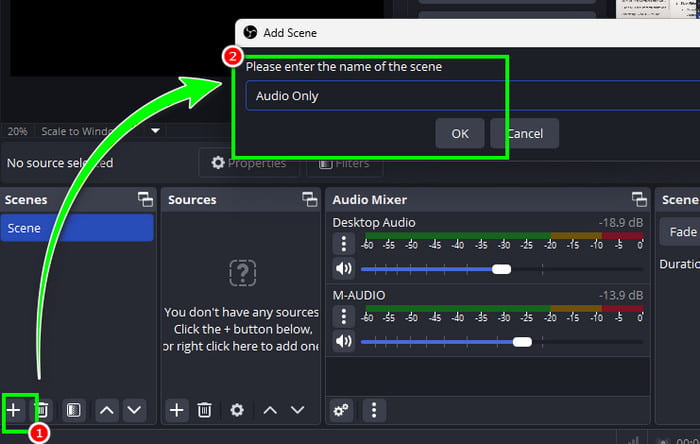
Step 2 Go to the Scenes section and click the Plus options. Then, rename it as Audio Only for easier reference.
Step 3 After that, you can also go to the Sources section and click Plus to select the Audio Input Capture or Audio Output Capture options. Then, add the content or audio you want to record.
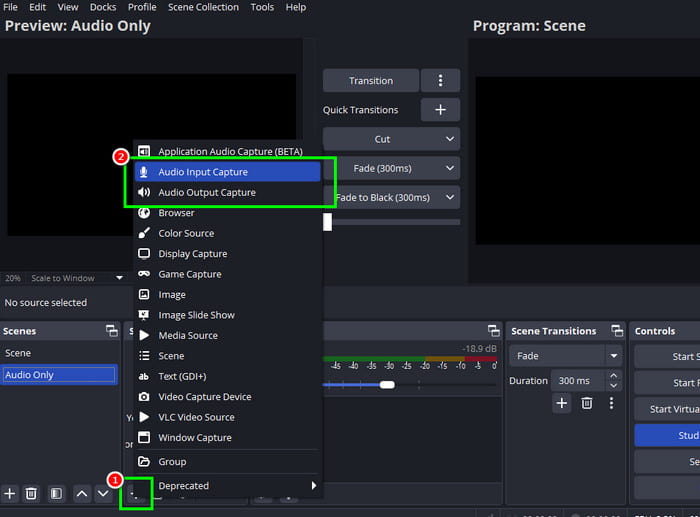
Always take note that the video capture options under the Sources section must be removed.
Step 4 Finally, you can start the recording process by hitting the Start Recording button from the right interface. You can also increase or decrease the volume based on your preferences by adjusting the slider in the layout.
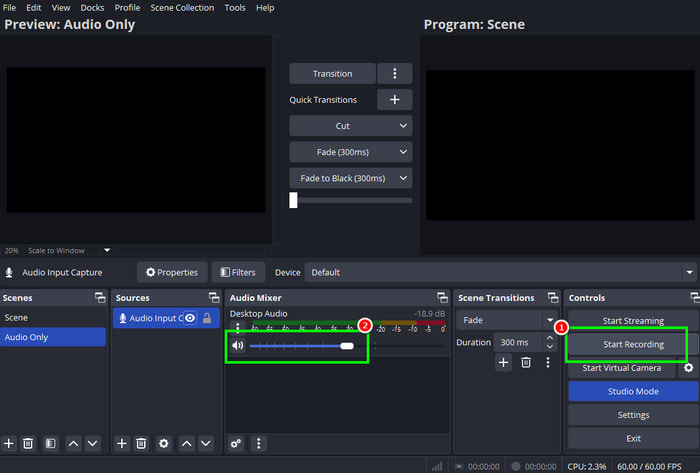
Want to learn how to record game audio only on OBS? Well, you can just follow these steps. Once you are done recording, tap the Stop Recording button.
With this process, you can ensure that you can capture any audio content from your computer. You can even adjust the volume based on your preferences. What we like here is that you can also access various features for improving the audio quality, such as a compressor, expander, noise suppression, and more. Therefore, for an ideal audio recording, rely on OBS Studio.
Part 3. The Major Drawback of OBS as an Audio Recorder
OBS can offer an effective audio-recording process. However, you must know that there are some drawbacks that you might encounter. To explore some of them, it would be better to read everything in this section.
Required Conversion
OBS saves any recordings in a video container, such as MP4, FLV, or MKV, even if you only capture the audio. So, if you want to get a pure audio file, you must use a separate video-to-audio converter. This process might be too time-consuming for some users.
Limited Audio Editing Tools
The program can give you some editing tools you can use, such as noise suppression, a compressor, and more. However, it still lacks some advanced audio-editing tools, like multi-track recording, mastering tools, and waveform visualization. For professional users, advanced features are helpful to get the best version of the recorded audio.
Large File Size
Since recordings are stored in video containers, the recording can be unnecessarily large. It can waste storage space on your computer, which can also complicate audio management. Thus, it is better to convert your file by using an MP4 to MP3 converter or any other video-to-audio converter to convert and change the size of the file.
Part 4. The Best Alternative to OBS to Record Audio Easily
Do you need an audio recording that is superior to OBS Studio? In that case, you can try accessing Tipard Screen Capture. This software can offer a dedicated audio recorder feature, allowing you to record audio and save it as an audio file. What we like here is that you can save the audio in any format you need. It includes MP4, WAV, FLAC, M4A, and other output formats. Plus, it can support long-duration recording without any lag. So, if you want to record a meeting, non-stop music, speech, and other long-form audio, this program is the best choice you can rely on. Lastly, the recorder ensures a satisfying audio output since it can save the recorded audio with the best quality for up to 320 kbps.
More Features:
- The recorder can offer basic editing tools to edit and enhance the audio.
- It can offer its Preview feature to check the recorded content instantly.
- The software can offer a smooth export/saving process.
- The program can record various media content, such as video, audio, text-based data, and more.
To start recording your audio, follow the steps below.
Step 1 First, download Tipard Screen Capture on your desktop. Then, launch its interface. You can also access the recorder on both Mac and Windows OS.
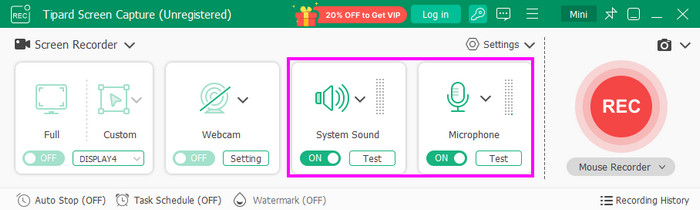
Step 2 After you launch the interface, you can now toggle on the System Sound and Microphone option.
Step 3 To start the audio recording, you can tap the REC button below. After the three-second countdown, the recording process will start, and you can play the audio you want to record.
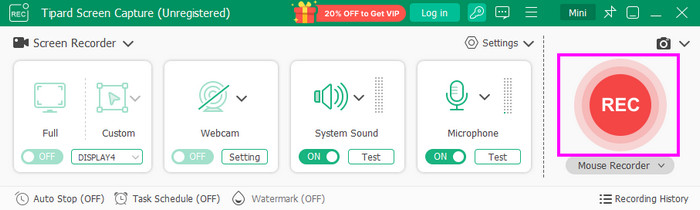
Tap the Stop button to finish the audio-recording process.
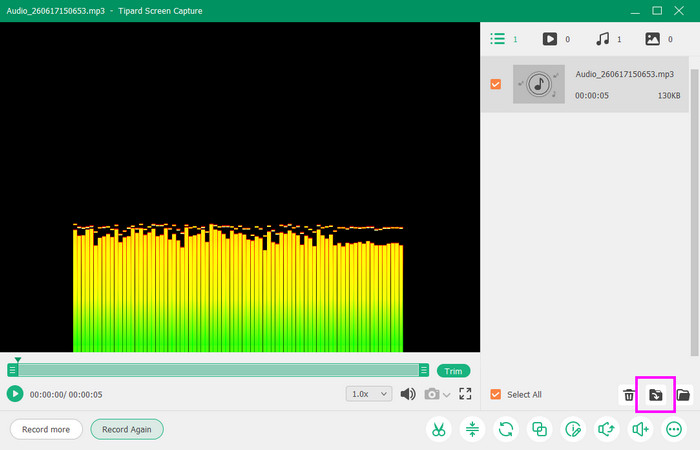
Step 4 When the preview shows up, you can check the recording. If you are satisfied with the result, you can save the audio by clicking the Export option below.
Conclusion
Now you know how to capture audio only using OBS Studio. So, if you want to configure the software for an effective audio recording, you can always rely on the provided methods in this tutorial. Plus, if you want an easier method to record your audio, there is no doubt that Tipard Screen Capture is the best recorder out there. With its audio recorder feature, you can record any audio content on your device without any issue. It can also give basic editing tools for enhancing the audio, making it superior to OBS.

Record full screen, portion, window, game, and phone seamlessly without lag
100% Clean & Safe
100% Clean & Safe

More Reading
About the Author


 Tipard Screen Capture