In the world of high-definition digital media, terms like GPU Acceleration and Hardware Decoding are everywhere. But what do they actually mean, and why are they vital for your video creation, conversion, and playback workflows?
This comprehensive guide breaks down how hardware acceleration works, why your system needs it, and how modern graphics cards support today's leading video codecs.
Part 1. What is GPU Acceleration & Hardware Acceleration?
At its core, Hardware Acceleration is the process of offloading demanding computational tasks from your computer‘s general-purpose processor (the CPU) onto specialized hardware designed specifically for that task.
When this offloading happens during video processing, it is called GPU Acceleration.
Part 2. CPU vs. GPU: The Core Difference
- The CPU (Central Processing Unit) is the "brain" of your computer. It is built to handle a wide mix of tasks sequentially using a few highly powerful cores.
- The GPU (Graphics Processing Unit) is a highly parallel processor consisting of thousands of smaller, specialized cores. It excels at executing repetitive, massive mathematical calculations simultaneously, exactly what digital video and graphics pixels require.
Instead of forcing your CPU to calculate every single pixel of a 4K or 8K video, software leverages dedicated hardware blocks inside your GPU (such as NVIDIA NVENC/NVDEC, Intel Quick Sync, or Apple VideoToolbox) to handle the heavy lifting.
Today, many videos you take or find on the internet have no less than 1080p resolution. Therefore, so, if a media editor, converter, or player doesn't support hardware acceleration, it will be knocked out.
Part 3. Why Do We Need GPU Acceleration?
Without GPU acceleration, editing or playing high-resolution video can bring even the most expensive computers to a stuttering halt. Here is how hardware acceleration transforms the three pillars of video processing:
1. Video Playback (Decoding)
When you watch a video, your system must decode a compressed file in real-time. High-efficiency codecs require massive computing power to untangle.
- Without GPU Acceleration: The CPU spikes to 100% usage, causing dropped frames, stuttering, audio-video desync, and loud system fans.
- With GPU Acceleration: Dedicated hardware decoders take over. Playback becomes buttery-smooth, CPU usage drops to single digits, and power consumption is drastically reduced (saving laptop battery life).
2. Video Conversion & Exporting (Encoding)
Converting a video from one format to another (or exporting a finished project from an editor) requires compressing millions of frames.
- Without GPU Acceleration: Software encoding (CPU-driven) is remarkably accurate but painstakingly slow, often taking hours for a feature-length 4K movie.
- With GPU Acceleration: Hardware-accelerated encoders compress video up to 5x to 10x faster, turning hours of waiting into minutes.
Part 4. Which GPU Accelerations Are Supported by Tipard?
Tipard supports all graphics cards that have GPU acceleration abilities, including NVIDIA NVENC, AMD VCN (Video Core Next), Intel Quick Sync Video, and Apple VideoToolbox.
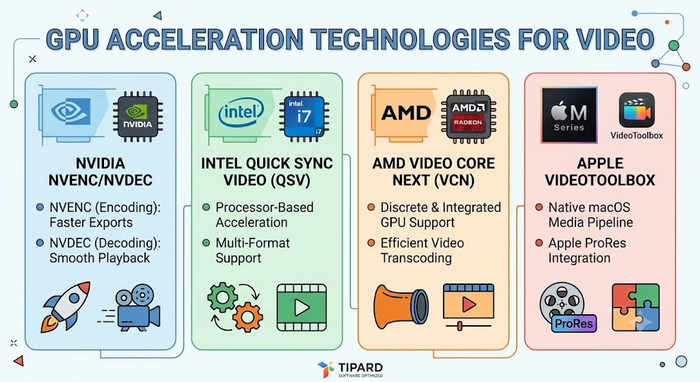
Below is an overview of our supported leading graphics card models and the most popular industry codecs: H.264 (AVC), H.265 (HEVC), and the newer AV1. For older graphics cards, Tipard programs will also automatically utilize the GPU acceleration abilities as long as they can do so.
1. NVIDIA GeForce Series
NVIDIA utilizes two dedicated hardware architectures: NVENC (for encoding/conversion) and NVDEC (for decoding/playback).
- RTX 30-Series (Ampere): Full hardware decoding for H.264, H.265, and AV1. However, it only supports hardware encoding up to H.265 (No AV1 encoding).
- RTX 40-Series & 50-Series (Ada Lovelace / Blackwell): Features the latest dual NVENC encoders. Supports full hardware encoding and decoding for H.264, H.265, and AV1. Ideal for 4K/8K HDR video creation.
- NVIDIA GeForce RTX 50 Series: Features NVIDIA's 9th-generation NVENC and upgraded NVDEC engines. Introduces an AV1 Ultra Quality mode and native 4:2:2 chroma subsampling hardware support.

2. AMD Radeon Series
AMD powers hardware video processing through its dedicated VCN (Video Core Next) engine.
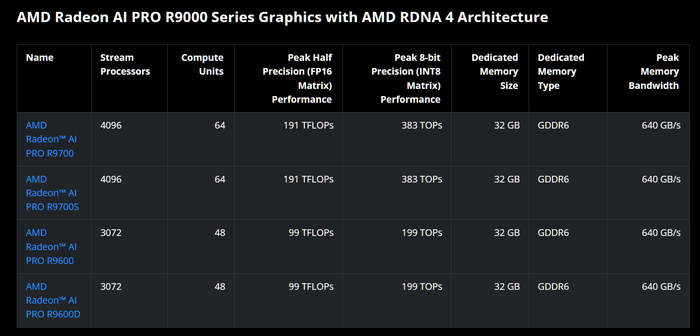
- Radeon RX 7000 & 8000 Series (RDNA 3 / RDNA 4): Features an upgraded VCN engine with dual-media capability. It adds full, native AV1 hardware encoding and decoding, matching the industry standard for next-gen streaming.
- AMD Radeon RX 9000 Series: Full native hardware encoding and decoding for H.264, H.265, and AV1. It features AI-accelerated quality enhancements in its media engine.
3. Intel Graphics (Integrated & Discrete)
Intel pioneered hardware video processing with Intel Quick Sync Video (QSV) technology.
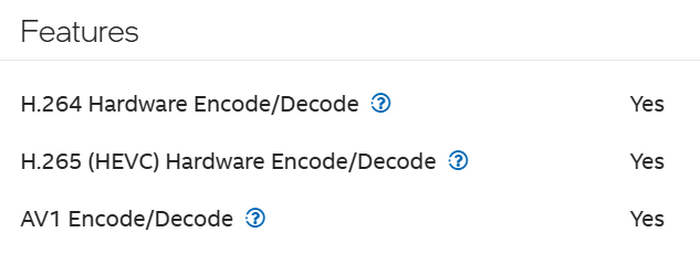
- Intel Core CPUs (11th - 14th Gen / Core Ultra iGPUs): Excellent built-in support for H.264 and H.265 encoding/decoding. Core Ultra chips add AV1 decoding.
- Intel Arc Discrete GPUs (Alchemist / Battlemage): Intel Arc was among the first to introduce native AV1 hardware encoding. They offer phenomenal value for dedicated media servers and budget video editing setups.
4. Apple Silicon (M-Series)
Apple uses highly optimized Media Engines built directly into its SOCs via VideoToolbox.
- Apple M1 / M2 Series: Native, lightning-fast hardware acceleration for H.264, H.265, and Apple ProRes. M2 adds higher-bandwidth ProRes support.
- Apple M3 / M4 Series: Introduces an upgraded Media Engine that includes a dedicated AV1 hardware decoding engine, making modern web streaming highly efficient on Mac.
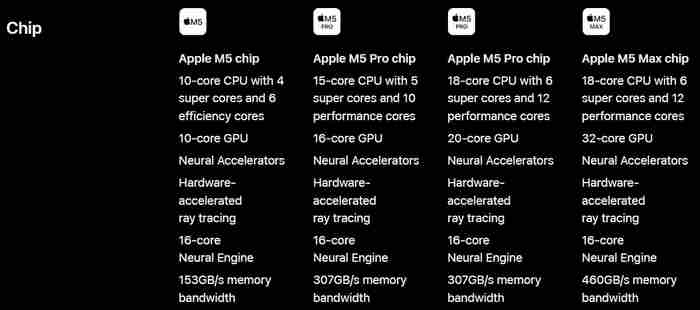
- Apple M5 Series: Features a dedicated AV1 hardware decoding engine directly on the silicon.'
Part 5. How to Enable GPU Acceleration in Tipard Software?
Tipard software thinks highly of hardware acceleration to unleash the power of your graphics card and protect your CPU. On a Tipard program that needs hardware acceleration, you will see an obvious option: Hardware acceleration. You can find it on Tipard Video Converter Ultimate, Tipard Blu-ray Converter, Tipard DVD Ripper, etc.
As we all know, computers have a CPU and a GPU. Most CPUs are Intel products, which also have a hardware acceleration technique: Quick Sync Video (QSV). If your GPU is not that high-end while the CPU is strong, you can choose Intel rather than NVIDIA or AMD.

You can also check and select your computer's GPU acceleration techniques in Preference:
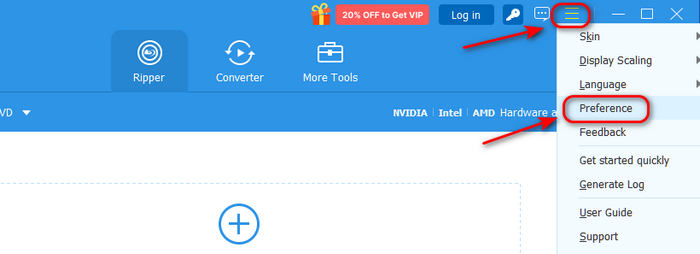
Step 1 Launch a Tipard program, like Tipard Video Converter Ultimate, Tipard Blu-ray Converter, or Tipard DVD Ripper. Click the Menu button in the top right corner. Then, click the Preference button.
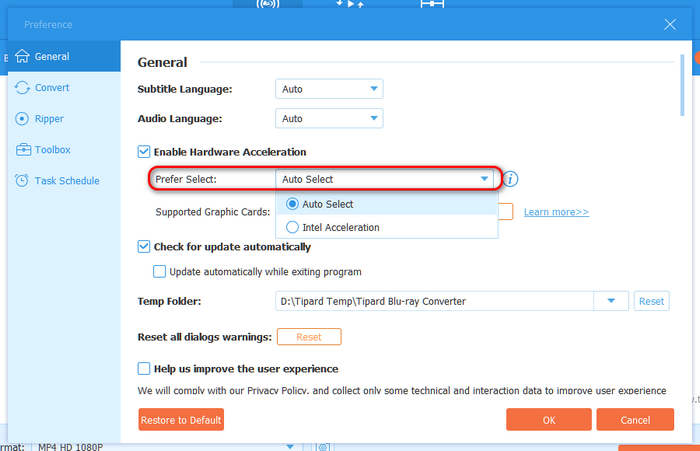
Step 2 Locate the General tab and then click the Prefer Select dropdown list to view specific hardware acceleration techniques your computer can support. You can also select your desired one. Then, click the OK button to confirm.
Bonus: Your Intel CPU Can Also Help
As we mentioned above, some Intel CPU models have integrated graphics cards. Therefore, even if your computer has a low-end NVIDIA or AMD, or doesn't have a discrete GPU, you can try using your Intel GPU. However, let's check specific Intel processor models that can support their official hardware acceleration (QSV):
| Processor Generations | Core Media Architecture |
|---|---|
| Intel Core 2nd to 5th Gen(Core i3/i5/i7 2000 ~ 5000 Series) | QSV v1 ~ v4 |
| Intel Core 6th to 10th Gen(Core 6000 ~ 10000 Series / HD & UHD Graphics) | QSV v5 ~ v6 |
| Intel Core 11th to 14th Gen(Core 11000 ~ 14000 Series / Iris Xe Graphics) | QSV v7 ~ v8 |
| Intel Arc A-Series Desktop GPUs(Alchemist Architecture, e.g., A380 ~ A770) | QSV v9 (Xe-HPG) |
| Intel Core Ultra 1st / 2nd Gen(Meteor Lake / Arrow Lake / Lunar Lake iGPUs) | QSV v9 ~ v10 (Xe-LPG / Xe2) |
| Intel Arc B-Series Desktop GPUs(Battlemage Architecture, e.g., B570 ~ B770) | QSV v10 (Xe2-HPG) |
| Intel Core Ultra 3rd Gen(2026 Panther Lake Architecture iGPUs) | QSV v11 (Xe3-LPG) |
Part 6. FAQs of Hardware Acceleration
Do NVIDIA, AMD, Intel, and Apple only support H.264, HEVC, and AV1?
GPU manufacturers focus on H.264, HEVC, and AV1 because these three codecs handle over 99% of global video traffic, from YouTube streaming to 4K Blu-ray playback. To maximize chip efficiency, companies like NVIDIA, AMD, and Intel dedicate physical silicon circuits exclusively to these dominant formats. Legacy formats like MPEG-2 are easily handled by a modern CPU's raw power without dedicated hardware, while professional editing formats like Apple ProRes rely on specialized studio workflows.
What happens if I disable or do not use hardware acceleration?
Disabling hardware acceleration forces your CPU to handle all video decoding and encoding tasks, which it is not optimized to do efficiently. For demanding high-resolution files like 4K Blu-rays or AV1 web streams, this causes your CPU usage to spike toward 100%. As a result, you will experience severe video stuttering, dropped frames, laggy timelines, and extreme slowdowns during video conversion, alongside rapid battery drain and loud system fans.
Does enabling hardware acceleration cause damage to my graphics card?
No, hardware acceleration is completely safe and will not damage your graphics card. It does not overclock your hardware; it simply passes the workload to dedicated, factory-built media engines (like NVIDIA NVENC or Intel Quick Sync) engineered specifically for video processing. Utilizing these specialized cores is actually highly efficient, generating less overall system heat and drawing less power than forcing your CPU to do the heavy lifting.