

DVDs are the optical disks that were popular before. They are commonly used to store data, including videos and audio files. You can access the data when you insert it into a DVD player. However, DVDs are prone to damage because they only have a physical form. This issue is the main reason why people want to convert them to digital formats. Third-party tools can be used, like VLC Media Player.
People often choose MP4 as the main video format because of its wide range of compatibility. Rip DVD to MP4 on VLC with this article! The procedures for your Mac and Windows computers are included. Please continue browsing to know the full details.

Part 1. How to Use VLC to Convert DVD to MP4
VLC player converts DVD to MP4 in a span of minutes. This procedure is attainable on Windows and Mac. The tool is available on the mentioned computers. See the section below to know how.
1. Convert DVD to MP4 on VLC Using Mac
VLC Media Player is accessible on your Mac. However, the process is slightly less direct. Also, the stability of VLC on your Mac is less consistent. Some of the advanced controls of VLC on Mac are hidden. It is the top reason why it is harder to operate than the Windows version. Besides MP4, you can also convert your DVD to AVI, MKV, WMV, FLV, and more. Convert DVD to MP4 using VLC on Mac with the steps below.
Step 1 Visit the official website of VLC. After that, download, set up, and install the tool to open it on your Mac. Choose the Open button to do that. Select the Open Media button. Click the Disc tab in the Open Source section. Choose the DVD you have inserted in the DVD of your Mac.
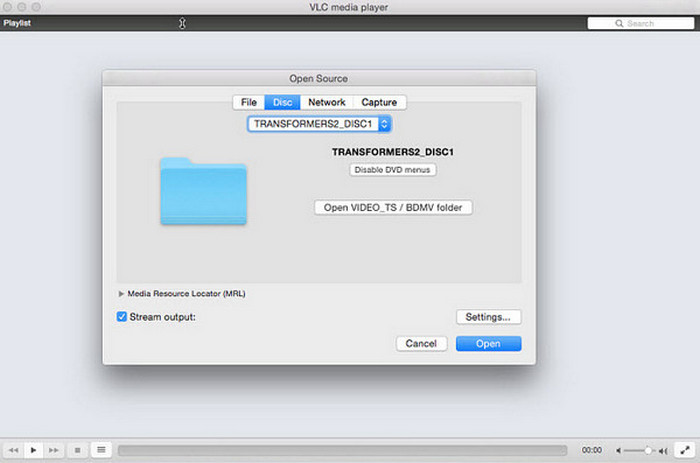
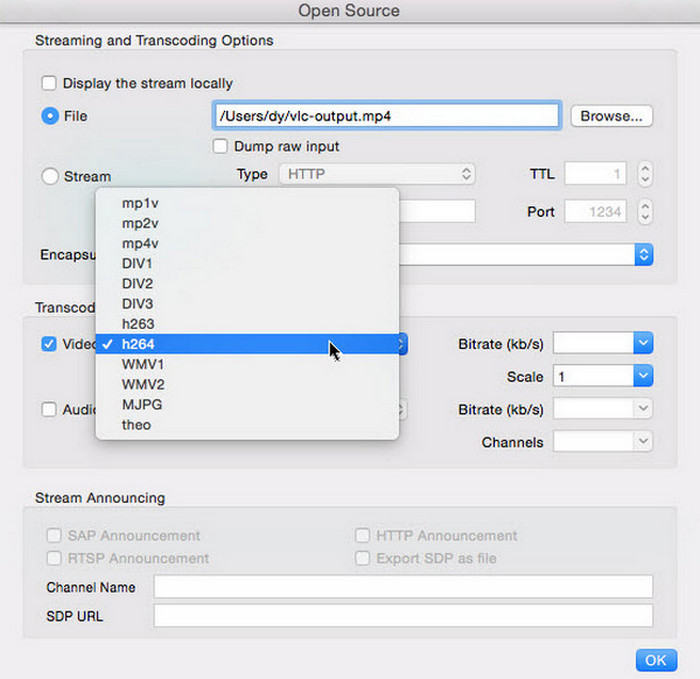
Step 2 Click the Disable DVD Menus button. Follow the on-screen instructions for the file setup to proceed with the process. Click the Stream Output button afterward. Then, click the Settings option and choose the Browse button. Go to the Encapsulation Method section.
Step 3 Choose the h264 option from the list. Then, click the OK option to save the changes. Later, click the Open button. VLC will start to rip the DVD afterward. Wait for the procedure to be completed.
2. Convert DVD to MP4 on VLC Using Windows
You can also rip DVDs with VLC using your Windows computer. Compared to the Mac version, the process of Windows VLC is more direct and clear. You have full control over the codec selection. The stability of VLC on Windows computers is more stable. Also, its advanced controls are more visible compared to Mac. On the other hand, they have the same supported media formats. Use VLC to convert a DVD to MP4 on your Windows computer with the steps below.
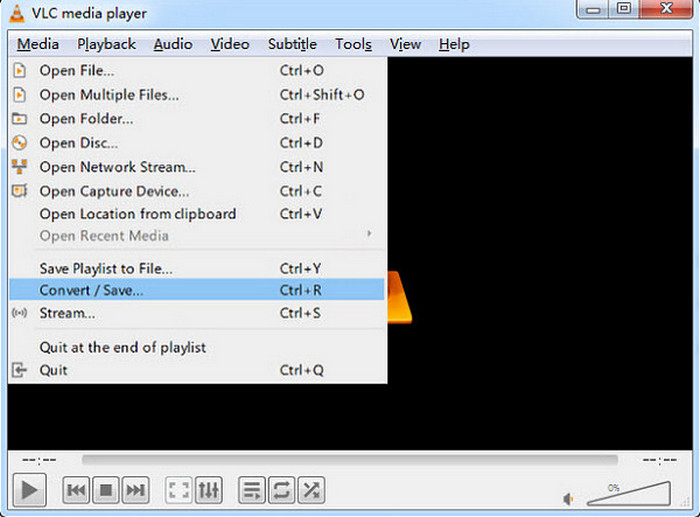
Step 1 Download, install, and open VLC Media Player on your computer. Then, select the Media button at the top left. Drop-down options will appear. Select the Convert/Save button. Click the Disc button and enable the DVD option.
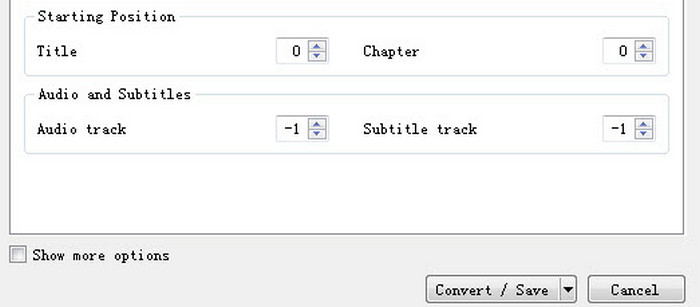
Step 2 The Starting Position and Subtitles sections will appear. You can adjust these two sections, depending on your preference. Later, click the Convert/Save button at the bottom right. The ripping process will start immediately.
Part 2. Limitations of VLC Ripping DVD to MP4
Converting the DVDs to MP4 with VLC Media Player is indeed great. However, VLC has some limitations that its users need to know. This way, they will know the capabilities it can offer. See them from the list below.
1. No Automatic Main Movie Detection
VLC cannot identify the main movie. The DVD can only contain multiple titles, bonus clips, and more. But the good thing about it is that you may copy a DVD to a hard drive using the tool, including your movies.
2. VLC Struggles with Encrypted DVDs
VLC Media Player cannot bypass the copy protection. You need an extra library, such as libdvdcss. However, it might not always work as expected.
3. Slow Conversion Speed
The conversion speed of VLC Media Player is slow compared to other tools that can rip DVDs. It lacks hardware acceleration optimization.
4. Complicated Settings for Novices
The interface of VLC Media Player is not beginner-friendly. So, novices will have a hard time applying settings to their files.
Part 3. The Best VLC Alternative to Convert DVD to MP4
Sometimes, VLC Media Player experiences lagging and crashing issues, especially when its new version is not acquired. Tipard DVD Ripper can be used as an alternative. It supports many standard output MP4 profiles with wide compatibility. Also, the program automatically decrypts encryptions on DVDs. You can also use its full hardware acceleration for decoding and re-encoding. Lossless remixing can also be used, which includes lossless MKV that VLC can only re-encode. Please use the steps below as your guide on how to use the tool.
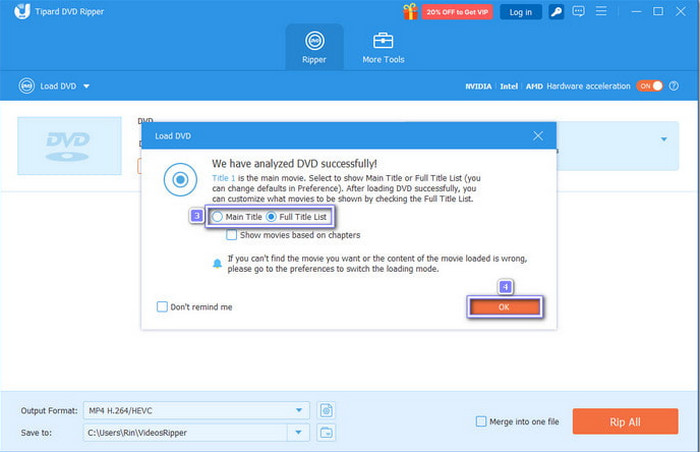
Step 1 Search for the main website of Tipard DVD Ripper. Download, install, and open it afterward. Insert the DVD into your computer. Later, click the Ripper button at the top. Select the Load DVD button and choose from the drop-down list.
Step 2 Choose the Main Title button to rip the main file, or click the Full Title List button if you want all the content. Click the OK button to load the titles on the main screen.
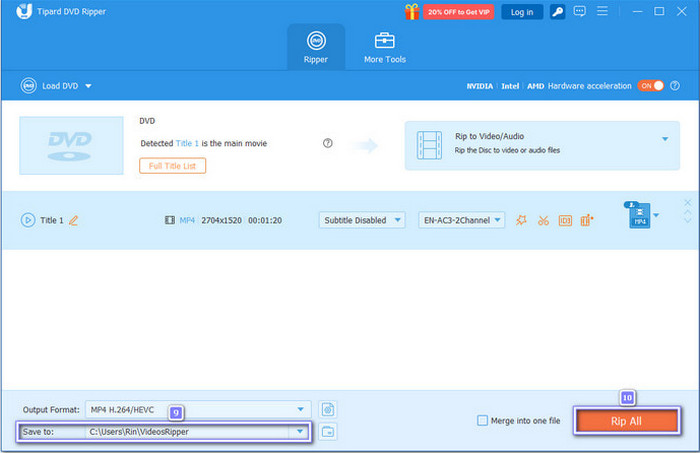
Step 3 Go to the Format menu. Select the MP4 format and choose its quality. You may adjust the settings by selecting the Gear icon. Select the destination folder or location from the Save To section. Finally, click the Rip All button at the bottom right.
Part 4. FAQs of VLC Converting DVD to MP4
How long does VLC take to convert a DVD to MP4?
The conversion of the DVD to MP4 on VLC Media Player usually takes a few minutes or hours. On the other hand, it still depends on the size of your DVD, including the speed of your computer.
Why can't VLC convert a DVD to MP4?
There might be an incorrectly selected default conversion profile that did not specify the standard MP4 codec. It includes the H.264 video and AAC audio.
Is it worth converting DVDs to digital?
Yes! Converting your DVDs to digital formats is worth it. You do not need to worry about scratches and other damage to your DVDs, which can lead to skipping or freezing issues in your DVD contents.
Conclusion
This post explains how VLC converts DVDs to MP4 on your Mac and Windows computers. The limitations of the mentioned tool for ripping DVDs are also included. The best alternative to VCL, which is Tipard DVD Ripper, may be used to convert DVDs to 500+ media formats. Downloading the tool will help you know more about its features.
More Reading

About the Author


 Tipard DVD Ripper