

Modern Macs like MacBook Air and MacBook Pro often do not include a built-in disc drive. It makes it hard to play old movie DVDs. Some users try an external DVD drive, but it can be less convenient to carry and use.
If you need a simple way to rip a DVD on Mac, you are in the right place. We will show useful tools that help you convert DVDs into digital files. These tools make it easy to watch your movies anytime and keep your collection safe.
Part 1. Things to Prepare Before Ripping a DVD on a Mac
Before you start ripping a DVD, it is necessary to prepare a few things first. It can help you avoid errors, save time, and get a smooth ripping process from start to finish.
1. A DVD Drive
Most modern Macs no longer include a built-in DVD drive. If your Mac does not have one, you will need an external DVD drive to read the disc.
2. The DVD You Want to Rip
Make sure your DVD is clean and free from deep scratches. A damaged disc may cause reading errors or failed ripping attempts.
3. DVD Ripping Software
You need a DVD ripper that works on macOS. Some tools only support homemade DVDs. Others can also handle copy-protected DVDs and offer more output formats.
4. Enough Storage Space
DVD files can take up several gigabytes of storage. Check your available space before you begin. It is especially important when saving high-quality videos.
5. Desired Output Format
Think about where you plan to watch the video. MP4 is a common choice because it works on most devices. Other formats like MOV or MKV may also fit your needs.
6. A Stable Mac Performance
Close unnecessary apps before ripping. It can free up system resources and help the process run faster and more smoothly.
Part 2. Top 7 DVD Ripping Software for Mac
To rip a DVD on a Mac, you need a DVD ripping program. Below are the top 7 tools you can use. Let us check each one!
1. Tipard DVD Ripper for Mac
Ripping DVDs on Mac helps you save movies in digital form and enjoy them anytime without disc limits. Tipard DVD Ripper for Mac makes this process fast and simple. It rips all copy-protected DVDs with ease.
It supports Apple Silicon hardware acceleration for faster performance. You can keep subtitles and audio tracks, and adjust them freely. It also supports batch conversion and outputs MP4, MOV, ProRes, MKV, AV1, HEVC, and H.264 for better clarity and smaller file size.
Without further ado, check how to rip a DVD on Mac using the steps below.
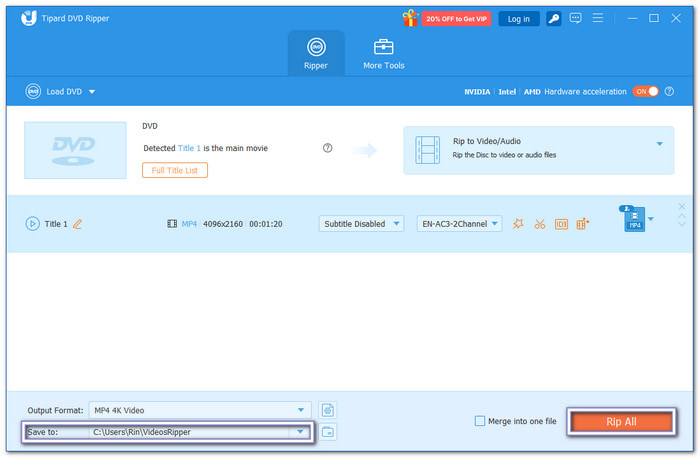
Step 1 Get Tipard DVD Ripper for Mac from the official website or by clicking the Download buttons below.
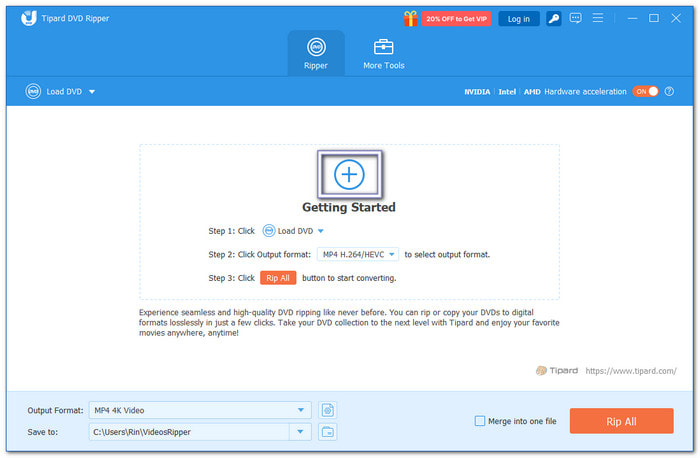
Step 2 Insert your DVD into the drive. Then, click the Add button in the center to load the disc or files. Please wait for the program to scan your DVD. You can select the main title or all titles you want to convert.
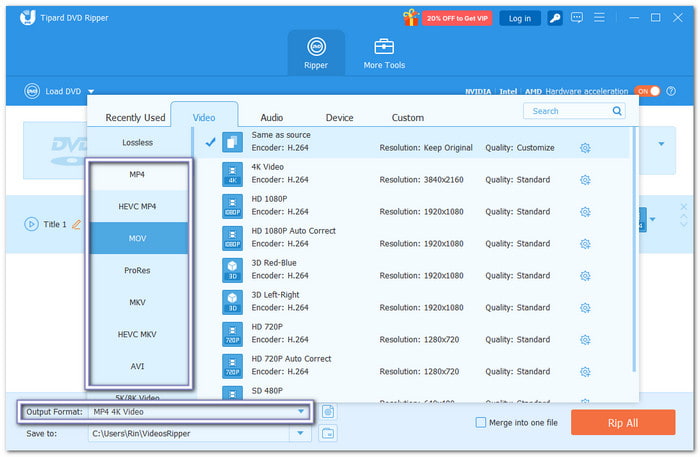
Step 3 Head to the Output Format option. Open the drop-down menu list. Choose a format like MP4, MOV, MKV, or others. You can also use the search box to find formats faster.
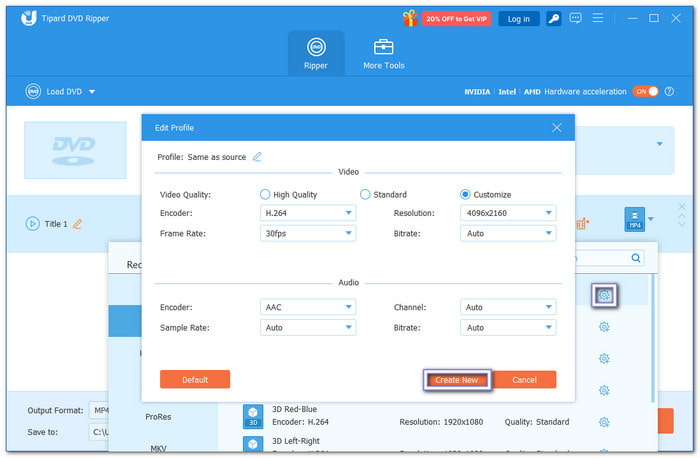
Step 4 Open the Custom Profile settings if you want to make changes. You can adjust the encoder, resolution, frame rate, and bitrate. After editing, click the Create New button to save your settings.
Step 5 Choose your save location using Save to at the bottom. Pick your folder. Once ready, click the Rip All button to start converting your DVD into a digital file on Mac.
- Handles protected and homemade DVDs.
- Supports DVDs, ISO files, and DVD folders.
- Includes video and audio editing tools.
- Up to 30× faster ripping speed.
- The trial version has usage limits.
2. HandBrake
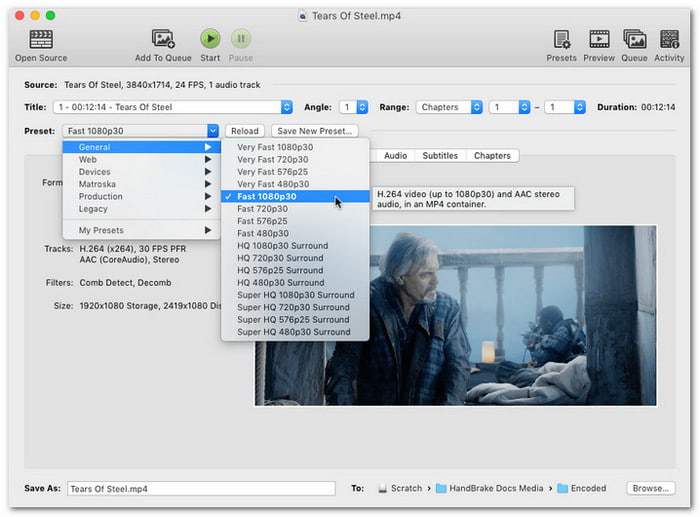
HandBrake is a free DVD ripping software for Mac that turns DVDs into digital video files. It uses simple presets for quick results. It can also handle advanced encoding settings for users who want more control and quality adjustments.
- MP4, MKV, WebM output support.
- Preset-based conversion system.
- Chapter and batch support.
- Hard for beginners.
- No built-in DVD decryption.
3. MakeMKV
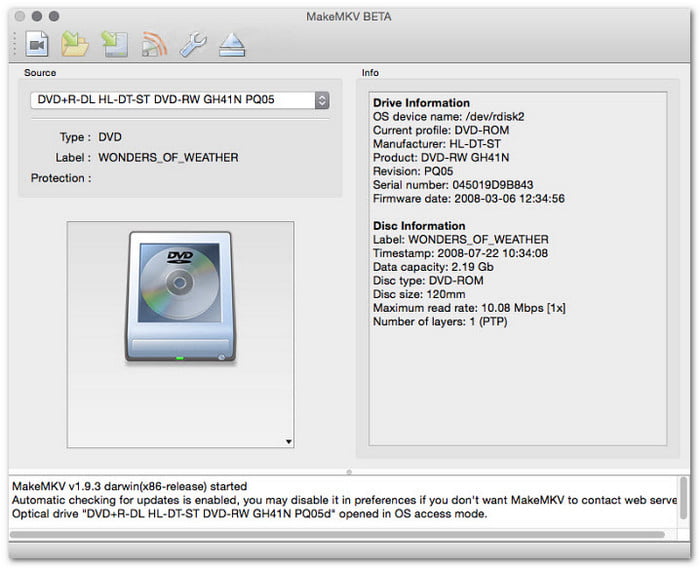
Unlike normal converters, MakeMKV rips DVDs into the MKV format without re-encoding. It keeps full video quality and removes most disc protections while processing quickly on Mac, including when you need to rip a protected DVD on Mac.
- Built-in disc decryption.
- Lossless MKV output.
- Handles protected DVDs.
- Fast conversion speed.
- MKV only format.
- No editing tools.
4. iSuper DVD Ripper
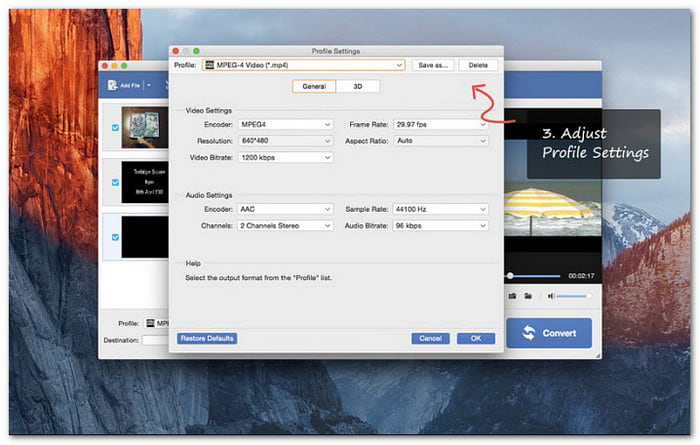
iSuper DVD Ripper gives a simple way to convert DVDs into common video formats on Mac. It also includes basic editing tools, but performance can vary, especially with homemade discs and playback stability, making it one of the best DVD ripping software for Mac options available.
- Multiple format export.
- Basic video editing tools.
- Audio extraction option.
- Simple interface design.
- Only homemade DVDs.
- Sync and display issues.
5. VLC Media Player
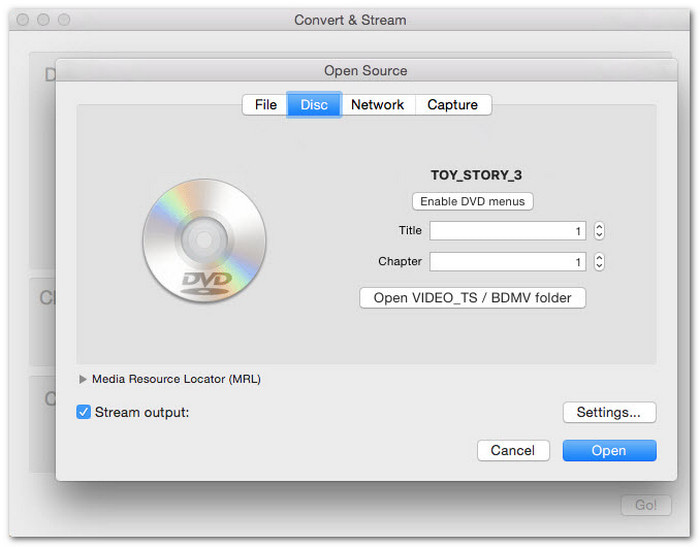
Used by many users, VLC Media Player can play DVDs and also convert them into digital video files. This free DVD ripper program on Mac supports many codecs but gives limited control over quality and conversion settings.
- DVD playback and conversion.
- Wide codec support.
- Cross-platform tool.
- Media streaming support.
- Hidden settings menus.
- Slow encoding speed.
6. FFmpeg
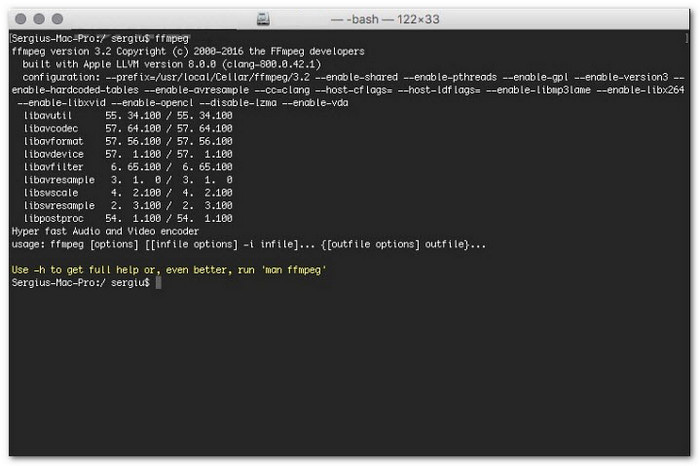
Command-driven power comes from FFmpeg, which converts DVDs into many formats using detailed controls. It allows full encoding customization but needs command-line skills to operate on a Mac, making it a powerful DVD rip program on Mac for advanced users.
- Command-line processing.
- Advanced codec support.
- Subtitle handling tools.
- Full encoding control.
- Hard for beginners.
- No DRM removal.
7. Disk Utility
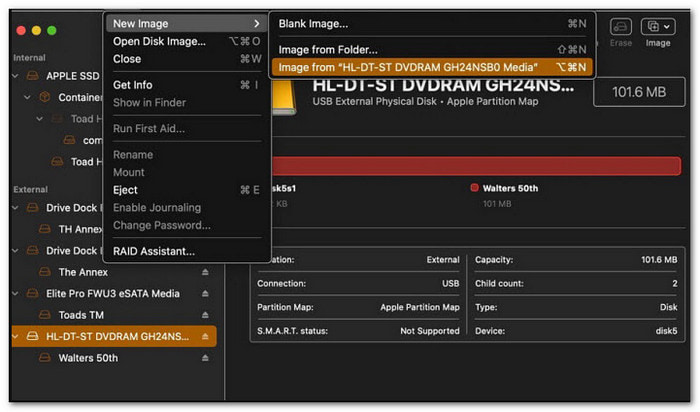
Disk Utility is a built-in feature of macOS that makes basic disk images for backup purposes. Although it does not support protected discs or convert video formats, it maintains the original data quality.
- DVD image creation.
- Built-in macOS tool.
- Lossless backup option.
- Simple workflow.
- No format conversion.
- No DVD protection support.
Part 3. Side-by-Side Comparison of the 7 DVD Rippers on Mac
| DVD Rippers on Mac | Decryption (Bypasses Protections) | Ripping Speed | Output Formats | Output Quality |
|---|---|---|---|---|
| Tipard DVD Ripper for Mac | Supports most copy-protected DVDs. | Fast | MP4, MOV, MKV, ProRes AVI, and more. | Excellent clarity with upscaling support. |
| HandBrake | Requires libdvdcss for some protected DVDs. | Moderate | MP4, MKV, and WebM. | High-quality output. |
| MakeMKV | Built-in DVD protection removal. | Fast | MKV only. | Lossless original quality. |
| iSuper DVD Ripper | No protected DVD support. | Moderate | MP4, AVI, MOV, MKV, FLV, and more. | Good quality with occasional issues. |
| VLC Media Player | Supports CSS and region-coded DVDs only. | Slow | MP4 H.264 H.265 WebM and more. | Good quality output. |
| FFmpeg | No DVD decryption support. | Fast | Supports many formats. | Excellent quality control. |
| Disk Utility | No protected DVD support. | Slow | DVD image files only. | Original quality preserved. |
| Show MoreShow Less | ||||
Part 4. Troubleshooting Common DVD Ripping Issues on Mac
DVD ripping on Mac is usually easy. Still, some problems can appear during the process. If your DVD does not rip correctly, try these simple fixes before starting again.
1. The DVD is not recognized.
Sometimes, the program cannot detect the DVD. Check if the disc is clean and free from scratches. You can also reconnect the DVD drive or restart your Mac.
2. A protected DVD cannot be ripped.
Many commercial DVDs use DVD copy protection. Some free tools cannot bypass these protections. Try using a program that supports encrypted DVDs and keep it updated for better compatibility.
3. Ripping speed is too slow.
Large DVDs and high-quality settings can increase ripping time. Close unused programs while ripping. Hardware acceleration can also help improve speed.
4. No audio or missing subtitles.
The wrong audio track or subtitle track may be selected. Check your settings before ripping. Make sure the tracks you want are enabled.
5. The output video will not play.
It often happens when your device does not support the format. Try saving the DVD as MP4 with H.264 video. It is one of the most widely supported formats today.
Part 5. FAQs of Ripping DVDs on Mac
How long does ripping take?
Ripping time depends on the DVD size and quality settings. A normal DVD may take 20 minutes to over an hour. High-quality or slow computers may take longer.
Can a scratched DVD be restored?
Yes, sometimes it can be fixed. You can clean the disc gently to remove dust and light scratches. For more serious damage, professional disc repair tools or services may help improve readability.
What is the best format to rip a DVD?
MP4 and MKV are the best formats. MP4 works on most devices. MKV keeps more original tracks, like audio and subtitles. Choose based on your needs.
Conclusion
You already know what the best DVD ripping programs for Mac are. These include Tipard DVD Ripper for Mac, HandBrake, MakeMKV, iSuper DVD Ripper, and VLC Media Player. Good thing, they work for personal use, commercial use, and protected discs.

Rip DVD to 500+ Video/audio formats with AI Upscaling
100% Clean & Safe
100% Clean & Safe

More Reading
About the Author


 Tipard DVD Ripper