

- Part 1: Does Instagram Automatically Loop Videos
- Part 2: How to Loop a Video on Instagram Reels
- Part 3: How to Create a Seamless Loop Video for Instagram
- Part 4: How to Loop a Video on Instagram Story
- Part 5: Best Video Formats for Instagram Loop Videos
- Part 6: FAQs on How to Loop a Video on Instagram
Key Takeaways
Instagram can replay some videos, but Reels and Stories handle looping differently.
Make a short Reel and match its start and end for a smooth loop.
Tipard Video Converter Ultimate can help cut, arrange, and export smooth loop videos.
Use Boomerang to create a short, fun looping video for Instagram Stories.
MP4 and MOV are good choices for Instagram loop videos.
Instagram is a fun place to share short videos. Looping clips can make them even more fun to watch. Do you want to try it? No idea how? Our guide on how to loop a video on Instagram can help. It covers Reels and Stories. You will also learn the best video formats to use. Begin now and get more views after!
- Part 1: Does Instagram Automatically Loop Videos
- Part 2: How to Loop a Video on Instagram Reels
- Part 3: How to Create a Seamless Loop Video for Instagram
- Part 4: How to Loop a Video on Instagram Story
- Part 5: Best Video Formats for Instagram Loop Videos
- Part 6: FAQs on How to Loop a Video on Instagram
Part 1: Does Instagram Automatically Loop Videos
Yes, Instagram can replay some videos when they reach the end. The way this works can depend on where the video appears. A Reel may play again without you tapping it. Stories work differently. Knowing this can help you tell an automatic replay from a real loop.
Part 2: How to Loop a Video on Instagram Reels
Learning how to make a video loop on Instagram can help your Reel feel smoother. A good loop makes the repeat look natural. You do not want the video to seem like it suddenly starts over. A small change in timing can make the whole clip feel more connected.
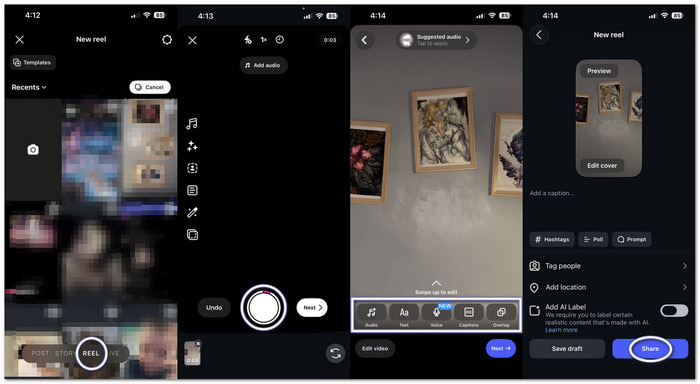
Step 1 Open Instagram and tap the Add button. Choose Reel. You can upload footage from your phone or record new footage with the Reel camera.
Step 2 Trim your clip to about 3 to 10 seconds. Check both the first and last frames.
Step 3 Avoid an ending that feels complete. Do not stop with a pose or a sudden camera drop. Let the movement continue. A small cut can make the replay feel much smoother.
Step 4 Add your captions or text before posting. Keep the text in the same place throughout the clip. Then, watch the Reel from start to finish. Pay close attention when it starts again. If you notice a sudden "bump," adjust the cut.
Step 5 When the loop feels smooth, post it as a Reel. If the replay still looks forced, trim the clip again. You can also add a simple transition to hide the cut.
Part 3: How to Create a Seamless Loop Video for Instagram
Tipard Video Converter Ultimate makes it easy to learn how to make a looping video for Instagram. Easily edit your video to match the opening and ending frames. This helps the video play again without a clear break.

- Instagram-ready output in MP4, H.264, and AAC.
- Easy video trimming for making short 3-10 second clips.
- Built-in GIF tool with simple loop controls.
- Level-3 GPU boost with NVIDIA, Intel, and AMD support.
1. Match the Beginning and Ending Frames
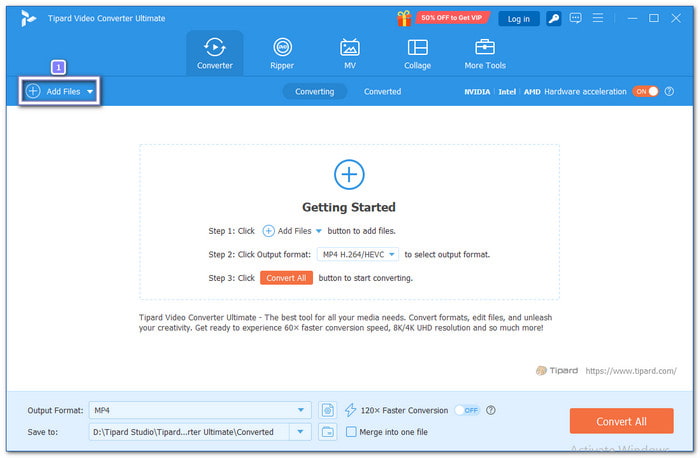
Step 1 Open Tipard Video Converter Ultimate. Click Add Files and load your video.
Step 2 Click the Cut button below the video. Find a good point in the middle of your clip. This will be your loop point.
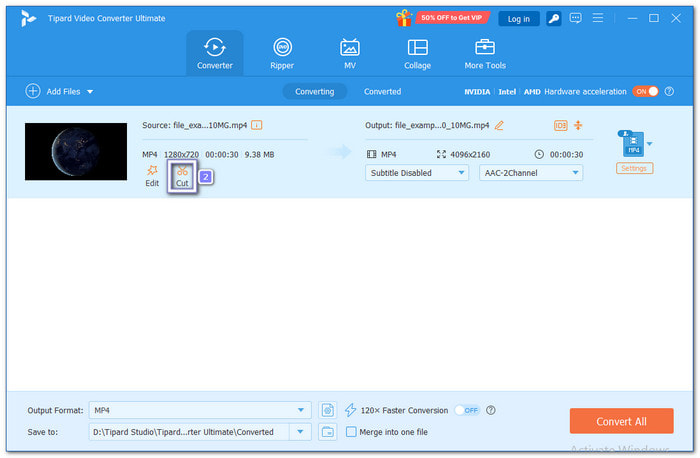
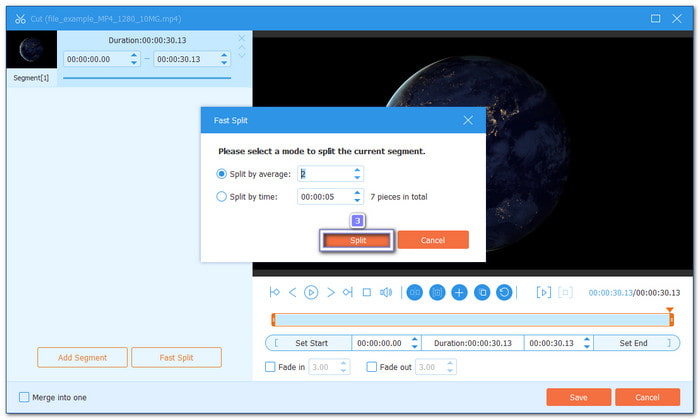
Step 3 Click Split to divide the video into two parts. You will have Segment 1 and Segment 2.
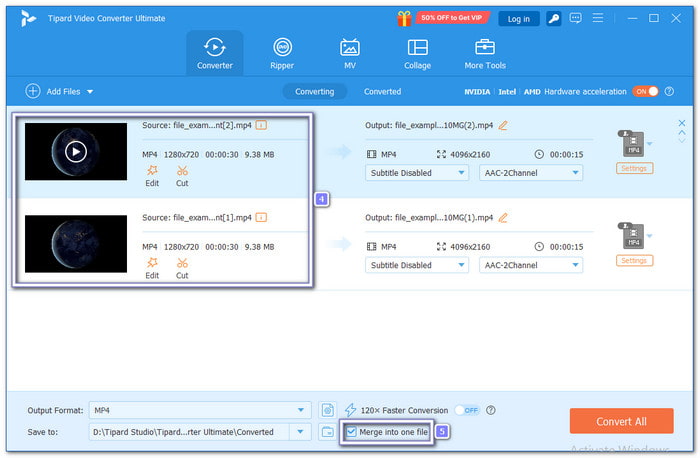
Step 4 Hit Save to return to the main window. Move Segment 2 before Segment 1. Then, enable Merge into one file.
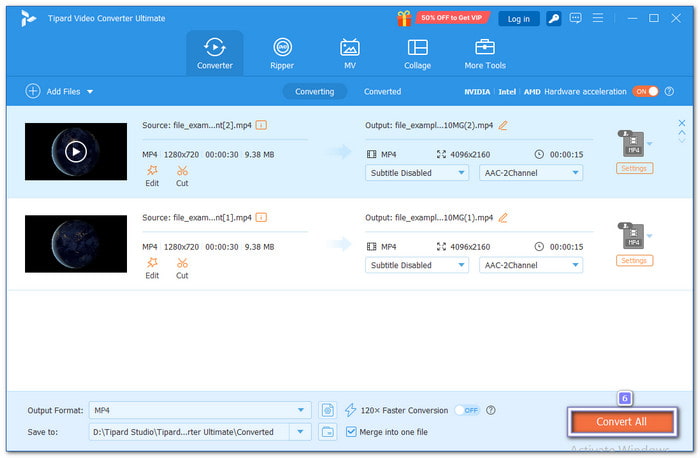
Step 5 Choose MP4 with H.264 for a suitable Instagram format. Click Convert All to save your loop video.
2. Create a Loop Video with the MV Feature
Step 1 Launch Tipard Video Converter Ultimate. Click the MV tab at the top of the window.
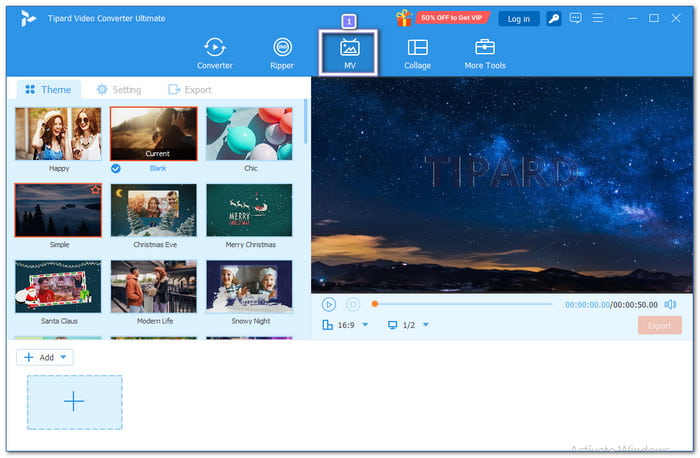
Step 2 Pick a pre-made theme for your video. Choose one that fits the style of your Instagram post.
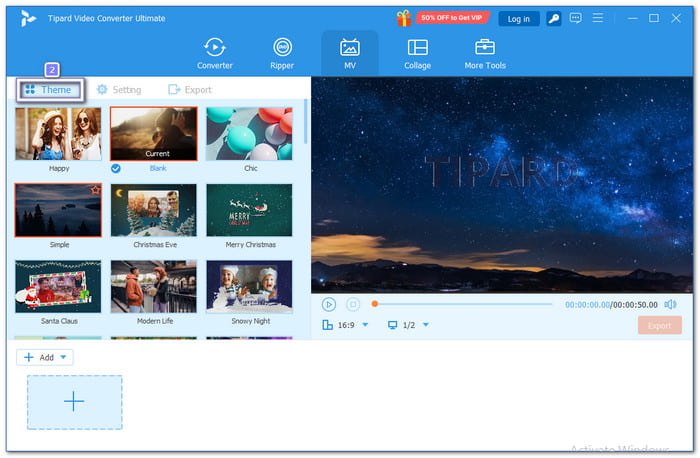
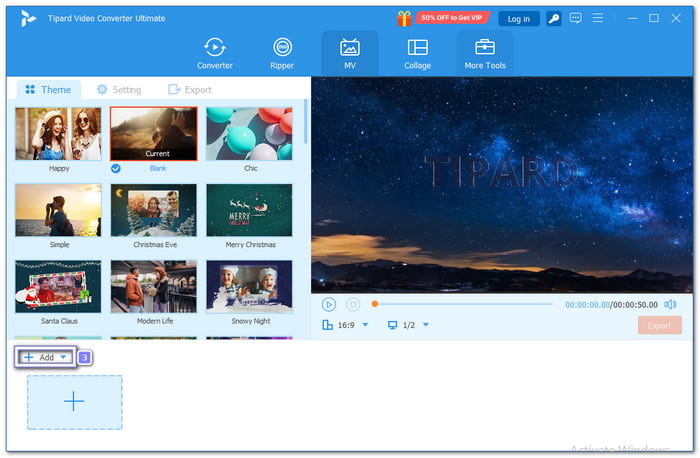
Step 3 Click Add to import your videos or photos. Arrange them in the order you want.
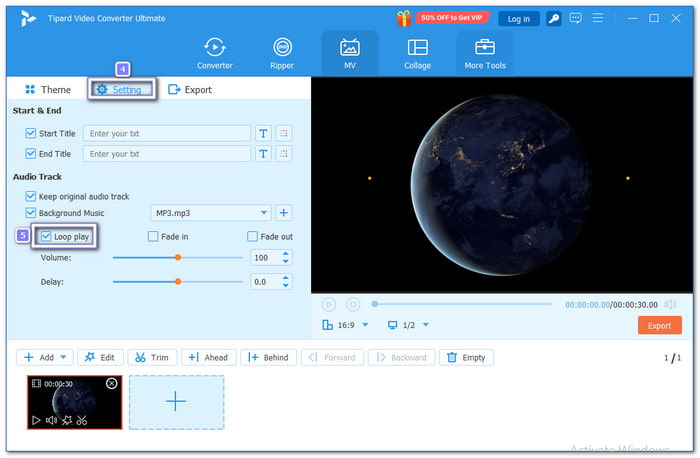
Step 4 Open the Settings tab. Use Loop Play if it is available. Add your background music. This can help the music play again without a sudden stop.
Step 5 Head to the Export tab. Choose your video resolution and save the file. MP4 is a practical choice for Instagram uploads.
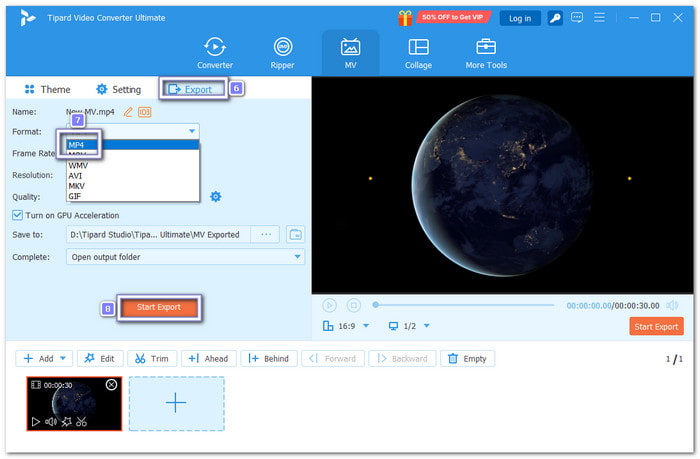
This video looper makes it easy to create smooth, seamless videos. It is a handy choice for Instagram and other platforms, too.
Part 4: How to Loop a Video on Instagram Story
Instagram Stories can feel more fun when a short moment repeats without a clear stop. If you are learning how to loop a video on Instagram Story, you can turn a quick action into a playful clip that keeps moving. Try different effects to give your Story its own look.
Step 1 Open Instagram and swipe right. This will open the Story camera. Look for Boomerang. It usually has an infinity symbol.
Step 2 Tap the Boomerang button. Record a short moment with your camera.
Step 3 Tap the Boomerang button again to see the effects. Choose the one you like. Slow-Mo makes the repeat smoother. Echo adds motion trails. Duo gives the video a double effect.
Step 4 Check the clip before posting. Once everything looks good, tap Your Story to post it. Your Boomerang will play as a short repeating clip. Watch it after posting to see how the loop looks.
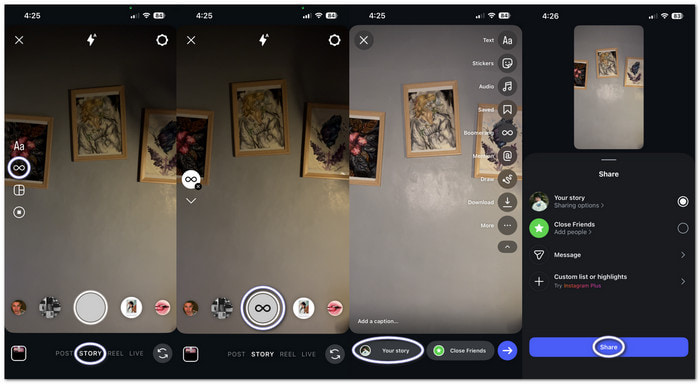
Before posting, you can also do some editing. You can trim video apply a filter, add text and stickers, speed up video, etc.
Part 5: Best Video Formats for Instagram Loop Videos
The video format can change how your loop looks when you post it. Instagram supports common video formats like MP4 and MOV. MP4 is a good choice for most videos. Keep your video clear. Also, check that the video size matches the space where you want to post it.
Part 6: FAQs of Compressing WebM
Can you loop a video in an Instagram Carousel?
A carousel does not make a video repeat forever. Each video plays on its own. For a loop effect, keep the clip short. Make the start and end match well.
Can you loop a video in Instagram Highlights?
Not in the same way as a true loop. Highlights work like Stories. The video plays once before the viewer moves on.
Why is my audio out of sync after looping?
The loop point may not match the music beat. The video may also lose sync after several exports. Try cutting the clip on a clear beat. Then, export the video once.
Conclusion
Did you have fun learning how to make an Instagram video loop? It surely is. If Instagram's built-in options are not enough for you, try Tipard Video Converter Ultimate. It gives you more control over how your video loops. You can also use its editing tools to trim, cut, and improve your clips.
More Reading

About the Author


 Tipard Video Converter Ultimate