

One of the things people notice in determining a high-quality video is the fluidity and smooth playback. A video appears stutter or choppy, making it unprofessional when the frame rate is too low. Meanwhile, a cinematic video experience can be achieved with a higher frame rate. But since not all devices support 60 FPS video output, the enhancement is left to post-production. Luckily, you can find many tools on the internet that allow users to convert videos to 60 FPS effectively. Below is a walkthrough on how you can improve the frame rate of your videos on Windows, Mac, iPhone, and Android.

Part 1. Why You Should Convert Video to 60 FPS
FPS stands for Frames Per Second, used as a metric to measure the frequency of still images in a video. These unique still images give either a smooth or stuttery effect to the video. The higher the FPS, the smoother the motion it will produce. There are four commonly used frame rates depending on your needs. That includes 24, 30, 60, and 120 FPS. This only means there are 24 still images in a second, or there are 60 still images in a second. Now, you may want to convert your videos to 60 FPS if you are planning to slow down the footage. That is especially excellent when shooting sports, games, cars, or any fast-paced action. With 60 FPS, you will have more frames per second, making it appear smooth when trying to slow down the footage.
In other words, the 24 and 30 FPS give you realistic and natural motion blur. In most cases, they are used in movies and films. Slowing down the footage using this FPS will just make the video unprofessional. But if your video comes with a lot of movements and you wish to slow it down, 60 FPS can transform scenes into a professionally-taken video without things getting choppy.
Part 2. How to Convert Video to 60 FPS on Windows and Mac
Below are some of the effective tools that will help you convert videos to 60FPS online for free and with a recommended tool. Get the most out of these programs by learning about their features and functions.
1. Tipard Video Converter Ultimate
Tipard Video Converter Ultimate is an excellent app if you wish to make your videos memorable and realistic. It comes with a lot of features, such as adding effects, editing, trimming, and converting formats and FPS. If you mistakenly take footage lower than 60 FPS, this tool will help you convert it to 60 FPS, 120 FPS, and even 144 FPS for smoother and fluid motion. More importantly, you can customize other essential settings of your videos, like resolution, audio, sample rate, bitrate, and many more. Therefore, it is possible to convert videos to 4K 60 FPS to get that sharper and graceful effect. Aside from that, it supports many video formats, allowing you to import almost all types of videos. On top of that, this program is compatible with Mac and Windows operating systems. Without further ado, here are the steps to help you convert your videos to 60 FPS:
Step 1 First, download the program using the Free Download buttons provided. Then, follow the instructions from the installation wizard to run it on your computer. After that, open the app.
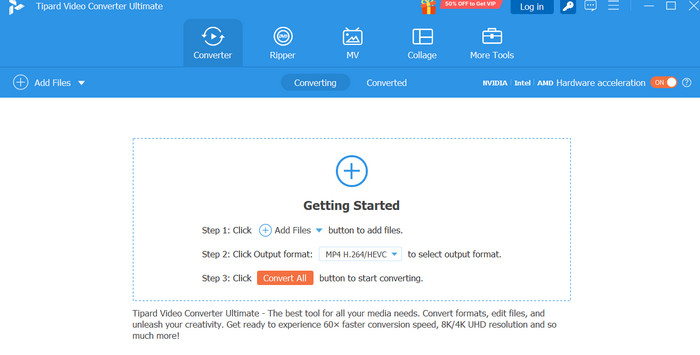
Step 2 Now, click the Add Files button from the main interface, locate your target video file, and import it into the program.
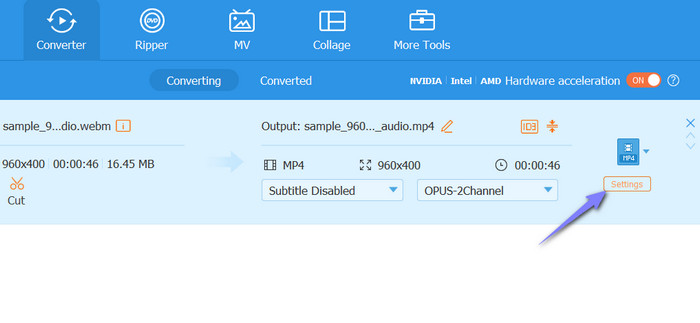
Step 3 When you look at the right side of the video's thumbnail, including the format of the video, underneath the format display, click the Settings button to edit the profile and access the FPS converter.
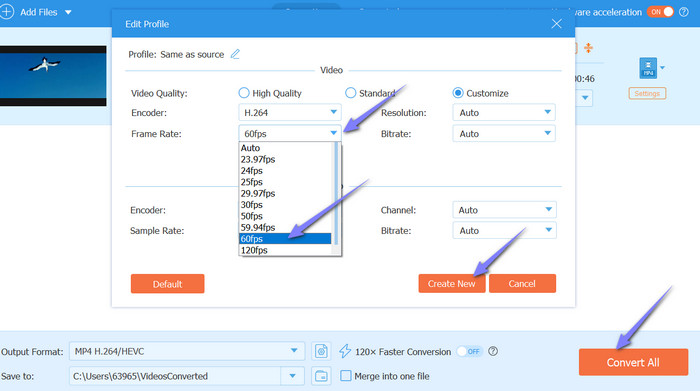
Step 4 This time, click the Frame Rate downward arrow to show the frame options and choose 60fps from the list of options. If necessary, you may customize other settings, like Resolution, Bitrate, Encoder, and Audio. To apply the changes, hit Create New. Finally, click the Convert All button to convert the video to 60 FPS.
2. Online FPS Converter
From the name itself, Online FPS Converter by MiniWebtool is a web-based program for converting videos to various FPS presets quickly. It offers preset options, including 24, 25, 30, 50, and 60 FPS. Additionally, you can customize FPS input within the supported range up to 120 FPS. This enables users to make accurate adjustments. Equally important, this online tool may convert videos to 1080p 60 FPS, and it preserves the original audio track with newly converted videos. Below are the steps to use this tool:
Step 1 Using any web browser on your computer, visit the page and allow its engine, which is FFmpeg, to load. The upload button should appear right after loading the engine. Click the Select Video button or drag and drop the video file.
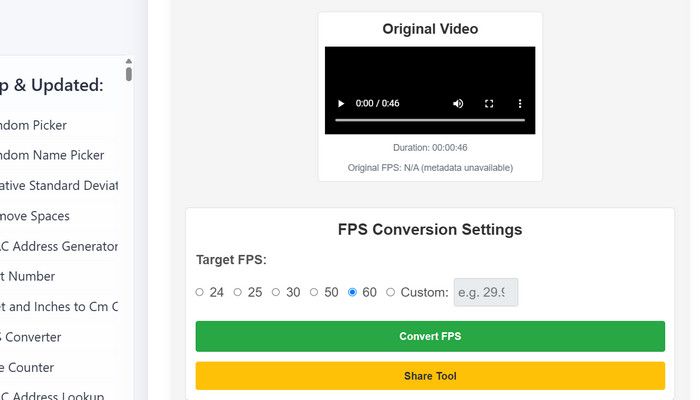
Step 2 Then, a preset list of FPS in radio buttons will show up. Tick the 60 option or higher by ticking Custom according to your needs.
Step 3 After that, click the green Convert FPS button below the options to proceed with the FPS conversion. Since it supports 30 FPS is supported here, you may compare 30 FPS vs 60 FPS with the help of its dual preview feature to preview side-by-side.
Part 3. How to Convert Video to 60 FPS on iPhone and Android
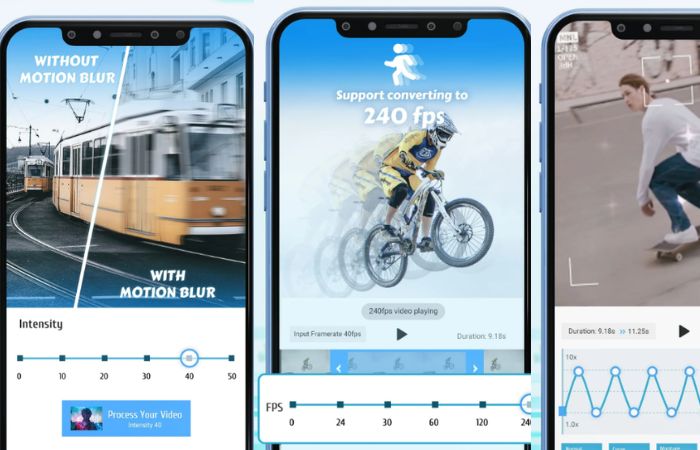
For users looking for mobile apps to convert videos to 60 FPS on Android or iOS, you may consider using Time Cut. This app can analyze the original frame rate of your video based on the source and provides options to switch to a higher FPS. That means you can adjust your videos to have a smoother movement. Aside from converting video frame rate, it can fix motion blur, change video speed, or time-freeze videos. To help you use the tool, follow the steps below:
Step 1 Go to the Google Play Store on your Android device and look for Time Cut. Download and install this mobile app. Then, launch it.
Step 2 From the homescreen, choose the Frame Rate Changer option, and it will bring you to its FPS changer interface. Here, you can preview the original video. To proceed with the conversion, click the Check mark in the upper right portion.
Step 3 Next, it will display the current FPS of the video. Now, select 60 using the slider option. After that, hit Convert.
Step 4 You will need to select a resolution afterward. This will let you upscale videos for a sharper impression. Once all is set, hit the Export button. Don't leave the app while the conversion is ongoing and wait for it to finish.
Conclusion
Summarize what has been shared. It is ideal to change the video to 60 FPS when you need to slow down fast-paced actions or movements in the footage. Doing so will enable you to emphasize the highlights of your videos with precision. On the other hand, it also shared when to use the other FPS preset for your perusal.

All-in-one video toolbox: convert, edit, upscale, enhance, and compress your videos easily
100% Clean & Safe
100% Clean & Safe

More Reading


About the Author


 Tipard Video Converter Ultimate