

You see words popping up on videos and wonder, "What is that? Is it closed captions or subtitles?"
If you are confused, it is better to read our post. We will share closed captions vs. subtitles, focusing on what they are and their key differences. In addition, we will help you manage subtitles in your videos. It is going to be full of useful knowledge, so please get ready to learn all of it.

Part 1. Closed Captions vs. Subtitles: Key Differences
Closed captions and subtitles add text to videos to help viewers follow along. They make watching easier when the sound is off or hard to hear. Each type has its own purpose and style. You will discover the main distinctions between closed captions and subtitles below!
| Closed Captions | Subtitles |
|---|---|
| Shows spoken words and sound details. | Shows spoken words only. |
| Includes music, noise, and speaker labels. | Focuses on dialogue translation or text. |
| Made for deaf or hard-of-hearing viewers. | Made for viewers who hear audio but need text help. |
| Can often be turned on or off. | Can also be turned on or off. |
| May show [door opens] or [music playing]. | Usually does not show sound effects. |
| Uses the same language or another language. | Often changes speech into another language. |
Part 2. What Are Closed Captions (CC)
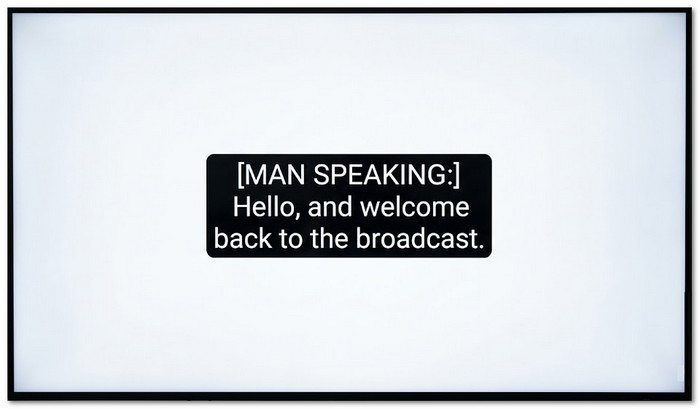
Closed captions give more than spoken words. They also explain important sounds in the video. If a dog barks, captions can show [dog barking]. If music starts, it may show [soft music]. It helps viewers understand the full scene even without sound. It is super useful for people who are deaf or hard of hearing.
Most streaming sites like YouTube and Netflix let viewers turn captions on or off. That is why they are called closed captions. They stay hidden until you choose them.
Part 3. What Are Subtitles

Subtitles mainly show what people say. They do not often include sound effects or background audio notes. If a movie uses one language, subtitles can change the speech into another language. It helps more people understand the video.
For example, a Korean film can have English subtitles. The viewer hears the real voice but reads the translated words. Subtitles are often used in movies, shows, and online videos.
You can also get subtitles for movies and TV shows from the best subtitle download websites, such as Subscene, OpenSubtitles, TVsubs, Subtitle Seeker, etc. It lets you add them to your videos and enjoy content in any language.
Part 4. Burned-in vs. Sidecar: Deliver Your Captions
Captions can be added in two main ways.
Burned-in captions stay fixed on the video. They become part of the picture. Viewers cannot remove them. It is useful for social media clips because the text always stays visible.
Sidecar captions are saved in a separate file, such as SRT or VTT. The video reads that file during playback. It lets viewers turn captions on or off. It also makes editing easier later.
Burned-in works best when you want text always shown. Sidecar works best when you want flexible caption control.
Part 5. Easily Manage Subtitles in Your Videos
Adding subtitles to your videos makes them easier to watch and understand. Viewers can follow the dialogue even in noisy places or when the sound is off. It also helps people who are learning a language or have hearing difficulties.
Fortunately, Tipard Video Converter Ultimate makes this simple and fast. It supports common formats like SRT, ASS, and SSA, so you can use subtitles you already have. You can also add multiple subtitle tracks in one video, which is great if you want different languages or versions for your audience.
The best part is that you can customize subtitles in many ways. You can modify the font, color, size, and position. You can do this for imported subtitle files or even ones you create manually. You control how it looks, so every viewer has the best experience.
You already know the difference between CC vs. subtitles. Next, see how to add them to your videos below easily:
Step 1 Visit the primary Tipard Video Converter Ultimate website and download the installer first. Then, please run the setup file and follow the instructions shown on your screen.
Step 2 Once the Tipard Video Converter Ultimate starts, it opens in the Converter tab by default. It is time to click the Add Files button to import the video you want to work on.
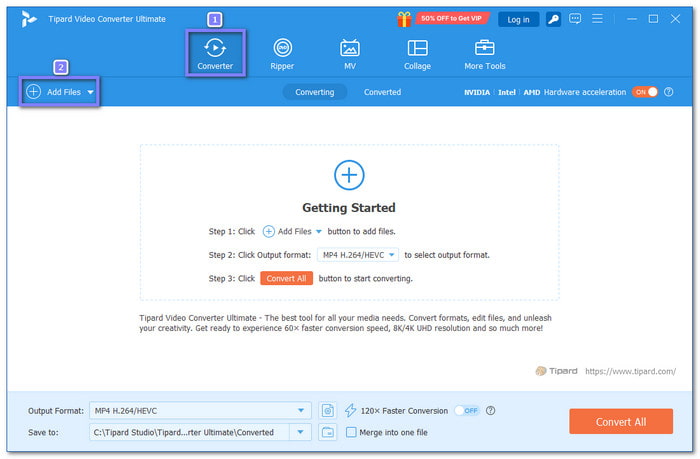
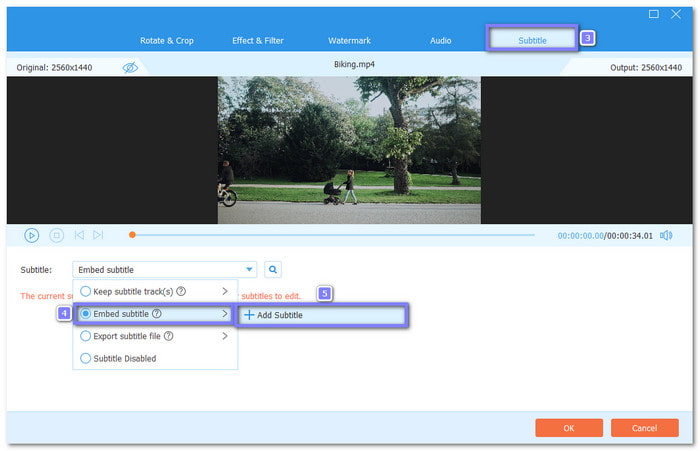
Step 3 Find your video thumbnail, then click the Edit button with the magic wand symbol. Head to the Subtitle tab, choose Embed Subtitle, then click Add Subtitle to import your subtitle file.
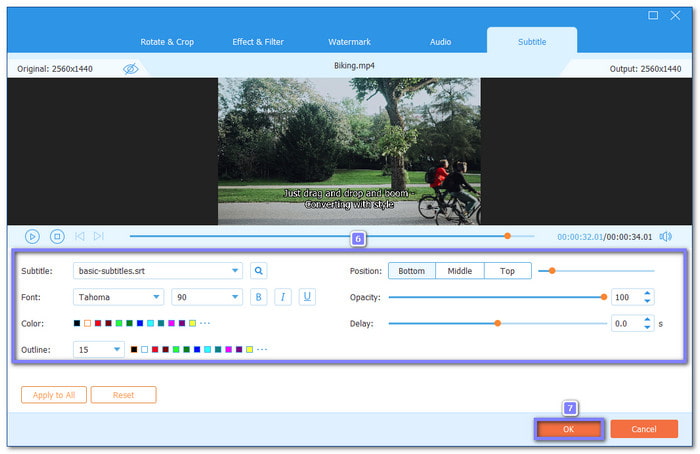
Step 4 Once the subtitle appears, adjust it so it looks clear on screen. You can change the Font, Style, Size, Color, and Outline. You can also move the Position, or adjust Opacity if needed. If the text appears too early or too late, use Delay to match the subtitle with the spoken audio.
Once done, watch the preview to ensure everything is correct, from appearance to timing. If you are satisfied with it, click the OK button to apply your changes.
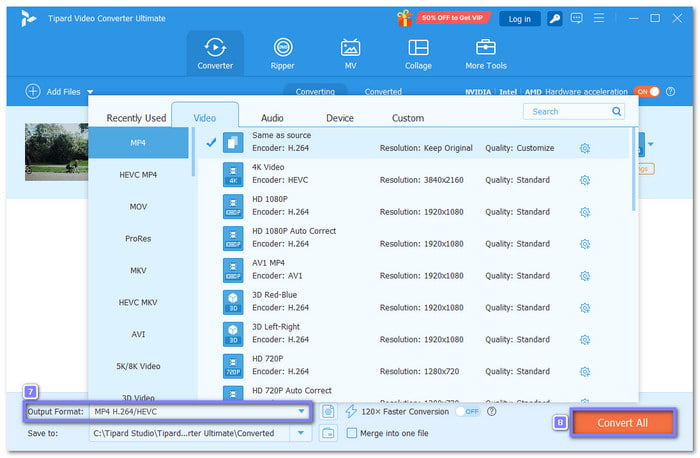
Step 5 You will return to the Converter tab. Open the Output Format drop-down menu and choose the format you want for your final video, such as MP4, MOV, or AVI. You can also set the video clarity if needed.
Once everything is ready, click the Convert All button at the bottom-right corner to export your video with subtitles added permanently.
Part 6. FAQs of Closed Captions vs. Subtitles
1. Why are subtitles called CC?
Subtitles are not always CC. CC stands for Closed Captions, which show words and important sounds. Subtitles usually only show dialogue. CC can be turned on or off, which is why they are called "closed."
2. Is it better for your brain to watch TV with subtitles?
Yes. Watching with subtitles helps your brain focus. It improves memory, reading speed, and understanding of speech. Subtitles also make it easier to follow shows in noisy places or when the audio is unclear.
3.Do all videos have closed captions?
No. Not every video has CC. Many TV shows, movies, and streaming platforms provide them, but some older videos or online clips may not. Always check the video settings to see if captions are available.
Conclusion
There you go! You have learned what the difference between closed captions and subtitles is. You will not get confused about their purpose anymore! Indeed, they make watching videos easier, help you follow the dialogue, and improve understanding in any situation.
If you plan to add subtitles, you can follow the steps provided above using Tipard Video Converter Ultimate. It also lets you customize the font, color, size, and position to make them clear and professional. On top of that, it is easy to download and works on both Windows and Mac.
More Reading


About the Author


 Tipard Video Converter Ultimate