

Audio Video Interleave, or AVI, is produced by Microsoft. The file format is mainly designed for Windows systems. It means that it is convenient and compatible with PCs. However, the AVI files are not natively supported by Mac. You may need a third-party media player to play it.
The said issue is the primary reason why people want to convert AVI to MOV. In this case, there will be no more incompatibility issues with your files. This article contains the top 5 AVI to MOV converters. Kindly scroll below to discover them.

Part 1: Why Convert AVI to MOV
AVI is a good video and audio file format. Some might wonder why they still need to convert an AVI file to MOV. There are some things you need to consider, which are listed in this section.
1. Better Compatibility with Your Apple Devices
Apple devices do not natively support AVI. Playing it on your Mac, iPhone, iPad, and other Apple devices requires you to use a third-party media player. So, converting AVI to MOV will make it easier for you to play the files.
2. Better Support with Apple Editing Software
Since AVI is not supported on Apple devices, it only means that editing it is also not attainable. So, when you convert AVI into MOV, you can edit the file without limitations and corruption issues.
3. Improves Metadata Support
Converting the AVI files to MOV improves the metadata support of the file. The reason is that MOV has advanced metadata, tracks, and subtitles. In this case, it will be useful for professional video production.
Part 2: AVI vs. MOV: Understanding the Technical Differences
Both AVI and MOV are good when it comes to audio and video formats. Do you want to know their technical differences to know them better? The table below will help you with this matter.
| Feature | AVI | MOV |
|---|---|---|
| File Structure | Simpler File Structure | More Advanced File Structure |
| FIle Size | Larger File Size with Lesser Compression | Smaller File Size with Efficient Compression |
| Video Quality | High Quality with Large File Size | High Quality with Smaller File Size |
| Streaming Support | Limited Streaming Support | Better Support with Streaming Platforms |
| Codec Support | DivX, MPEG, and Xvid | HEVC, ProRes, and H.264 |
| Corruption Risk of the File | Prone to Corruption of Files Due to Interruption in Transfer | Stable Container Structure |
Part 3: Top 5 Ways to Convert AVI to MOV
Now, it is time to see the Top 5 converters to convert AVI to the MOV format. Their full descriptions and procedures are posted in this section. Kindly scroll below to know them.
1. Tipard Video Converter Ultimate
Tipard Video Converter Ultimate is your best choice to convert AVI to MOV. The program supports different types of formats and codes of AVI and MOV. Besides them, it can also convert MP4, MKV, MP3, and more. Besides that, it supports batch conversion.
Moreover, it has level-3 hardware acceleration to convert videos quickly. Converting the files using this software is convenient due to its 120x faster speed. Also, it offers basic video editing features and AI-driven video enhancement tools. Change AVI to MOV with this tool using the steps below.
Step 1 Visit Tipard Video Converter Ultimate. Then, download it from the main website. Install and open it afterward.
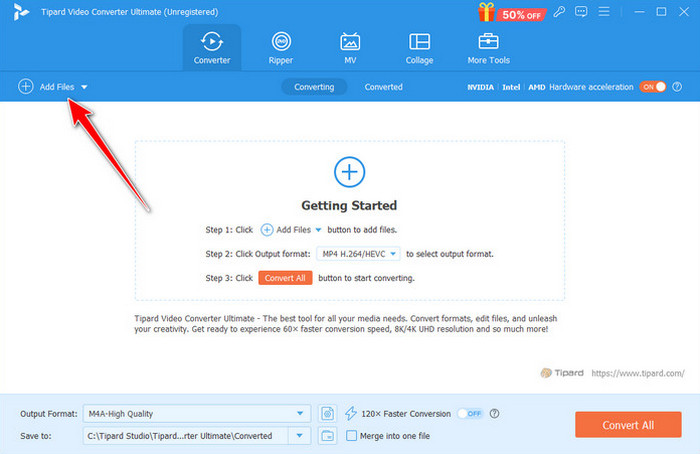
Step 2 Go to the Converter tab at the top. Click Add Files at the top left and choose the AVI files to import them. Go to Output Format at the bottom left.
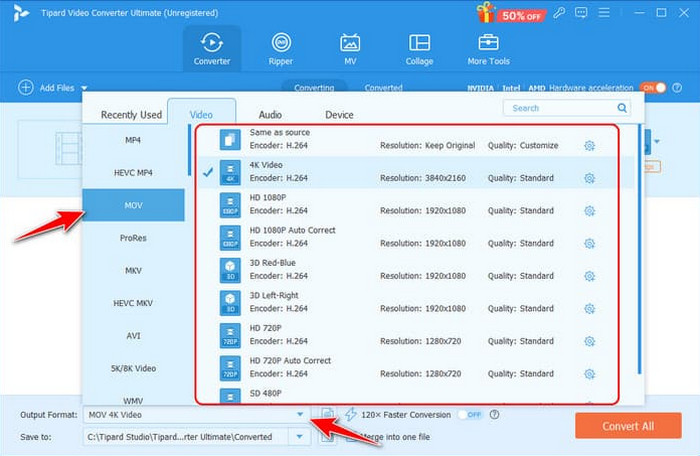
Step 3 Click the Video button. On the left, select the MOV format. Choose a quality to apply the changes. Finally, click the Convert All button.
2. Windows Media Player
Windows Media Player is the efficient built-in media player on Windows that allows its users to play multiple media files. The best thing about it is that you can use it for converting files, including MOV to MP4, MP3 to MP4, and especially AVI to MOV. However, this tool often experiences lagging and crashing issues during the conversion. The steps for this AVI to MOV file converter are available below.
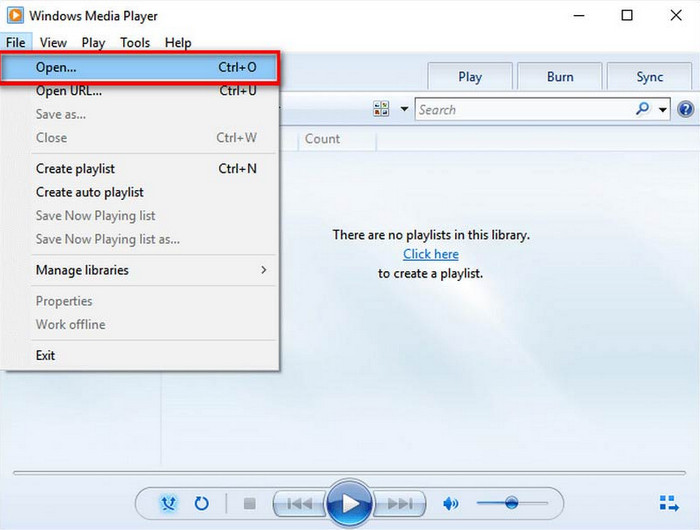
Step 1 Open Windows Media Player. Click File and choose Open from your drop-down list. Select the AVI files afterward.
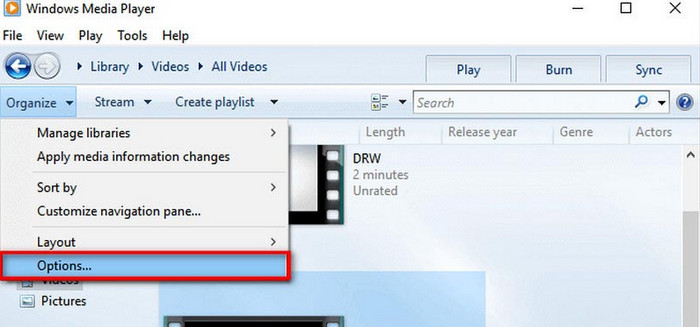
Step 2 Click the Organize button and choose the Options button. Go to Rip Music and click Change. Change the format to MOV afterward. Finally, select Apply and OK to save the settings.
3. Movavi
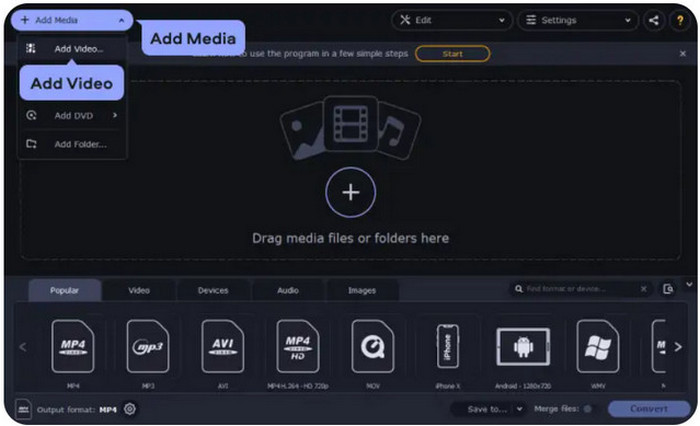
Movavi supports 180+ video and audio formats that can be converted. It is available on Windows and Mac. If you plan to use its free version, you cannot use its advanced features. Learn how to convert AVI to MOV with Movavi using the steps below.
Step 1 Drag and open Movavi on your computer. Then, click the Plus button. Choose your AVI files to import them.
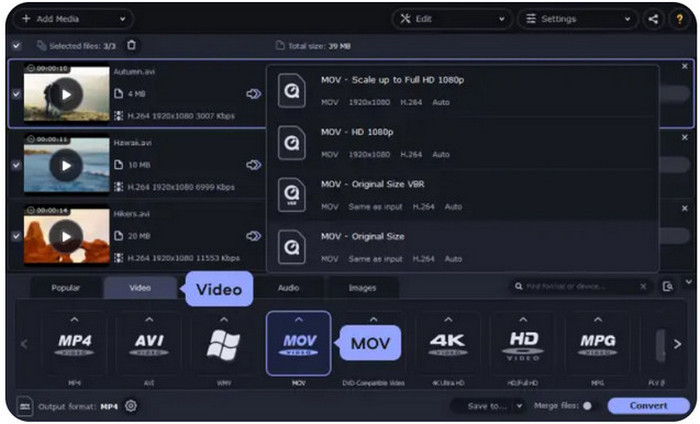
Step 2 Select Video at the bottom. Then, choose MOV from the formats list. Finally, click Convert.
4. QuickTime Player
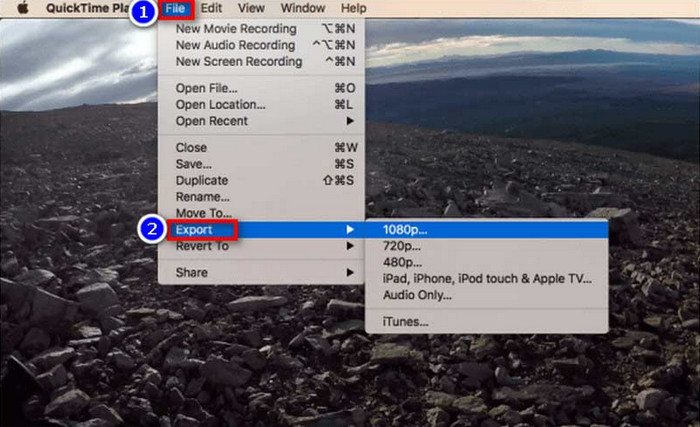
QuickTime Player is native on Mac. It is commonly used to play media files, including audio and video. The tool is also used for converting multiple media files, including AVI to MOV. Convert AVI to MOV on QuickTime using the steps below.
Step 1 Locate the AVI files. Choose File and choose Open File. Right-click it and click Open with QuickTime.
Step 2 Click File and select Export. Choose a resolution and click Save.
5. FreeConvert
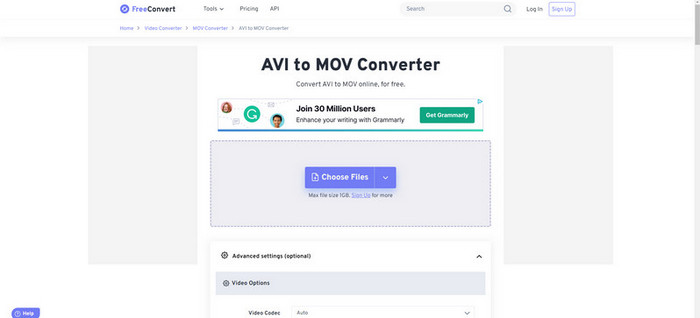
An online tool can also help you convert AVI to MOV. FreeConvert is one of the most trusted ones. The tool can also be used for other conversions, including MTS to AVI conversion. However, it can only handle a file size of less than 1 GB. Use the online tool with the steps below.
Step 1 Visit the website of FreeConvert. Click Choose Files and select AVI files to import.
Step 2 Select Output to MOV. Finally, click Convert.
Part 4: Troubleshooting: Why Can't My Mac Play the Converted MOV
There are instances wherein the converted MOV file cannot be played. It happens when there are incompatible codecs. Also, the MOV file might have been corrupted. It is also possible that it contains outdated legacy data that is not supported by QuickTime. The following are the simple troubleshooting ways that you can do.
1. Use a Third-party Media Player
If QuickTime cannot play it, it is better to use a third-party media player. In this case, you do not need to convert the file again.
2. Use Better Conversion Settings
During the conversion, it is better to use the Apple ProRes codec or H.264. In this case, the MOV file will have better conversion settings.
3. Update macOS
Sometimes, an outdated macOS version keeps the files from being corrupted or inaccessible. So, update your macOS version to fix the issue.
Conclusion
To summarize, you can change an AVI file to MOV for more efficient compression, file size, and more. The top 5 AVI to MOV converters are in this post to help you with the conversion. Tipard Video Converter Ultimate is included! It can convert your files in a few seconds. Also, it supports batch conversion. Download it to know more about its features.
More Reading

About the Author


 Tipard Video Converter Ultimate