

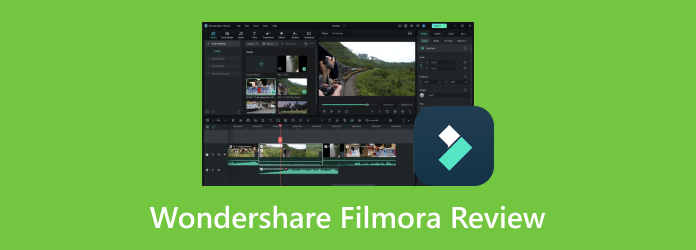
If you look for a video editing program, Wondershare Filmora will appear at the top of the results. Do you want to know why? This master review will help you understand why it stands out. Explore its core features, pros, cons, pricing system requirements, and user feedback. After that, decide if it fits your video editing needs.
Part 1. Quick Glance at Wondershare Filmora
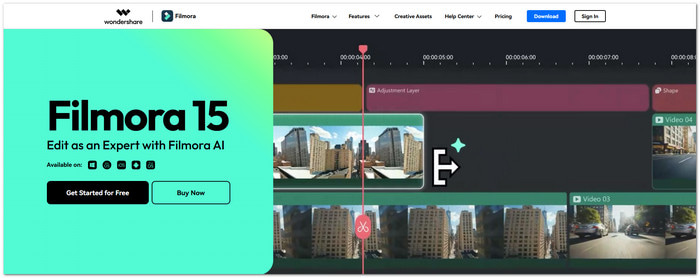
Every great video starts with the right editor. Wondershare Filmora makes editing simple from the first click. It gives you easy tools, smart AI features, and creative effects in one place. You can create videos for school, work, YouTube, or social media without a hard learning process.
| Software Type | Video editing software with AI tools. |
|---|---|
| Best For | Beginners, hobbyists, content creators, and small businesses. |
| Supported Platforms | Filmora for PC (Windows, Mac), Android, iPhone, and iPad. |
| Interface | Clean and simple; drag and drop files with ease. |
| Editing Style | Timeline-based editing with easy controls. |
| AI Support | Includes AI tools to speed up editing tasks. |
| Creative Library | Access millions of stock videos, music, effects, titles, and templates. |
| Export Options | Export in many formats. Share videos directly to YouTube. Support up to 4K export. |
| Cloud Support | Includes 1 GB of cloud storage on paid plans. |
| Show MoreShow Less | |
Part 2. Core Features of Wondershare Filmora
The Filmora latest version adds improved editing tools and modern AI features to make the process smoother. It mixes basic editing with smart features that help you create better videos.
1. Easy Video Editing
- Drag and drop editing.
- Multi-track timeline.
- Dual-timeline editing.
- Trim, split, crop, and merge videos.
- Multi-camera editing.
2. AI Editing Tools
- AI Video Enhancer.
- AI Extend.
- AI Object Remover.
- AI Text-Based Editing.
- AI Speech-to-Text.
- AI Text-to-Speech.
- AI Translation.
- AI Music Generator.
- AI Voice Cloning.
- AI Idea to Video.
- AI Smart Short Clips.
3. Motion and Effects
The program offers useful motion and effect tools for creative video edits. It supports keyframe animation, motion tracking, planar tracking, and custom motion paths with the Pen Tool. Users can also adjust video speed with speed ramping and create special scenes with green screen support.
4. Text and Audio
- Dynamic captions.
- Animated titles.
- Built-in music.
- Sound effects.
- Audio synchronization.
- Voice enhancement.
5. Creative Assets
It offers over 2.9 million creative assets to improve your videos. It includes royalty-free stock videos, music, sound effects, transitions, filters, LUTs, stickers, and templates. These ready-to-use resources help users create more engaging and unique content.
6. Color and Export
- HSL color editing.
- HDR support.
- RGB curves.
- White balance tools.
- Export without a watermark on paid plans.
- Export in many video formats.
- 4K video export.
Part 3. Master Review of Wondershare Filmora
In this master Filmora review, you will learn about its pros, cons, pricing, system requirements, etc. It will help you understand the program better before using it.
Pros
The interface is clean and simple to use. You can learn the tools in a short time. The drag-and-drop workflow also helps you edit faster. Its AI tools save time on many editing tasks. You also get a huge library of effects, transitions, templates, music, and stock media. It also gets regular updates with new tools. You can export videos straight to YouTube. It also supports high-quality 4K video editing.
Cons
The free version incorporates a watermark on exported videos. Many AI features also use AI credits. Some creative assets are only available with the Filmora Pro plan. The perpetual license only includes updates for the current major version. You may also need a more powerful computer when working on large or complex projects.
Testing Result
The setup is quick and easy with Filmora editing software. The workflow feels simple from start to finish. HD and 4K projects run well on supported computers. The AI tools also help finish common tasks faster. The timeline stays responsive during normal editing. However, super large projects may run more slowly on entry-level computers.
Wondershare Filmora Pricing
| Plan | Price |
|---|---|
| Monthly | $9.99/month |
| Yearly | $24.99/year |
| Perpetual | $39.99 one-time |
System Requirements
| Component | Requirement |
|---|---|
| Operating System | Windows and Mac operating systems. |
| RAM | 8 GB minimum. 16 GB recommended for 4K editing. |
| Processor | Intel Core i3 or faster multi-core CPU. |
| Graphics | Intel HD Graphics 5000, NVIDIA GeForce GTX 700, AMD Radeon R5, or better. |
| Storage | Enough free space for software, media files, and exports. |
Ratings
Wondershare Filmora has received strong ratings from thousands of users across trusted review sites. It has 4.2 out of 5 from 5,614 reviews on Trustpilot. It also earned 4.5 out of 5 from 733 reviews on Capterra. On G2, it has 4.4 out of 5 from 610 reviews. Software Advice also gives Filmora 4.5 out of 5 based on 733 reviews. These scores show that many users enjoy its easy interface, useful features, and smooth editing experience.
User Reviews
People like Wondershare Filmora 15 because it is simple and easy to use. Many beginners can learn the software without much effort. Content creators enjoy its AI tools and ready-made templates. The built-in media library also helps create videos faster. Some users mention that AI credits and premium assets may add extra costs.
Part 4. Top 3 Alternatives to Wondershare Filmora
1. Tipard Video Converter Ultimate
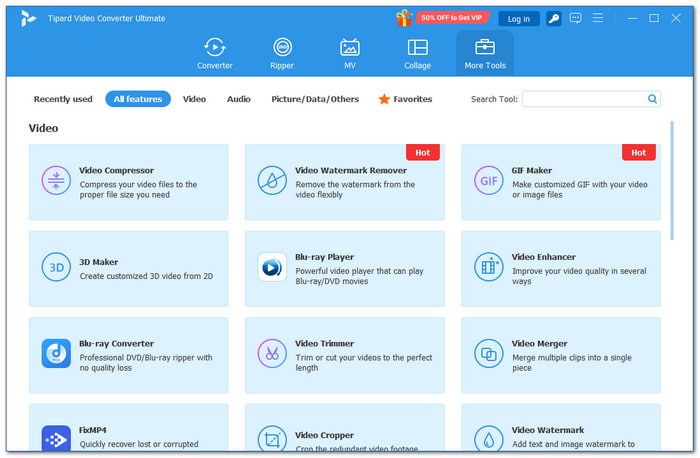
Wondershare Filmora can limit video creators with watermarks and may require extra resources for smoother editing. Tipard Video Converter Ultimate gives more freedom with creative projects.
This program allows users to edit and convert videos without adding a watermark. It provides tools to cut, crop, combine, improve, and adjust videos while keeping good quality. Its fast performance makes editing easier and smoother. It also works with MP4, MOV, AVI, MKV, and many other formats for better device support.
What works well and what could be improved:
It has a clean interface that makes editing simple. It offers fast conversion with GPU acceleration and supports over 500 formats. It also has a ripper feature, a video enhancer, and video compression. However, the free version comes with some limits. It restricts the video file size and the number of files you can process.
User reviews from Trustpilot:
Many users are happy with its overall performance. They like how fast and easy the software is to use. Many also say it has useful editing tools and a clean interface. Some users also appreciate the responsive customer support and say the software works smoothly for everyday editing tasks.
2. CapCut
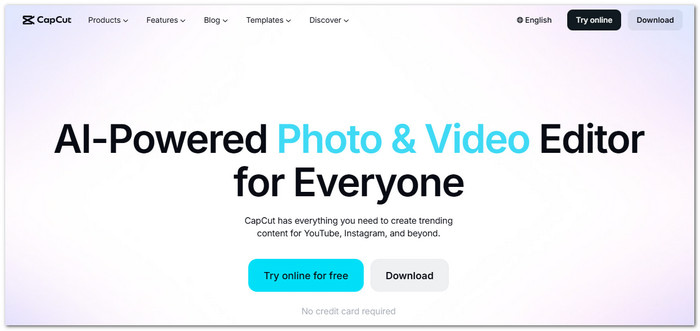
As an alternative to Wondershare Filmora video editing software, CapCut brings AI editing tools, smart generators, and ready-made templates into one place. It can create videos from text, images, or clips.
It also helps improve visuals with background removal, image enhancement, auto subtitles, and voice tools. Its wide range of creative features makes it useful for making social media content immediately.
What works well and what could be improved:
CapCut has a clean and easy-to-use interface. It also comes with many ready-made templates, popular effects, and AI tools such as auto captions and background removal. Some advanced features are only available in the paid version. It is also less suitable for complex or long video editing projects.
User reviews from Product Hunt:
Users often describe it as a fast and simple editor for TikTok, Reels, and other short videos. However, some users complain about paywalls, watermarks, limited free options, glitches, and billing issues.
3. DaVinci Resolve
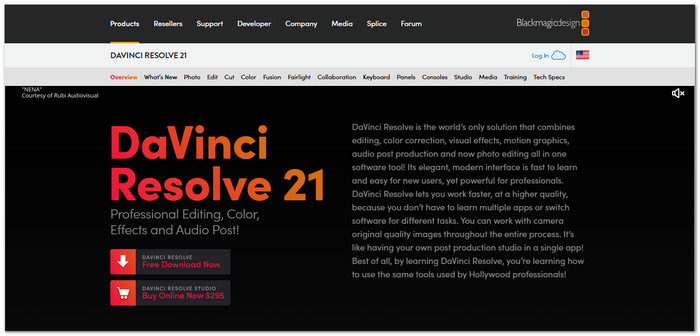
Unlike some Filmora video editing software options, DaVinci Resolve provides a complete workflow for advanced projects.
It combines video editing, color work, visual effects, motion graphics, and audio production. Users can edit footage, create cinematic effects, adjust colors, mix sound, and manage projects in one place.
What works well and what could be improved:
It offers many tools for video editing, color correction, visual effects, and audio work. The free version already includes many useful features. However, it needs a powerful computer for smooth performance. Beginners may also need time to learn its many tools. It has fewer simple templates compared with basic video editors.
User reviews from Capterra:
Many users like it because it runs smoothly and handles different editing tasks. It is commonly used for YouTube videos, gaming content, podcasts, and online lessons. Some users say the free version has limits for certain video formats. Others mention that editing 4K videos may require proxy files for better speed.
Part 5. FAQs of Wondershare Filmora
Does Wondershare Filmora offer coupon codes for discounts?
Filmora sometimes provides coupon codes, seasonal deals, and special offers. You can check the primary website to find available discounts before purchasing a plan.
Where can I download Wondershare Filmora safely?
You should download Wondershare Filmora from the official Wondershare website. It offers the latest version with proper updates and security features for supported devices.
Is Wondershare Filmora safe based on its Privacy Policy?
Filmora explains that it uses user data to provide software features and follow legal requirements. Some users may still have privacy concerns about how their information is handled. However, there are no known government complaints against Wondershare related to data misuse.
Conclusion
Do you think Filmora is what you need? Or are you also considering other options? If so, you can trust alternatives like Tipard Video Converter Ultimate, CapCut, and DaVinci Resolve.

All-in-one video toolbox: convert, edit, upscale, enhance, and compress your videos easily
100% Clean & Safe
100% Clean & Safe

More Reading
About the Author


 Tipard Video Converter Ultimate