

Struggling to play an MKV file on your PC? The MKV codec for Windows Media Player can help when videos have no sound, only audio, or stutter. This guide covers reliable codec packs, third-party players like Tipard Blu-ray Player, and practical troubleshooting solutions to ensure smooth playback of MKV files on any Windows computer.
Part 1. What Is MKV?
MKV or Matroska Video is known as a multimedia container and not a codec. An MKV file does not compress video or audio. Instead, it has a wrapper that keeps different media streams together in one single file. An MKV file has the ability to hold video, audio, subtitles, chapters, and also some metadata. Based on the open-source Matroska Project, it is increasingly popular for high definition and 4K videos due to its various and flexible options. The videos and audios in the MKV format container are the cause of the problem and not the MKV format itself.
An MKV file can contain:
1. Video streams (H.264, HEVC, AV1, etc.)
2. Multiple audio tracks
3. Subtitle tracks
4. Chapters and metadata
Part 2. Install the MKV Codec for Windows Media Player in the Microsoft Store
For Windows 10 and 11, MKV codec support can now be acquired from the Microsoft Store, so there is no need to use third-party codec packs. Microsoft makes MKV Video Extensions available, so now Windows Media Player can be used to play MKV files.
Step 1 Launch the Microsoft Store on Windows.
Step 2 Search for MKV Video Extensions.
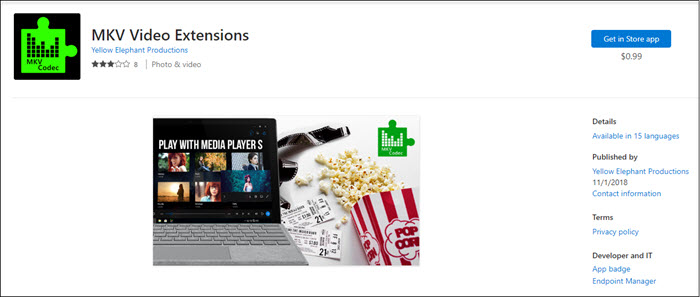
Step 3 Click Get (or purchase if required) to install the extension.
Step 4 Wait for the installation to complete.
Step 5 Restart Windows Media Player and try playing your MKV file again.
Part 3. 3 Third-Party Codecs for Windows Media Player
If you need to play MKV files using Windows Media Player, you can have the required video and audio decoders for MKV files by installing a third-party codecs pack that Windows Media Player can use. Here are three good examples.
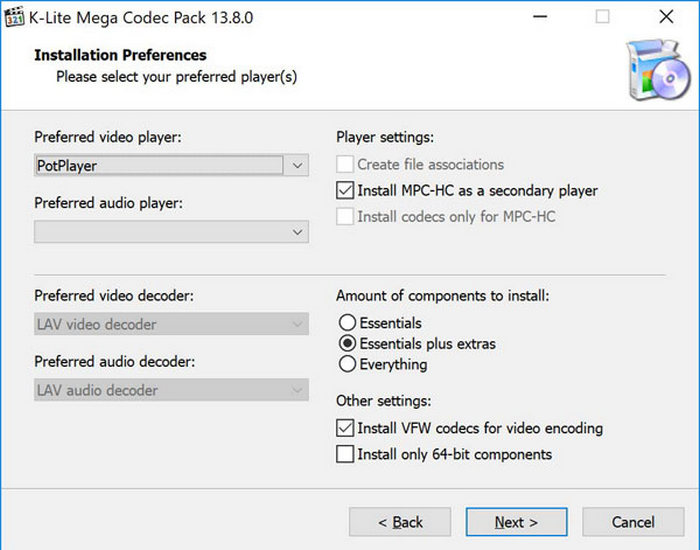
1. K-Lite Codec Pack
This is an all-inclusive and popular codec pack that allows you to use Windows Media Player to open files that are MKV and many other file types.
Features:
- Supports MKV, MP4, AVI, FLV, MOV, and more.
- Has the LAV Filters (modern decoders)
- Comes in multiple editions (Basic, Standard, Full, Mega)
- Big support for codecs.
- For Windows Media Player, it works great.
- Has a custom installation.
- The setup is complicated for many people who are new to it.
- Many codec packs installed can end up ruining the install and causing errors.
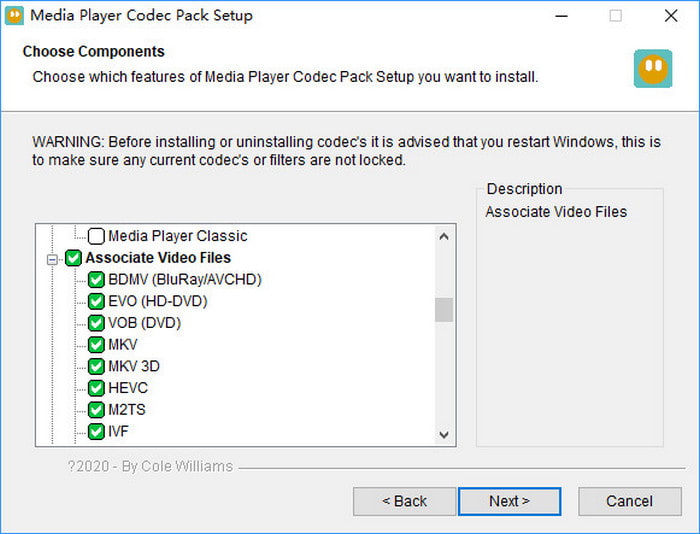
2. Media Player Codec Pack
This is a very basic codec pack meant to add more support for different formats for Windows Media Player, like MKV.
Features:
- Supports H.264, HEVC, MPEG-2, x264, x265
- Has LAV decoders
- Will work with any Windows, old ones included
- Installation is very easy
- It is great for the formats that are more commonly used
- If you use a DirectShow player, it will work there too.
- If a codec is new or rare, there is a chance that it will not work or be supported.
- It does not have as many advanced tools as K-Lite does.
3. Haali Media Splitter
It is a simple DirectShow Splitter that is used to improve the capabilities of Windows Media Player to read MKV containers.
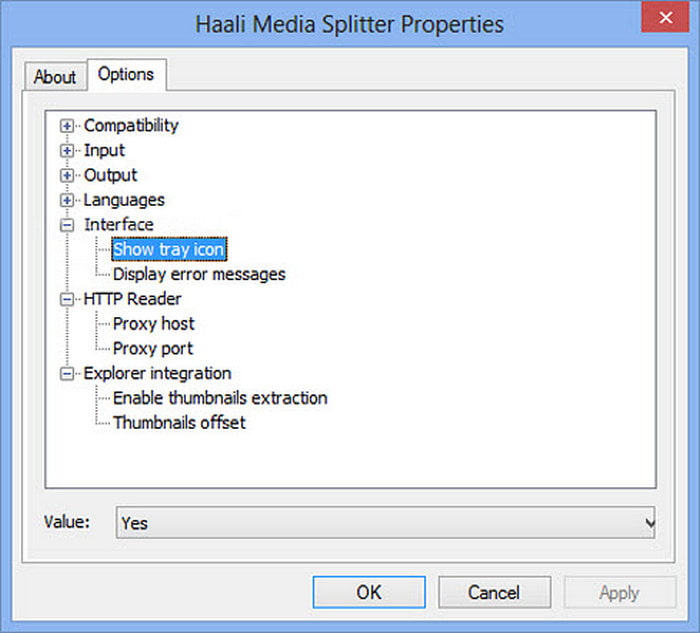
Features:
- Will work with MKV, MP4, AVI, OGG
- Will extract video, audio, and subtitles.
- It is a simple component.
- It is small and simple
- Will improve the ability to use MKV containers.
- This is not a full codec pack.
- More video and audio decoders are required.
Part 4. Resort to a Versatile Player to Play MKV Files
Tipard Blu-ray Player is an easy-to-use media player compatible with Windows 11/10/8/7, allowing you to play Blu-ray and DVDs, as well as MKV formats. It can play videos in HD, 4K, and 8K, as well as a variety of video and audio codecs, including HEVC/H.265. Additional codecs do not need to be downloaded to play these videos.
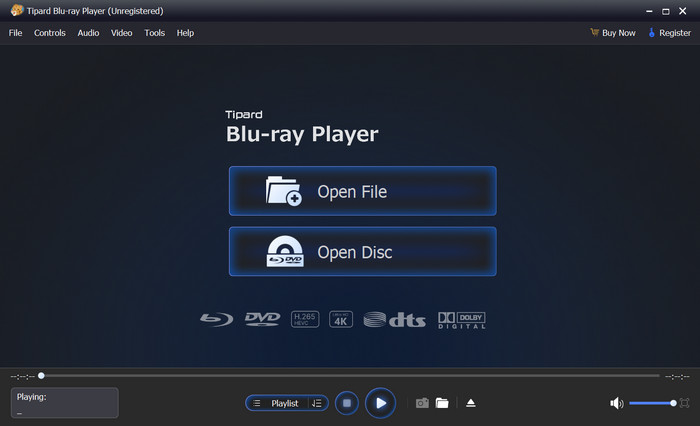

- Plays MKV files with H.264, HEVC/H.265, and high-resolution audio tracks reliably.
- Handles 1080p, 4K, and 8K videos with hardware acceleration for better performance.
- Plays MP4, MKV, AVI, WMV, MOV, FLV, MTS, and many other popular video formats.
- Offers intuitive shortcuts for volume, subtitles, audio tracks, and screen size adjustments.
- Easily create playlists, select specific chapters, and organize video playback efficiently.

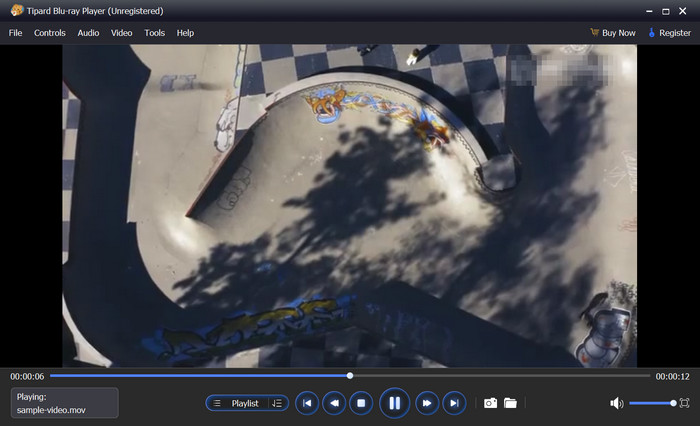
- Ability to play videos in HD, Blu-ray, DVD, ISO formats, and MKV codecs without needing to purchase and download other codecs
- Hardware acceleration
- Provides high-quality videos and audio with support for Dolby and DTS,
- Continent user interface
- Free trial of the player only lasts for a limited time.
Part 5. Troubleshooting Common Issues When Playing MKV Files
Here is a list of the most common media player issues and their solutions:
1. No Sound
Cause: The Audio codec used in the MKV file is not supported by the media player
Solution:
- Players such as Tipard Blu-ray players or VLC media players have built-in audio support to solve this problem.
- Confirm that the audio track is not muted in the player.
2. Only Audio, No Video
Cause: The MKV file does not have or support a video codec such as HEVC, AV1, or VP9, and as a result, the media player does not support the video.
Solution:
- Install a codec pack that includes either LAV Video Filters or Haali Media Splitter.
- Use a third-party player that has built-in video codecs, like Tipard Blu-ray Player.
- Use Winxvideo AI or Tipard Video Converter Ultimate to convert the MKV file to an MP4, which will be supported by Windows Media Player.
3. Video Stuttering or Lag
Cause: If the MKV file is in high resolution (4K or 8K), it will need more processing power, and, as a result, hardware acceleration may not be enabled.
Solution:
- Enable hardware acceleration in your media player (this is supported by Tipard and K-Lite).
- Lower the video resolution or convert the file to a lower resolution.
4. Audio and Video Out of Sync
Cause: There are a number of reasons that the MP4 is playing improperly, and the MKV file encoding could be to blame or an issue of playback from a specific player.
Solution:
- You may need to try a different media player, such as the Tipard Blu-ray Player or VLC.
- Video converters like MakeMKV can be used to remux or re-encode the MKV file since improperly coded files can result in audio-video desynchronization.
5. MKV Files Not Opening at All
Cause: If the MKV file is missing container support, it may be the result of a corrupted file.
Solution:
- Container support can be resolved by installing either Haali Media Splitter or the K-Lite Codec Pack.
- If the file is corrupted, there are available alternatives such as an MKV converter or repair software to fix and restore it properly.
Conclusion
Codecs Windows Media Player MKV are essential for smooth playback of MKV files, but issues can still arise. By using reliable codec packs, versatile players like Tipard, or converting files, you can enjoy seamless video and audio on any Windows PC.
More Reading




About the Author


 Tipard Blu-ray Player