

Key Takeaways
The whole process of turning AVI into MP4 mostly means you add the AVI file to a converter, choose MP4, tweak the conversion options, and then hit start, or whatever that button is.
- AVI to MP4 conversion: It is usually the better route since you get stronger compression and more universal device support.
- Video quality: It is kind of a moving target, because the final look really depends on things like resolution and bitrate.
- Batch conversion: There are a bunch of utilities that can manage multiple AVI files together, so you are not tied to one file per run only.
- Editing features: In Tipard Video Converter Ultimate, you can locate trimming tools and compression modes, plus enhancement features.
An AVI to MP4 converter is basically for taking larger AVI files and turning them into lighter MP4 videos, so they are easier to use across modern devices and systems. In this guide, you will see some of the best conversion tools around, you will pick up useful tips and little conversion tricks, you can check the key features, and learn how to end up with clean, good-quality visuals without too much hassle.

Part 1. Why You Need an AVI to MP4 Converter
AVI files usually bring pretty high video quality, yet they can turn out to be big in size, plus compatibility can be a bit limited, depending on where you play them. When you convert AVI to MP4, you get better playback, you save on storage, and the whole file becomes simpler to send to others. Basically, the key advantages look like this:
- Better Compatibility: MP4 tends to work on almost every device, media player, and even in web browsers, usually with no extra codecs needed.
- Smaller File Size: With newer compression methods, the file size drops a lot, and the video looks solid enough.
- Easier Sharing: MP4 uploads faster, and it gets accepted pretty much everywhere, social sites and video platforms included.
- Smoother Playback: MP4 files often play more steadily across different devices, without as many hiccups.
- Saves Storage Space: Since they are smaller, you can store more clips on local drives or in cloud storage, without feeling too cramped.
- Wider Software Support: Most video editors, plus media players, already cover MP4 for both editing and viewing.
Part 2. Quick Guide to the Top 5 AVI to MP4 Converters
1. Tipard Video Converter Ultimate
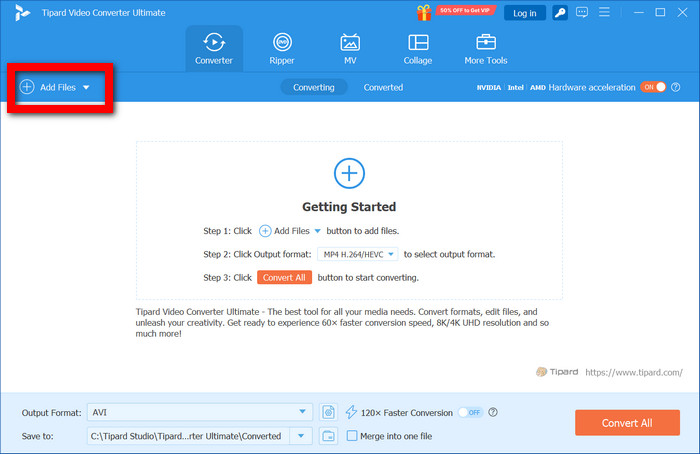
Step 1 Import AVI Files
Open Tipard Video Converter Ultimate, then press the Add Files button to bring in the AVI video. You can also throw in multiple files at once, for that batch conversion feel.
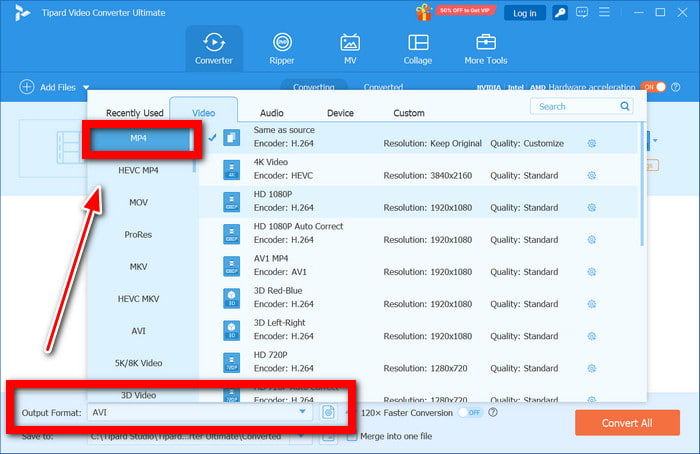
Step 2 Choose MP4 as Output Format
Go to the Output Format menu, and pick MP4 from the Video group. Select a preset that matches your device or your playback vibe.
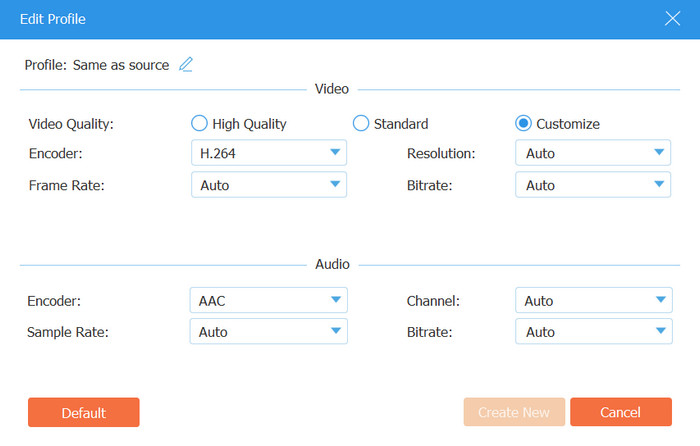
Step 3 Adjust Video Settings
Tweak resolution, encoder, and bitrate. There are also video enhancement tools that can sharpen the picture a bit before the actual transfer.
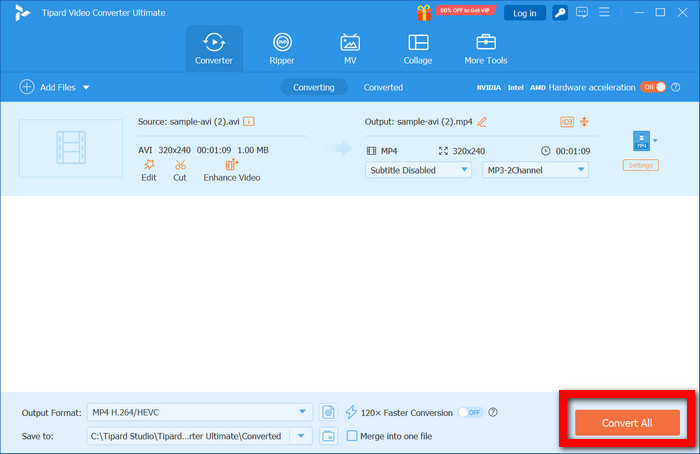
Step 4 Convert AVI to MP4
Pick the output folder and hit Convert All. Conversion should run quickly, so you are not waiting around too long.
2. Icecream Video Converter
Step 1 Open the program, then bring in the AVI you want.
Step 2 Pick MP4 as the output file type and tweak the parameters if you think it is needed.
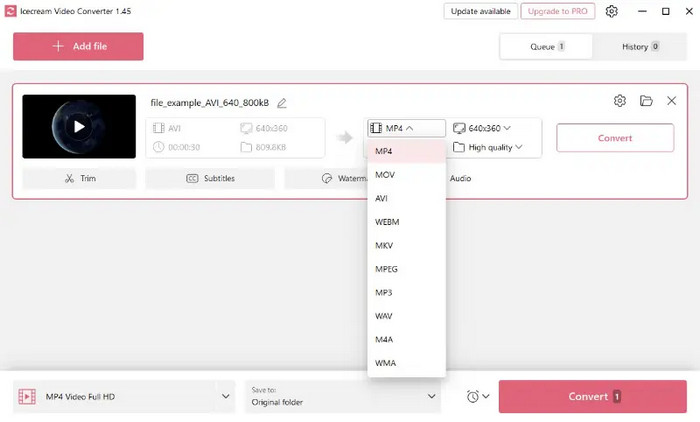
Step 3 Hit Start Conversion, after that, save the MP4 into the folder you chose.
3. HandBrake
Step 1 Start HandBrake, and drop in the AVI file.
Step 2 Set MP4 as the output, and refine the options that show up there.
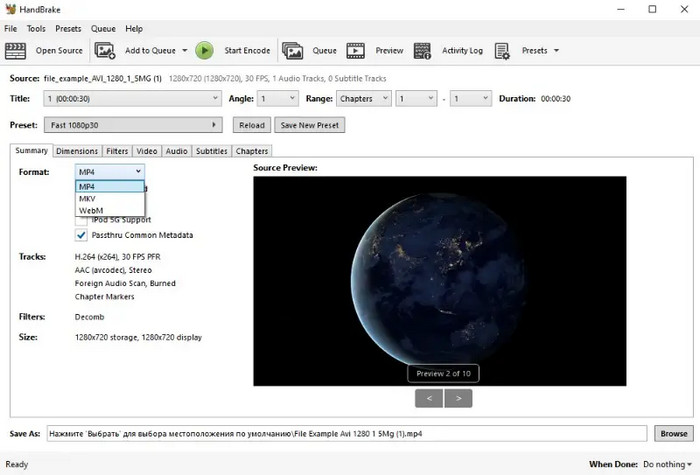
Step 3 Choose a target folder, then begin encoding.
4. VLC Media Player
Step 1 Open VLC, then go to Convert/Save.
Step 2 Add the AVI video, then set MP4 as your output profile; do not forget it, okay.
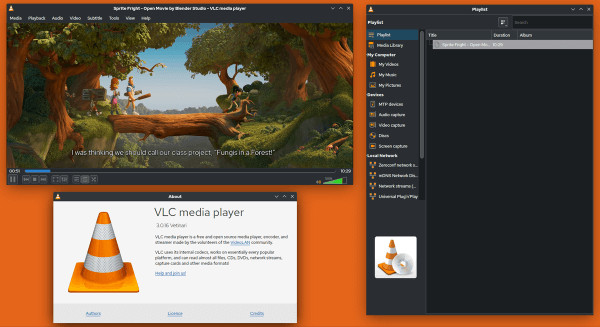
Step 3 Pick the output spot, and start converting. It should keep working and save the file right in that location.
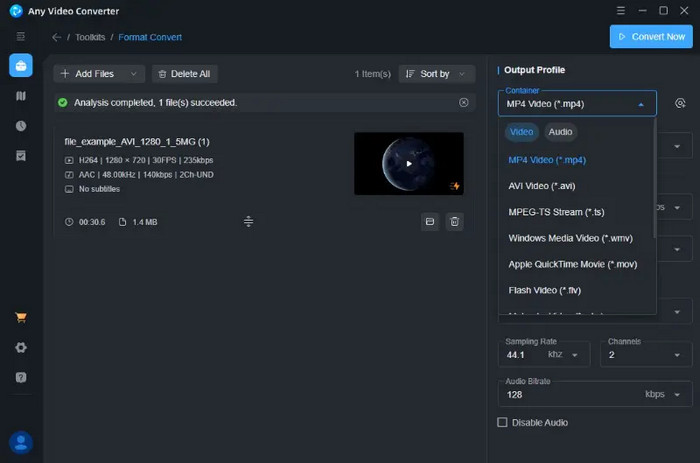
5. Any Video Converter
Step 1 Open Any Video Converter, then drop the AVI video into the app. It is pretty straightforward.
Step 2 Choose MP4 from the output profiles, and if you want, tweak Picture + Audio settings a bit.
Step 3 Select the destination folder, then hit Convert Now to get the MP4 file.
Part 3. Comparison of the 5 AVI to MP4 Converters
Picking an AVI to MP4 converter depends on the kind of how it goes for you, the conversion velocity, output sharpness, which operating systems it supports, and whether it includes more controls. The table below points out the main contrasts among the five recommended tools.
| Converter | Ease of Use | Conversion Quality | Batch Conversion | Editing Features | Platform Support |
|---|---|---|---|---|---|
| Tipard Video Converter Ultimate | Simple interface with advanced options | Excellent quality with enhancement tools | Yes | Extensive editing, compression, enhancement, and recording tools | Windows, Mac |
| Icecream Video Converter | Beginner-friendly design | Good quality for everyday conversions | Yes | Basic trimming and customization | Windows |
| HandBrake | Moderate learning curve | Excellent with detailed encoding controls | Yes | Limited editing options | Windows, Mac, Linux |
| VLC Media Player | Easy for basic tasks | Good quality with limited settings | Yes | Very limited conversion adjustments | Windows, Mac, Linux |
| Any Video Converter | Easy-to-use interface | Good quality with acceleration support | Yes | Trimming, cropping, effects, and adjustments | Windows, Mac |
| Show MoreShow Less | |||||
Part 4. Detailed Review of the 5 Best AVI to MP4 Converters
1. Tipard Video Converter Ultimate (Best Overall)
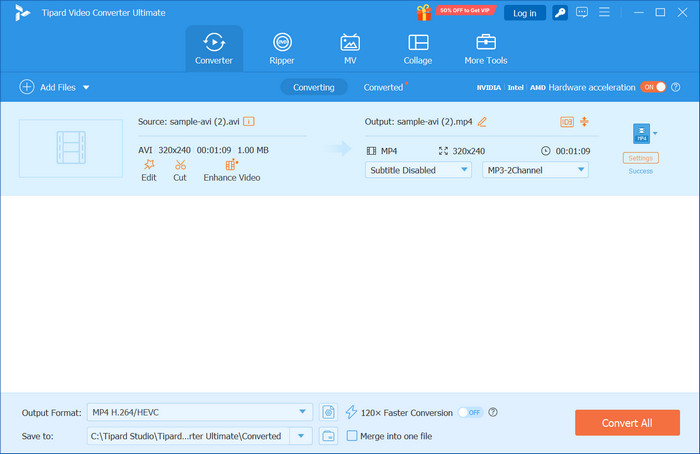
Tipard Video Converter Ultimate kind of stands out as one of the more complete converters from AVI to MP4. It gives high-speed conversion, with pretty solid output quality, while supporting 500-plus different video and audio formats. And honestly, it does not stop at just changing the file type. You also get editing, compression, enhancement, and even screen recording. So it feels practical for normal conversions, but also for more media projects where you want a little extra control. The interface is also pretty intuitive, so the advanced tools do not feel like a steep wall to climb if you just want to get things done.
Key Features:
- It handles various AVI files and converts them into MP4 smoothly.
- It includes profiles that are optimized for different devices and playback needs, which is kind of helpful.
- It can convert several AVI videos at once, so processing goes faster.
- It enhances resolution and improves overall video clarity, which is noticeable on some files.
- Fast and dependable conversion.
- Great output quality, bitrate, and more.
- It also brings a full editing and recording toolkit.
- Batch processing is supported, too.
- Those advanced tools can be more than what a beginner really needs.
2. Icecream Video Converter
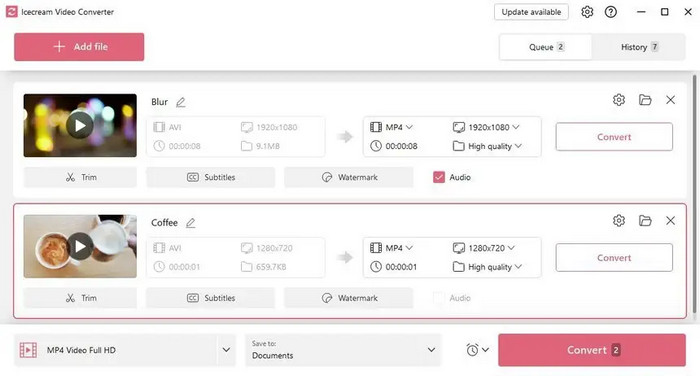
Icecream Video Converter feels made for people who want something simple but still decent as a video converter. The interface is clean, so turning AVI into MP4 is kinda quick, and not stressful, while it still includes useful stuff like batch processing and basic editing. Sure, it does not have many advanced multimedia features, but for everyday video conversions, it usually works out fine.
- An interface that is easy to use.
- Basic editing utilities.
- No watermarks.
- Device presets are there.
- Only available for Windows.
- Advanced options are somewhat limited.
3. HandBrake
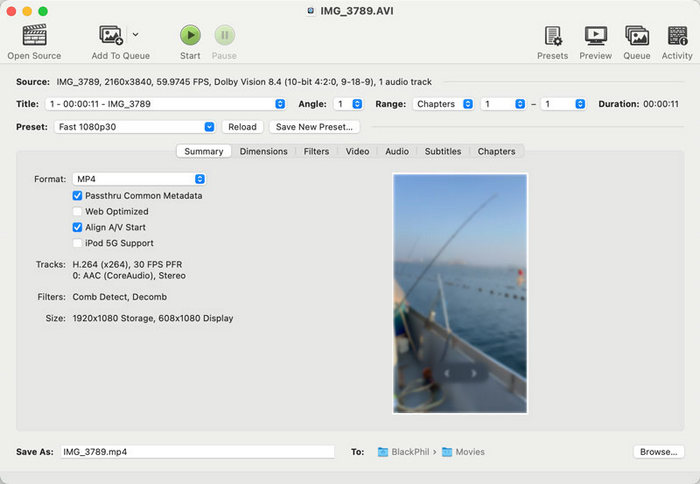
HandBrake is a well-known open-source video converter, and it gives strong control when it comes to encoding and compressing video. It is a good pick for users who like to tune settings, like bitrate, resolution, codecs, and a bunch of other choices, so that you can balance between quality and smaller file size.
- Free and open source.
- Batch conversion support.
- Works across multiple platforms.
- Gets updated pretty often.
- A little steeper learning curve.
- Editing features are pretty minimal.
4. VLC Media Player
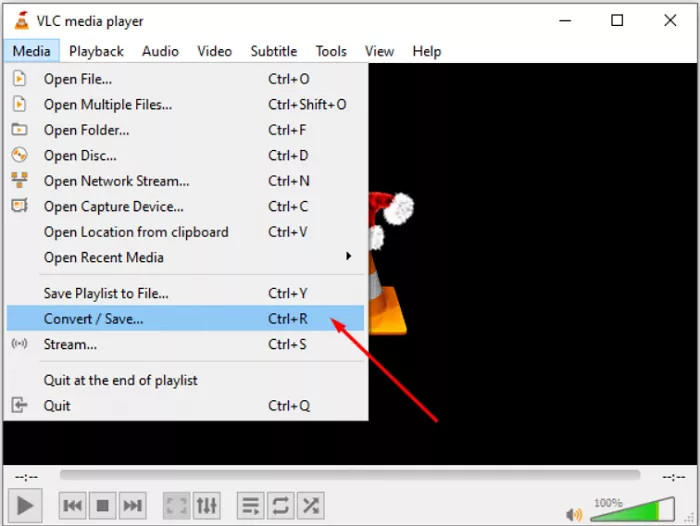
VLC Media Player is mostly talked about as a media player, yet it also has a built-in feature for converting AVI into MP4. The conversion side is kind of basic, but it works as a practical workaround when you only sometimes need to swap video formats, and you do not want to install extra stuff on your PC.
- Free and light on resources.
- No ads or those annoying watermarks.
- Setup is straightforward.
- The conversion options are pretty limited.
- No batch conversion support.
5. Any Video Converter
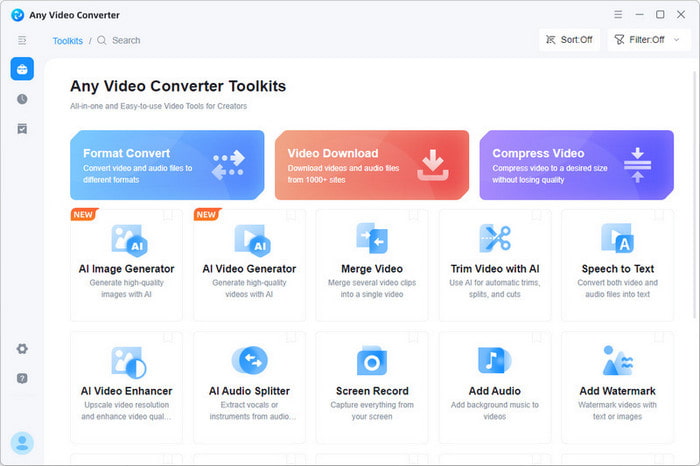
Any Video Converter kind of mixes video conversion with a few editing touches. Besides turning AVI into MP4, it lets you trim, crop, add a few visual effects, and it even includes hardware acceleration so that processing can feel faster. It is also beginner-friendly, so if you want something that does more than just convert, this one might suit you.
- Works with a lot of formats.
- Video downloader included.
- Easy interface.
- The free version sometimes pushes upgrade messages.
- Some tools show up only in the paid version.
Part 5. FAQs of AVI to MP4 Converter
Will converting AVI to MP4 reduce the original video quality?
It depends on the converter settings and the compression level. If you pick higher resolution, bitrate, and quality choices, you can usually keep the original look pretty close while still getting a compatible MP4 file.
Can AVI files with different codecs be converted to MP4?
Yes, generally, most AVI to MP4 converters can handle AVI files that contain different codecs. The software manages codec adjustments so the video plays well on devices and apps.
Is an online AVI to MP4 converter safe to use?
Honestly, it depends, because an online converter might be perfectly fine on a trusted website, with a clear privacy policy and decent security. But if the platform is unknown, or it uploads files to random servers, then it feels kinda risky, and you should be careful.
Conclusion
Using an AVI to MP4 file converter helps you convert video content easily by improving compatibility, shrinking the file size, and keeping the overall quality. Picking the right tool makes the processing more efficient, playback steadier, and your media organization a bit calmer.

All-in-one video toolbox: convert, edit, upscale, enhance, and compress your videos easily
100% Clean & Safe
100% Clean & Safe

More Reading


About the Author


 Tipard Video Converter Ultimate