An open source DVD burner is an essential tool for anyone looking to create, back up, or share videos on DVDs without relying on expensive software. This guide reviews the top free options, compares their features, and highlights the best professional DVD creator for reliable, high-quality results.

Part 1. Top Open-Source DVD Burners for All Platforms
1. DVDStyler
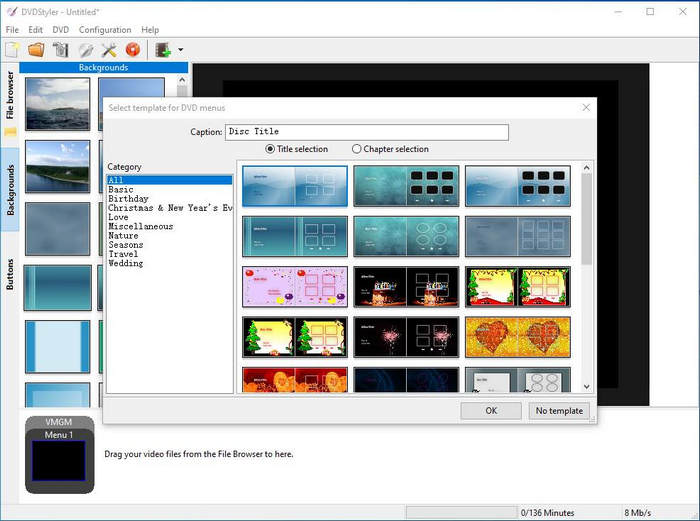
One of the strongest open-source DVD authoring programs is DVDStyler. It can create DVD-Video discs with interactive menus, create chapters, and output ISO images, which a simple DVD burner cannot do. DVDStyler lets you customize backgrounds, buttons, and navigation.
In practice, DVDStyler is stable for Standard Definition DVD Projects, where users can drag and drop in the DVDStyler editor.
Best for: Creating DVDs with custom menus for zero cost.
Platforms: Windows, macOS
Main Features:
- Burn videos onto DVDs.
- Templates to create DVD menus.
- Menu backgrounds, buttons, texts, and songs can all be customized.
- Files can be saved as ISO.
- Compatible file types: MP4, AVI, MP3, MOV, OGG, and OGG
- Simple to use.
- Custom DVD menus.
- Ability to use the program without paying.
- Created videos are of the same quality as the source.
2. Open DVD Producer
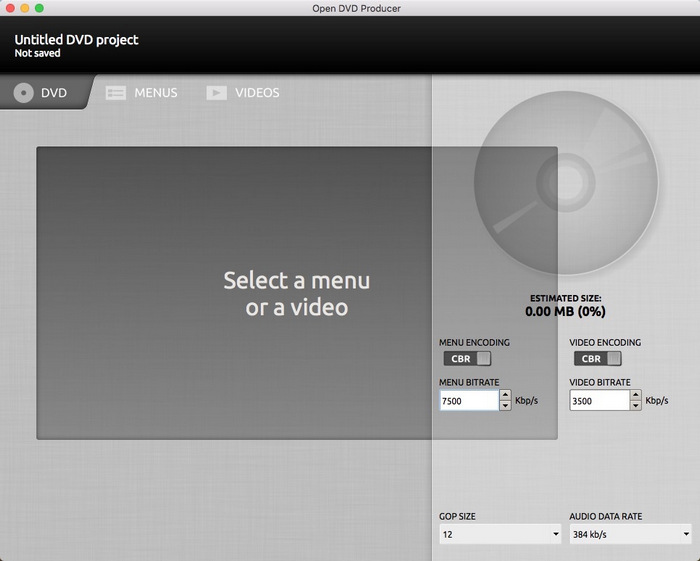
This program goes beyond the fundamental DVD structure limitations of chapters, button logic, and navigation.
Because of that flexibility, Open DVD Producer is more potent than some of its competitors, but for novices, it can be challenging to learn. Its lack of guided workflows means some understanding of DVD structure is critical for practical use.
Best for: Manual control of DVD navigation for the user.
Platforms: Windows, macOS, Linux
Main Features:
- Burn DVDs and create menus.
- Add chapters and buttons.
- Custom DVDs.
- Compatible with Windows, Mac, and Linux.
- Absolutely free.
- Not good for beginners.
- Little to no prompts to guide users.
3. CDBurnerXP
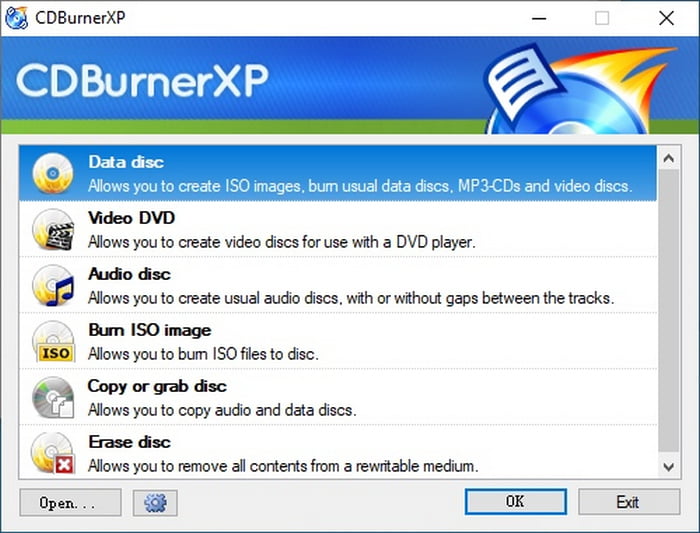
A more traditional approach to burning data DVDs, HD-DVDs, Blu-ray discs, and ISO images is preferred, and CDBurnerXP is designed to provide it to consumers. It is more focused on the purpose of simply writing the disc rather than on authoring the DVD-Video.
The user can perform image burning, but there are no interactive menus or simple, structured video DVDs available.
Best for: Burning ISO images and data discs on Windows.
Platforms: Windows 2000 and later
Main Features:
- Record CD, DVD, HD-DVD, and Blu-ray.
- Record and write ISO images.
- Erase rewritable discs.
- Record discs with data.
- Assured and reliable.
- Clear and tidy layout.
- Only data DVDs can be created (no complete DVD video authoring).
- Older systems have to install the .NET Framework.
4. InfraRecorder
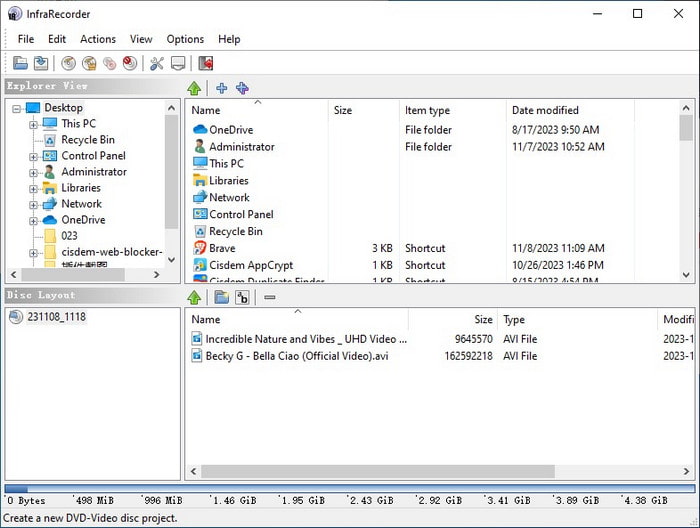
InfraRecorder is a burning program that focuses on the essentials. It offers ISO writing, dual-layer discs, and disc duplication. It is lightweight, which makes it a good option for older Windows systems. However, the interface is quite outdated, and it lacks support for newer technologies.
Best for: Burning discs on older PCs.
Platforms: Windows 2000/XP/Vista/7
Main Features:
- Burn data and audio-video discs.
- Record and read ISO images.
- Duplicate discs.
- Dual-layer DVD support.
- Extremely small installation size.
- Simple to use.
- The interface is outdated.
- Support is lacking for up-to-date technologies.
5. Cdrtfe
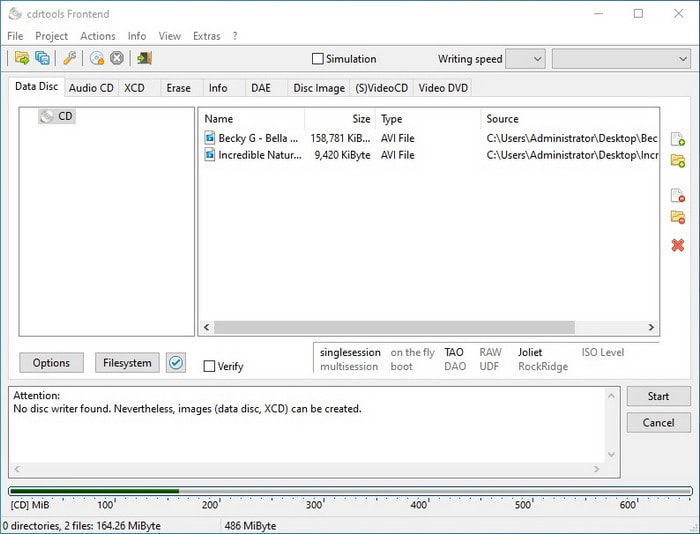
Cdrtfe offers good performance for tasks such as writing data DVDs, creating ISO files, and writing discs in multisession mode. It is functional, although its interface is cluttered and it does not support advanced DVD-Video authoring.
Best for: Basic disc recording.
Platforms: Windows XP, Vista, 7, 8, 10, 11
Main Features:
- Burn data CDs and DVDs.
- Create multisession discs.
- Write and create ISO files.
- Burning speeds can be set.
- Burning speed is adjustable.
- Cost is $0 and has low system requirements.
- The design of the application is messy.
- Lacks features for advanced DVD authoring.
6. Burn
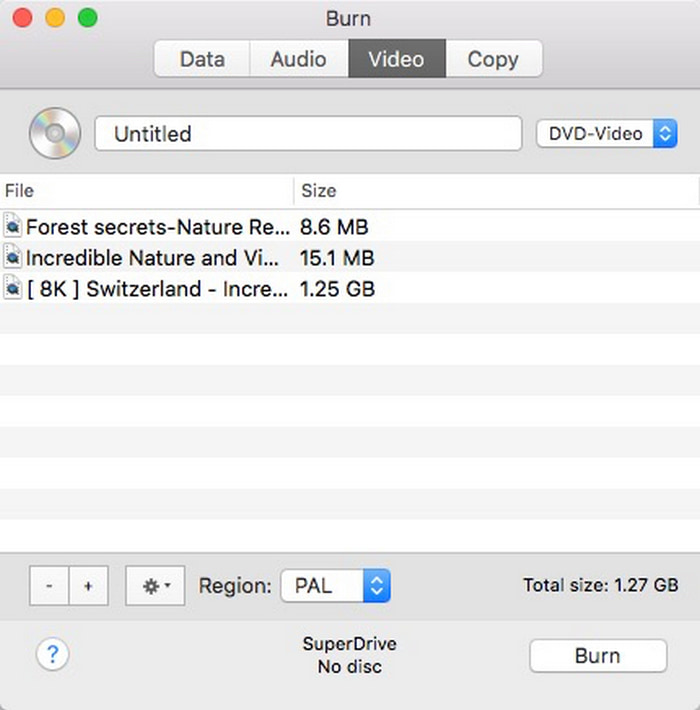
Burn Burn provides a basic interface and an encoder for converting files and creating video DVDs. The interface is clean and makes project organization easy; however, there is no ability to preview projects before burning, and customization options are limited.
Best for: Creating basic DVDs on macOS.
Platforms: macOS 10.9 or later
Main Features:
- Burn data DVDs, audio CDs, and video DVDs.
- Built-in encoder.
- Select PAL or NTSC format.
- Copy discs and burn images.
- Simple design.
- Fast DVD projects.
- No preview is available before burning.
- Limited tools for editing.
7. SimplyBurns
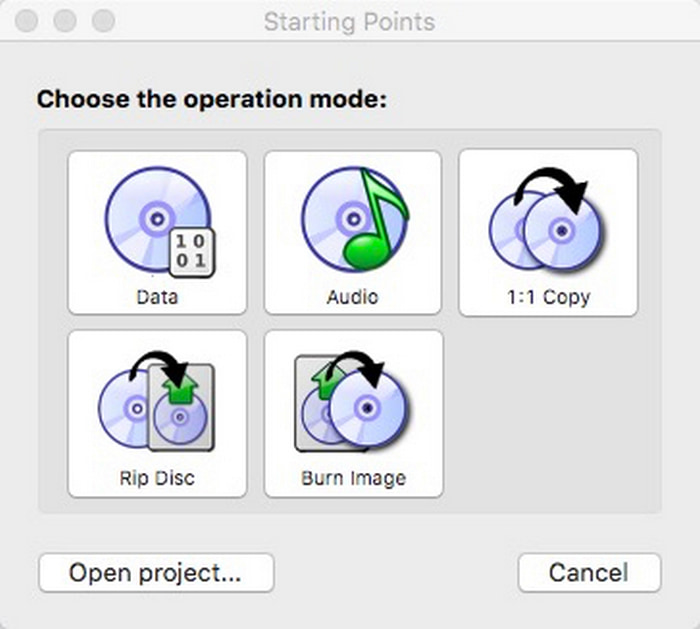
SimplyBurns focuses on simple burning tasks, such as burning image files, ripping discs, and performing 1:1 disc copies. It effectively meets basic disc-burning needs for casual users, though it may be slower and less feature-rich compared to newer, more modern alternatives.
Best for: Basic disc duplication on older Macs.
Platforms: Mac OS X 10.4 or higher
Main Features:
- Burn CDs and DVDs.
- 1:1 disc copy.
- Rip discs.
- Burn image files.
- Simple free DVD player.
- Supports multiple file systems.
- Slow loading time.
- No recent updates.
Part 2. Comparison of the Open-Source DVD Burners
| Feature / Software | DVDStyler | Open DVD Producer | CDBurnerXP | InfraRecorder | Cdrtfe | Burn | SimplyBurns |
|---|---|---|---|---|---|---|---|
| Burn Video DVD |  |
|
 |
|
|
|
|
| Create DVD Menu | |
|
|
|
|
|
|
| Preset Menu Templates | |
|
|
|
|
|
|
| Create ISO File | |
|
|
|
|
|
|
| Multisession Disc | |
|
|
|
|
|
|
| Blu-ray Support | |
|
|
|
|
|
|
| Erase Rewritable Disc | |
|
|
|
|
|
|
Part 3. The Best Professional DVD Burner with Stable Performance
For Mac and Windows, Tipard DVD Creator is an intuitive DVD burning software program. This easy DVD burning software allows the creation of customized and high-quality DVDs, images, and folders. The program provides easy video edits and maintains a high-quality performance despite the size of the video.
- Tipard DVD Creator runs smoothly on Windows and Mac, even with large videos.
- It offers customizable DVD menu templates for frames, music, and background images.
- Full hardware acceleration speeds up video decoding, editing, and encoding.
- You can create a DVD, ISO file, or DVD folder for flexible playback or storage.
Step 1 Download & Installation
On the official website, Tipard DVD Creator offers the program for certain types of operating systems.
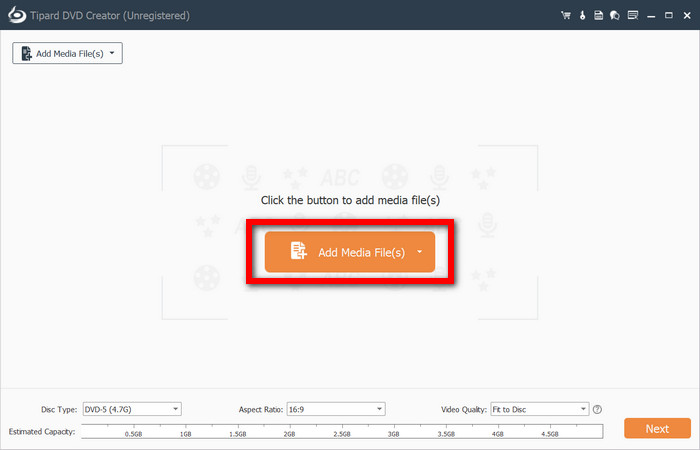
Step 2 Add Videos
Once your software program is open, click on Add Media Files. Videos to be burned can be selected from videos that are in any of the listed formats: MP4, AVI, MKV, and MOV.
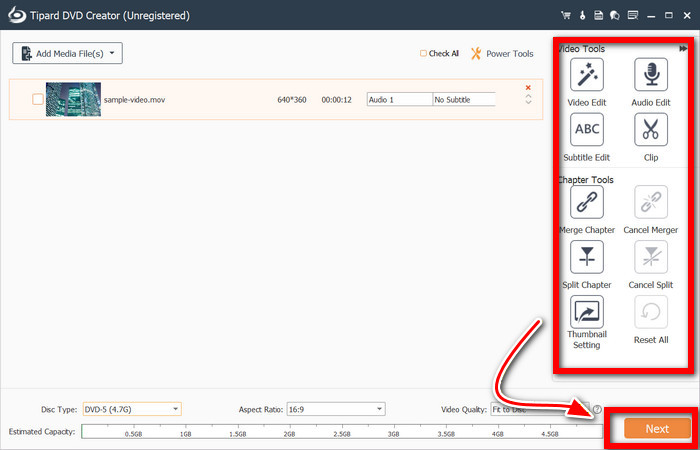
Step 3 Customize DVD Menu
Select the menu template you want to use. Choose from a background option, a button option, and a music option. Add any images you want to use and preview the menu to ensure it looks how you want. Click Next to apply.
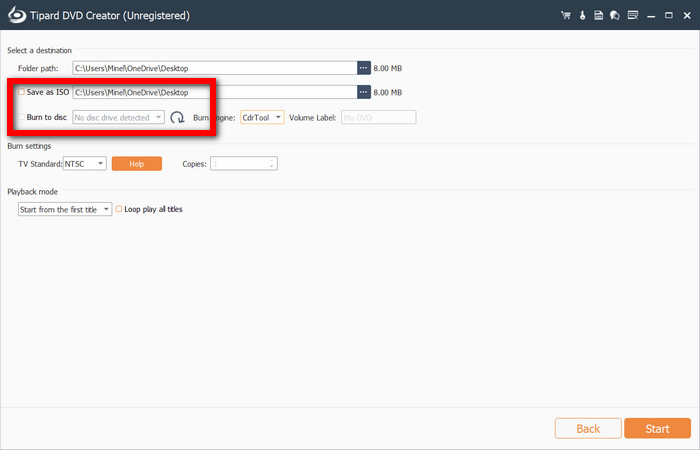
Step 4 Choose an Output Format
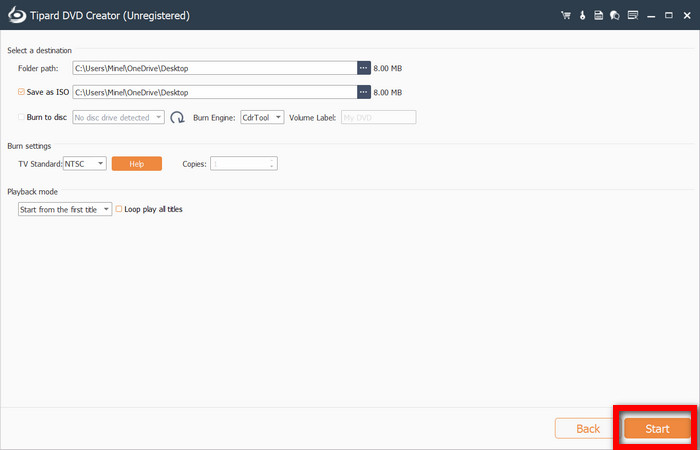
Choose from Save as ISO or Burn to Disc file as your output option. You can select a burning speed and a TV standard from either NTSC or PAL.
Step 5 DVD Burning
Once you are done with everything, click on Start. If you are burning to a physical DVD, Tipard DVD Creator allows for a quick write process due to the use of hardware acceleration. Make sure to insert the blank DVD.
Part 4. Essential Tips for a Successful DVD Burning
A couple of easy pointers will help guarantee burning that is smooth and of high burn.
1. Use Quality Discs: Choose trustworthy brands of DVD discs to avoid playback problems and errors.
2. Confirm Video Formats: Make sure your videos are in compatible formats so you can create DVDs without issues and easily play DVDs on Windows and Mac without playback errors.
3. Customize Menus Thoughtfully: Look at and change menu templates to correct any unevenness or poor choice of music.
4. Enable Hardware Acceleration: If you can, turn on hardware acceleration to make encoding and burning run faster.
5. Check Before The Final Burn: Make sure to check your DVD or ISO to ensure chapters, menus, and quality.
Conclusion
Open source DVD burning software offers a free and flexible way to create high-quality DVDs with customizable menus. By choosing the right tool and following essential tips, you can preserve videos efficiently and enjoy reliable results.
More Reading
About the Author