After you purchase a Tipard product, you will receive an email containing the order information together with your registration code for the product. (If you cannot see the email, please check your Spam or Trash folder.)
This guide will tell you how to find the Register option in Tipard product. You can also learn to use the email address you used to purchase the product to sign up for an Tipard account and log into the account to directly activate your product.
Part 1: Use registration code
After you purchased our product, we would send you an email containing a registration code. You can use the code and your email address to activate Tipard product:
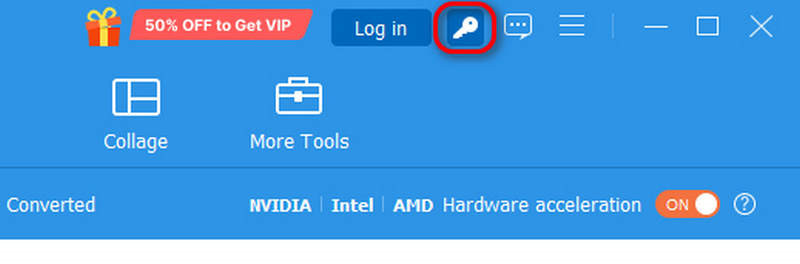
Step 1 If you haven't logged into your account on the Tipard product, you can click the Register button on the top right side of the product interface.
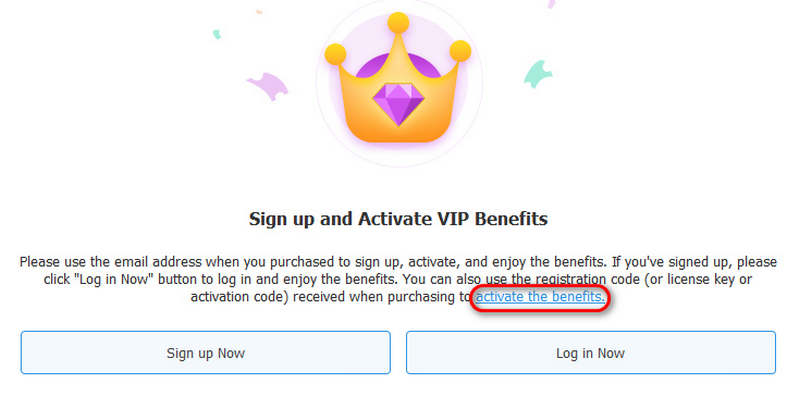
Step 2 A window will appear, which says you can sign up or log into your Tipard account with the email address you use to purchase the product, and then the product will be activated automatically.
If you don't want to sign up or log in, just click activate the benefits to activate the product with your registration code and the email address (the one you use to purchase your license) to activate the product.
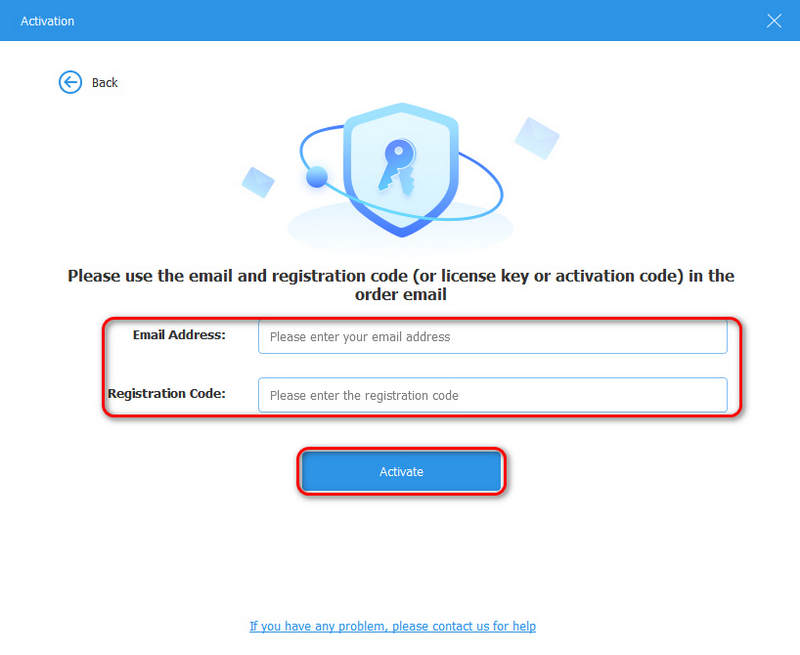
Step 3 In the new window, just enter your email address and the registration code, and click the Activate button to activate the product.
Part 2: Use Tipard Account Login
After you purchase a Tipard product with your email, you can sign up for a Tipard account with the email and log into your Tipard account. After login, your product will be activated automatically.
Create and Log Into Tipard Account to Register
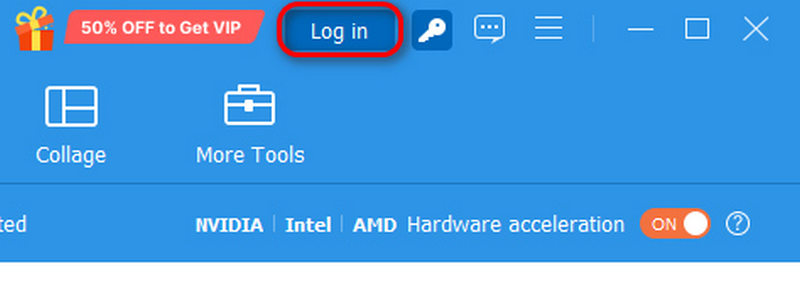
Step 1 Click the log in button on the top right corner of your Tipard program.
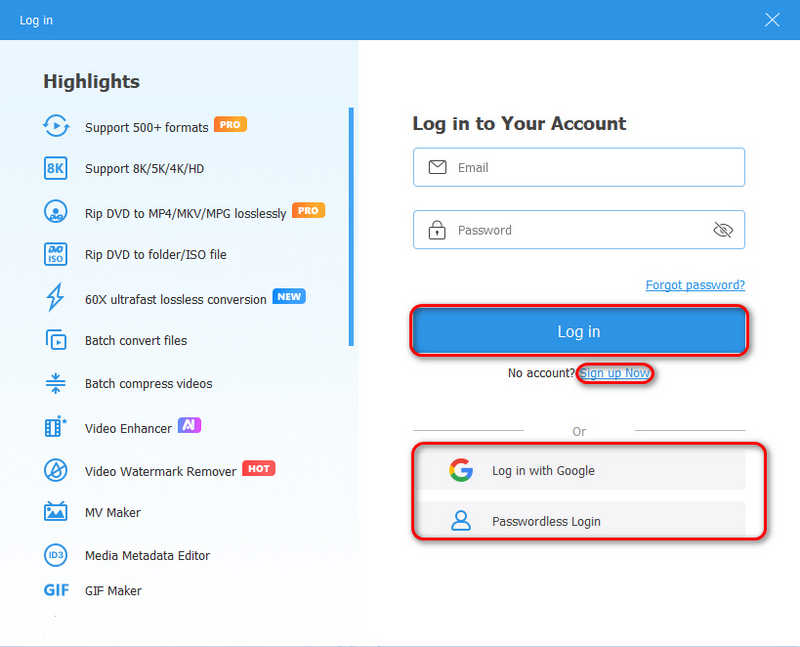
Step 2 If you haven't signed up for a Tipard account, you can click Sign up Now to sign up for one (you must use the email you used to buy the product to sign up).
Step 3 If you've signed up for a Tipard product, just enter your email and your password, and click the Log in button to log into your Tipard account. You can also choose Log in with Google or Passwordless Login (ensure your Gmail is used to purchase the Tipard product or you already have a Tipard account). After login, your product will be activated automatically.
Part 3: Fix Registration Problems
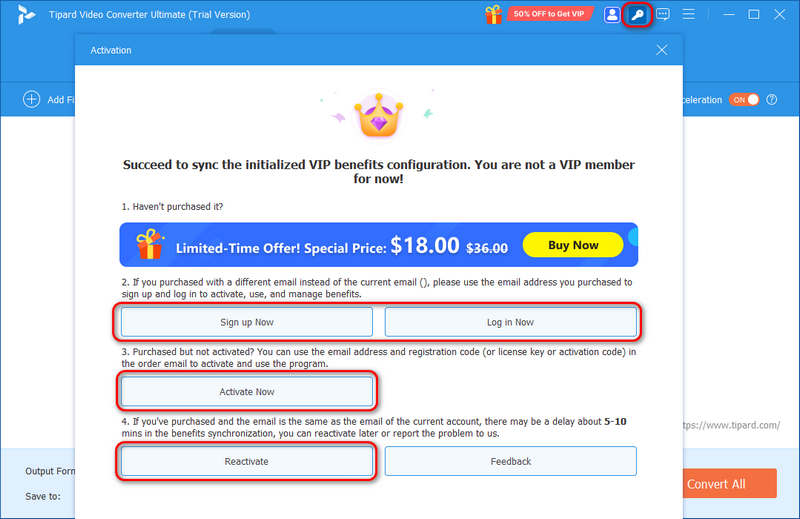
1. If your Tipard product isn't activated, you can click your Profile and click the Refreshing button to refresh the product. Then, your product will be truly activated.
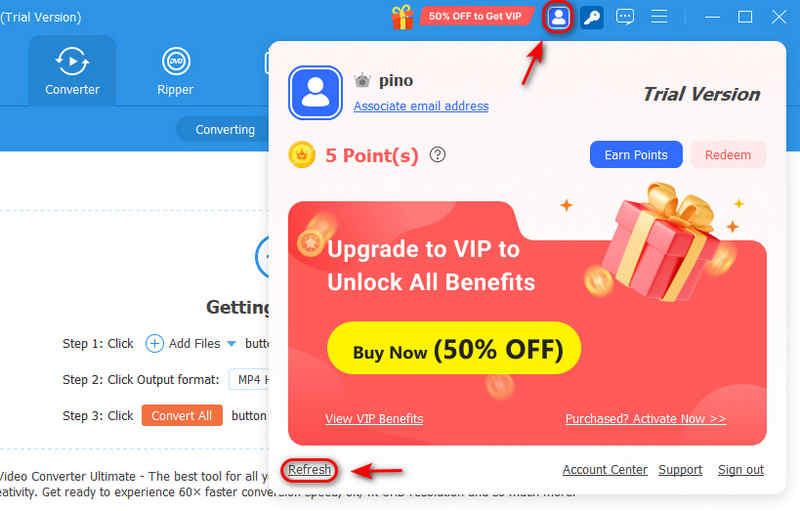
2. What if you log into a wrong Tipard account that has no subscription? You can open your Profile to log out the current account and log into the correct one.
You can also click the Register button and click the Log in Now button to log into your correct account. In this window, you can also click the Activate Now button to use your registration code to directly activate the product.
3. Sometime, due to network error, your subscription might not sync to your product, so you can click the Reactivate button to re-sync it. If you encounter other problems or still cannot register the product, click the Feedback button to contact us.