

How to Convert RMVB Video to MP4 with RMVB Video to MP4 Converter Software
To convert RMVB to MP4 video, I would recommend you Tipard RMVB to MP4 converter software. This converting software enables you convert video and AVI, MKV, MOV, etc. to MP4, as well as extract MP3 audio from MP4 video. Especially, you can use this professional software to edit your MP4 video as you like.
What do you need?
Software: Tipard RMVB to MP4 Video Converter
OS Support: Windows NT4/2000/2003/XP and Windows Vista, Windows 7
Hardware Requirements: 800MHz Intel or AMD CPU, or above; 512MB RAM or mor
Preparation: Download and install Tipard RMVB to MP4 Video Converter, and then double click the software to open the main interface.
There are simple ways to convert RMVB to MP4 format:
Guide Steps
Step 1: Load RMVB Video file
Step 2: Optimize RMVB file
Step 3: Choose output MP4 format
Step 4: Start convert RMVB to MP4 video
Load RMVB Video file
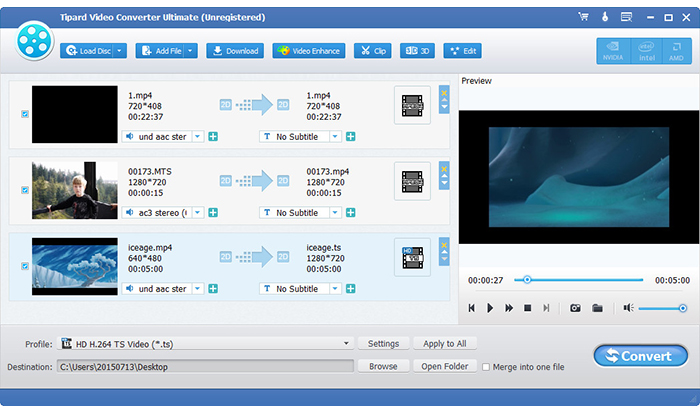
Load any RMVB Video file you want to convert by clicking Add File(s) or Add Folder from the dropdown list of Add File.
Optimize RMVB file
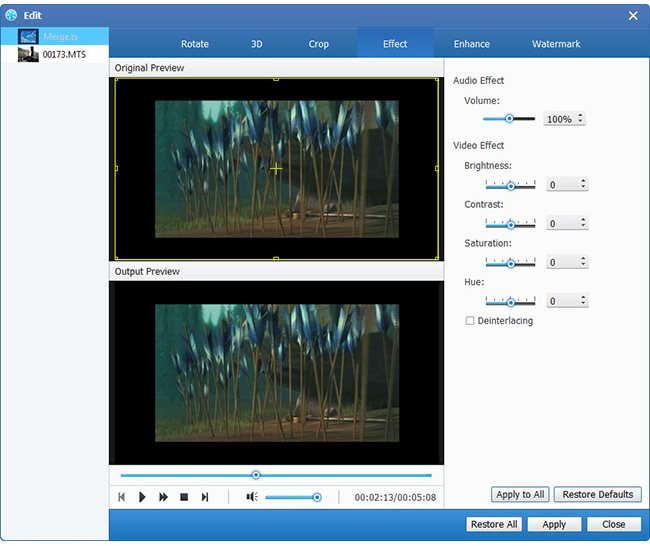
With Effect, Trim, Crop and Watermark four video editing functions, you can easily edit any RMVB Video file to create personalized video.
Detailed video and audio settings are provided by this MP4 Video Converter for you to adjust, such as video Encoder, Frame Rate, Resolution, Bitrate and audio Encoder, Channels, Bitrate, Sample Rate, etc. Even more, you can input your own parameters. The well-customized profile can be saved as "User-Defined" for your later use.
Choose output MP4 format
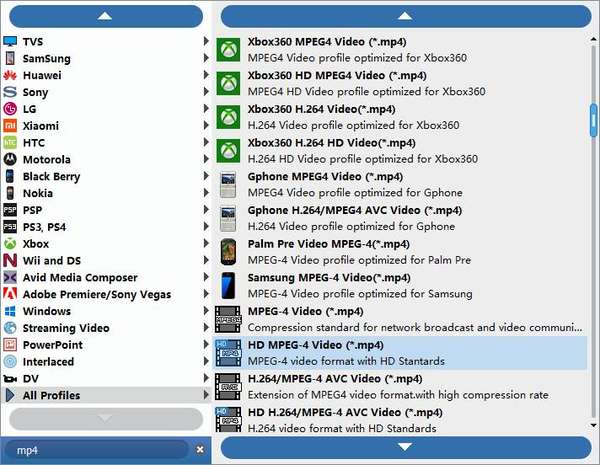
Based on the formats supported by your portable devices, you can select the output format for the movie from the "Profile" column and set the destination folder. Also you are allowed to select your preferred audio track and subtitle for your video.
Start convert RMVB to MP4 video
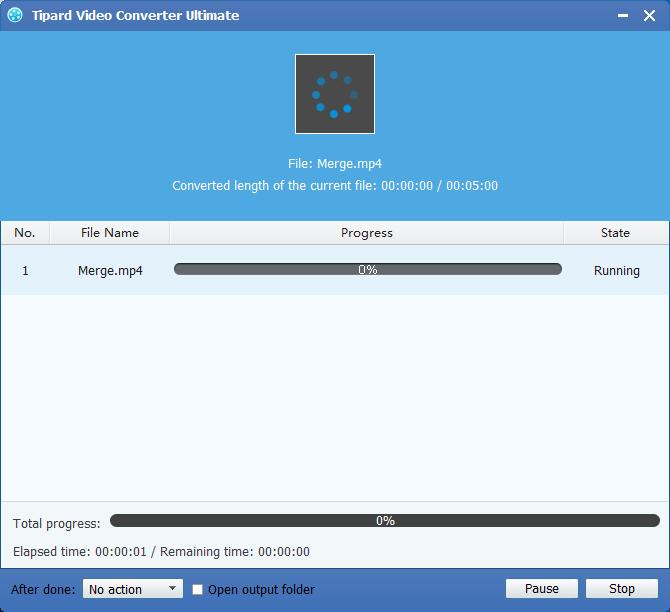
Click Convert button to start to convert RMVB Video to MP4. It is so easy to convert RMVB to MP4 with Tipard MP4 Video Converting software.

 Top 6 Free Video Editing Software in 2021
If you are looking for the best free video editing software, you can learn more details about the top video editors for free you should know in this article.
 Top 6 Methods to Convert FLV to MP4 on Mac Safely
Have no idea how to watch FLV videos on Mac? Get top 5 FLV to MP4 freeware to convert FLV to MP4 on Mac for free.
 Smart QuickTime Screen Recording Tips You Can Get
Do you really know whole functions of QuickTime Player? Or can you start QuickTime screen recording in simplest way? If you are not so sure, then you can turn to this QuickTime guide to learn.
 Convert/Rip DVD to MKV Keeping Audios/Subtitles/Chapters
This guide shows users how to rip DVD to MKV so that you can keep DVD navigator and subtitle in MKV file.
 Click here to join the discussion and share your comments
