

Tipard iPhone Manager for SMS Guide

How to transfer iPhone SMS to your PC with iPhone SMS Transfer? Read this article and find the answer.
Step 1: Install Tipard iPhone Manager for SMS
Download Tipard iPhone Manager for SMS installation file; then follow the instructions to finish the installation.
Step 2: Connect your iPhone
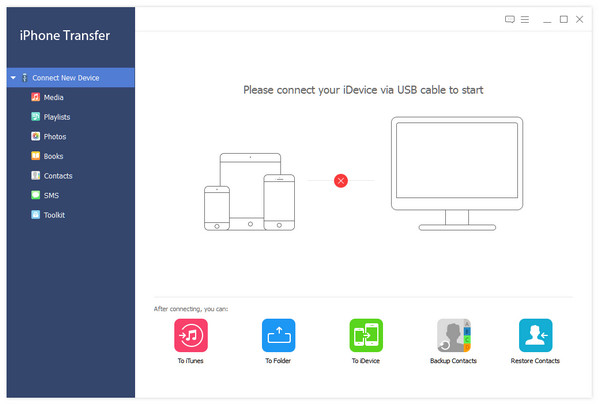
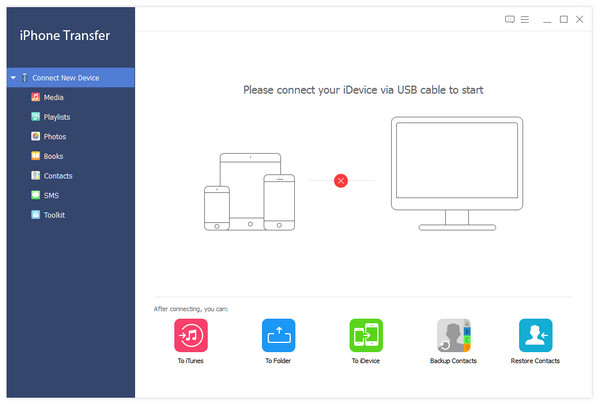
Connect your iPhone to PC via Apple dedicated data line, then you will see the following image.
Once connecting, your iPhone will be recognized instantly, and the detailed information about your device will be displayed, including type, capacity, version and serial number. Plus, it will show the specific capacity values of different iPhone files which have taken, and the available space.
Step 3: Transfer SMS from iPhone to PC
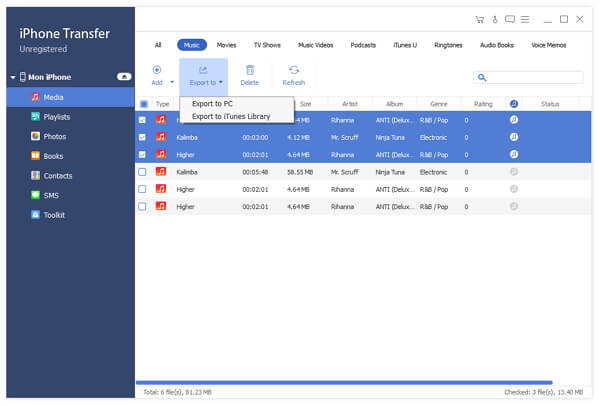
On the left side of the main interface, you will see the display list, which will show your various iPhone files in different types. You can only choose SMS or Contacts type to transfer to your PC for safety.
Click "SMS" on the display list, then the Contacts and SMS will be displayed on the right side of the interface. Then, just click "Transfer" Button on the bottom of the interface to transfer your iPhone SMS file to PC.
Step 4: Backup iPhone SMS
Click "Backup" Button on the bottom of the interface to save iPhone SMS as database file, then your SMS file will be displayed on "SMS" item below "Backup" on the left side of the interface.
Then, just click "SMS" to open SMS editing window.
Step 5: Delete Contacts or SMS
A: Delete Contacts
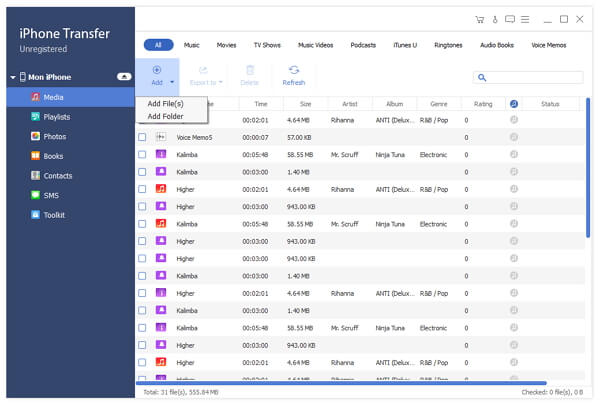
Click "Edit" button above Contacts part, then a red small circle will displayed befor every contact name. Click the red one befor the name you want to delete, than the delete button will be activated immediately, which is displayed as the below image shows.
B: Delete SMS
Click "Edit" button above SMS part, then a white small circle will display befor every message. Check the circle in line with the message that you want to delete, than click "Delete" button on the top of SMS display part. Then, the message will be deleted immediately.





 Click here to join the discussion and share your comments
