

How to Convert Video to MP4 with Mac MP4 Converter
What do you need?
Software: Tipard Video Converter for Mac
OS Support: Mac OS X 10.5 or above(highly supports macOS Monterey)
Hardware Requirements: 512MB RAM, Super VGA (800×600) resolution, 16-bit graphics card or higher
Step 1: Install and register Tipard Video Converter for Mac
Download Tipard Video Converter for Mac installation file, then double click the downloaded installation file to start installation; next, follow the instructions to finish the installation.
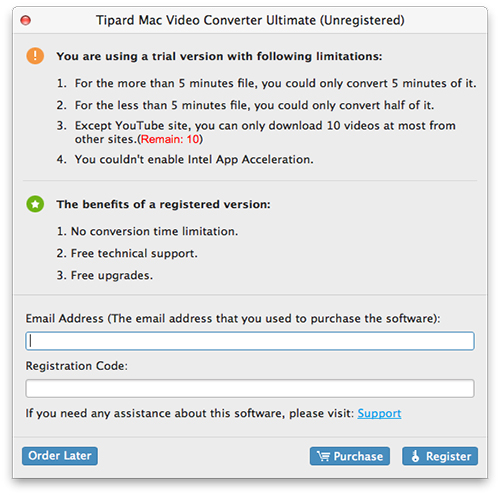
After installation, please launch Video Converter for Mac, then enter correct User Name and registration key in pop-up registration window, then click "Register" button to finish registration.
Step 2: Load AVI/3GP/MP4 file
After registration, you will see the the following screenshot.
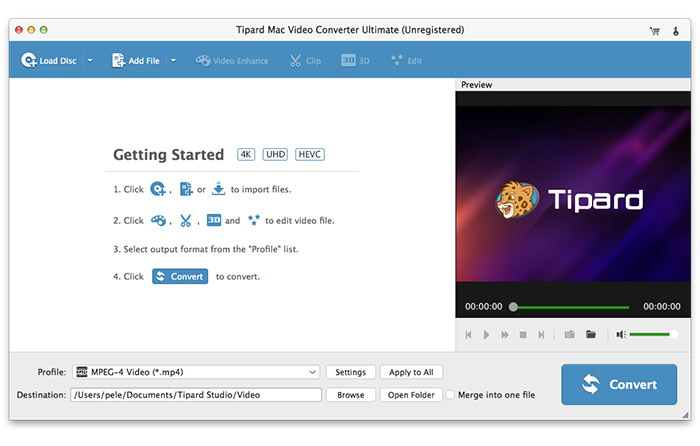
Load any video file you want to convert by clicking "Add Video" option under the "File" menu. Or you can click the "Plus" image button in the main interface.
Step 3: Choose output MP4 format
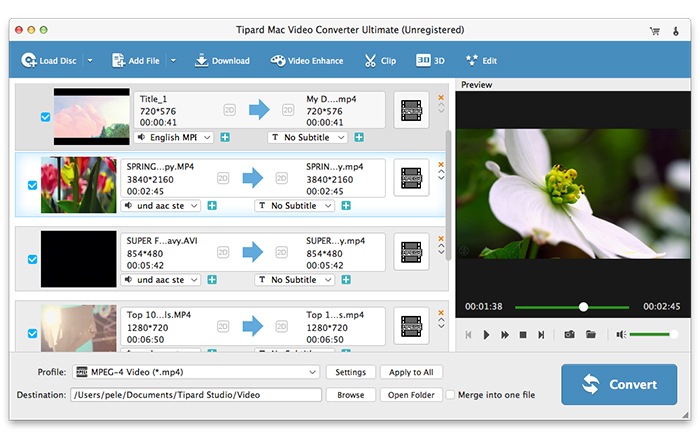
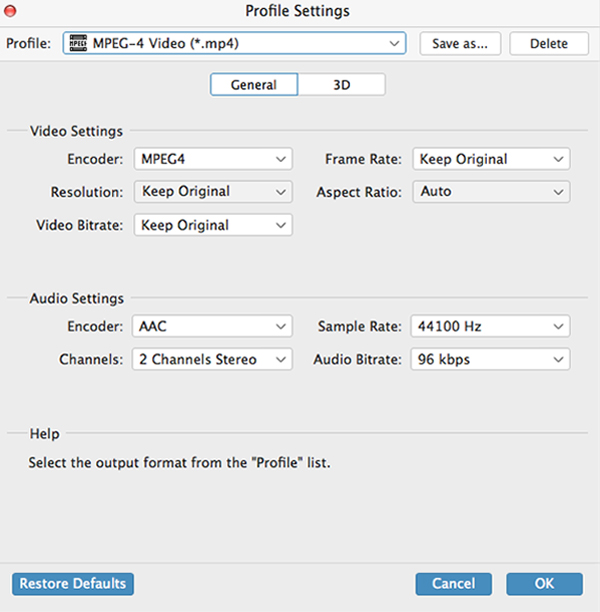
Based on the formats supported by your portable devices, you can select the output format for the movie from the "Profile" column and set the destination folder. Also you are allowed to select your preferred audio track and subtitle for your video.

Detailed video and audio settings are provided by this Video Converter for Mac for you to adjust, such as video Encoder, Frame Rate, Resolution, Bitrate and audio Encoder, Channels, Bitrate, Sample Rate, etc. Even more, you can input your own parameters and choose preferred Aspect Ratio. The well-customized profile can be saved as "User-Defined" for your later use.
Step 4: Start conversion
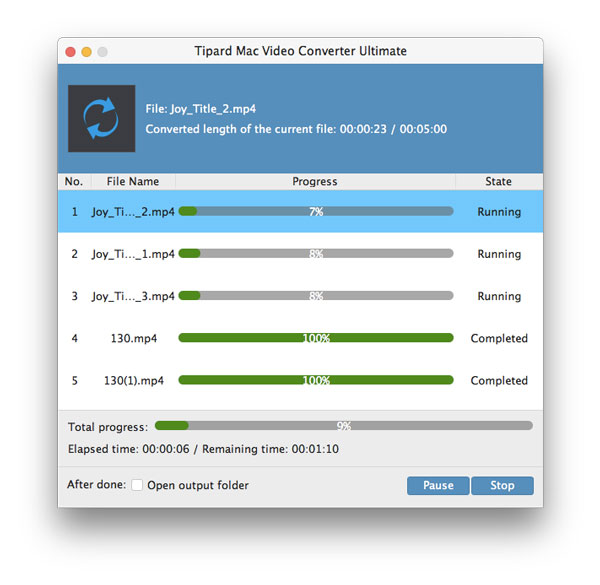
Click "convert" image button to start to convert AVI/3GP/MP4 video to any format you like on Mac.

 Top 8 Methods to Convert MP4 to GIF With Ease
The article will introduce 8 frequently used methods to convert MP4 to GIF formats. Just find the detailed process from the article.
 The Easiest Way Helps You to Convert Video to DVD
With DVD Creator, you can transfer your files to the MP4, AVI, FLV, WMV and more 100+ video formats, which is compatible with most DVD players
 Top 10 MKV to MP4 Online Converter Software
The article is going to recommend the top 10 MKV to MP4 online converters of 2021. Just learn more details about the programs from the article.
 How to Convert DVD Disc/Movie to AVI Video File with DVD Ripper
Tipard DVD to AVI Ripper can meet all your needs as it has the capability to convert any DVD to AVI files with powerful editing features.
 Click here to join the discussion and share your comments
