

How to Enjoy DVD/Video on iPod and Back Up iPod Files to PC

How to rip DVD to iPod
iPod and iPhone have become people's necessary music/video player. Now Many people want to enjoy HD DVD on iPod/iPhone at any time and everywhere. But the questions is iPod/iPhone can only accepts H.264 and MP4 video formats. Don't worry. DVD Ripper can help you a lot.
Download this Tipard DVD to iPod installation file. Double click the downloaded installation file to start installation. Follow the instructions to finish the installation. Launch DVD Ripper.
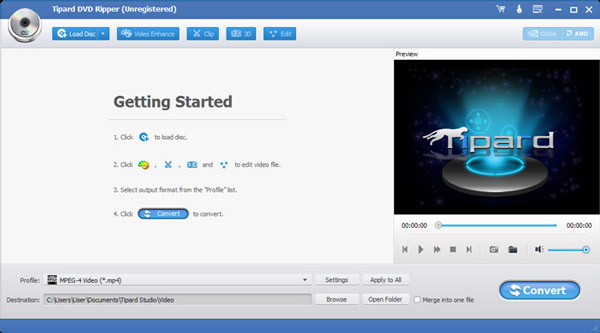
DClick "Load DVD" to select Load DVD, Load DVD Folder and Load IFO File.
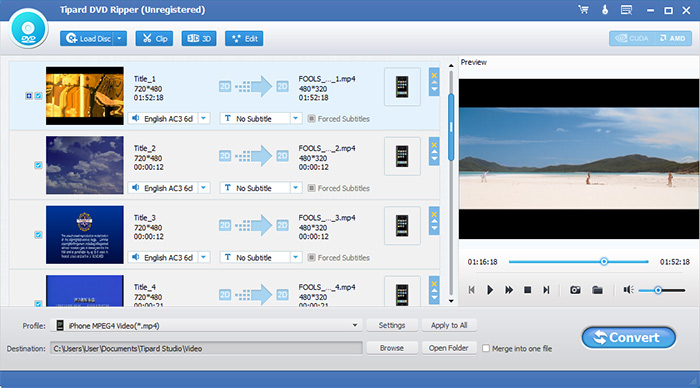
After you select the titles or chapters you want to convert, you can set the output settings for the conversion under preview window and the DVD content list.
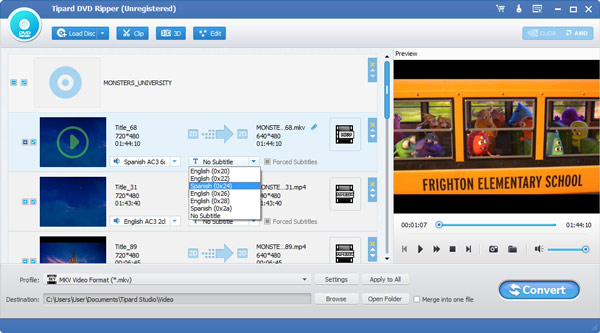
Audio Track: Select audio track for your selected file (either a title or a chapter).
Subtitle: Select subtitle for your selected file (either a title or a chapter)
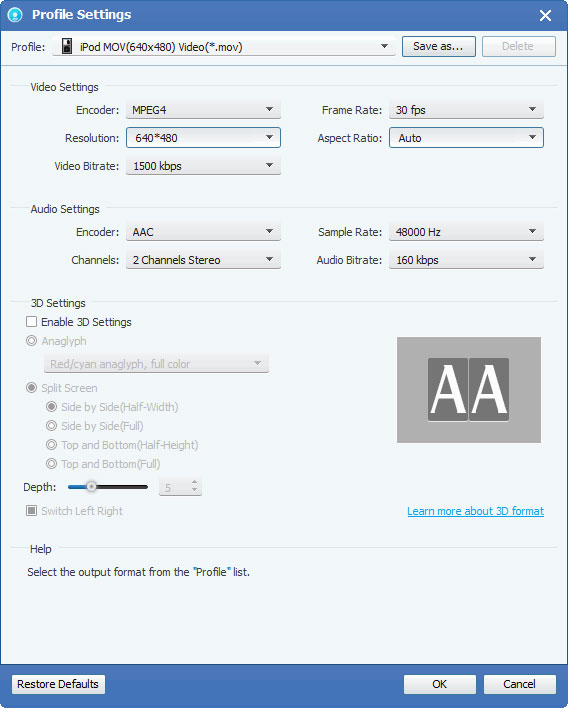
Settings: Click "Settings" to open the Settings window.
In the Video Settings, you can select Encoder, Frame Rate, Resolution and Video Bitrate to convert your movie.
In the Audio Settings, you can select Encoder, Channels, Bitrate and Sample Rate to convert your movie.
Destination: Click "Browse" to specify a location on your computer to save the converted movie. If you want to open the output folder, you can just click "Open Folder".
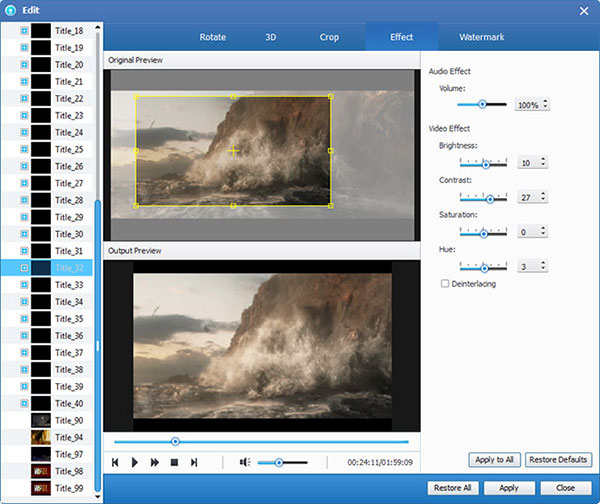
Click "Edit" > "Effect" to open the Effect window. Tipard DVD Ripper allows you to adjust the brightness, contrast and saturation of video and volume of the audio by drag and click the adjustment bar.
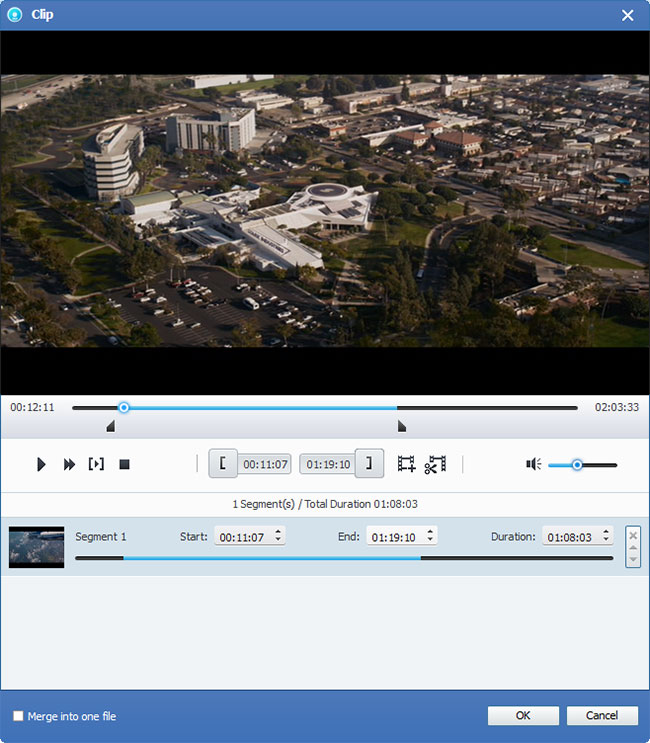
Tipard DVD to iPod Converter allows you to cut your movie, so you can capture your favorite clips from your DVD movie. Click "Clip" button to open the "Clip" window. Tipard DVD to iPod Converter provides you three methods to trim your DVD.
◆ Method 1: Enter the start time in the Start Time box and click OK, then enter the end time in the Set End Time box and click OK.
◆ Method 2: Drag the scissors bars under the preview window when you want to trim, then the time will be shown in the Start Time box and End Time box for your reference.
◆ Method 3: Click "Trim From" button when you want to begin your trimming. Click "Trim To" button where you want to stop your trimming.
After you set trim time, the length of the captured clip will be shown in the Select Length box for your reference.
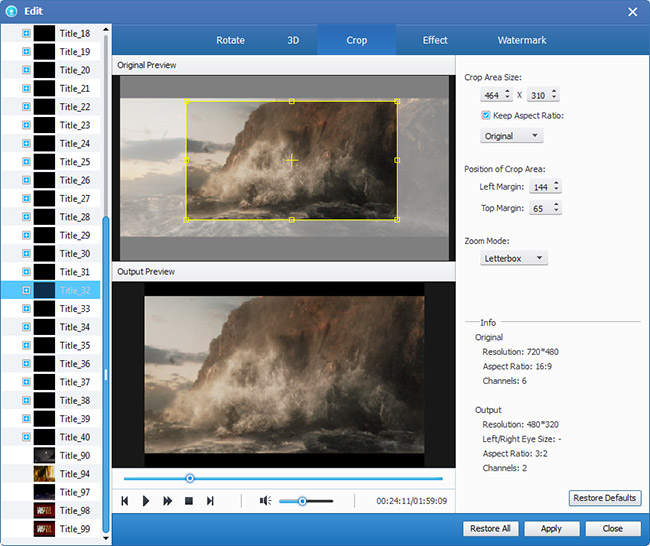
Tipard DVD Ripper allows you to remove the black edges around your video and customize the size of video play region. There are three methods available to crop your video:
◆ Method 1: Select a crop mode in the Crop Mode drop-down list and click OK to save the crop. There are six pre-set crop modes for your choice: No Crop, Cut off Top and Bottom black edges, Cut off Top black edge, Cut off Bottom black edge, Cut off Left and Right black edges, Cut off All black edges.
◆ Method 2: The crop frame is the yellow line around the movie video. There are eight small adjustment boxes on the crop frame. Each adjustment box allows you to crop the movie video from a different position. To crop your movie video, you can just move your mouse cursor to an adjustment box and drag the crop frame.
◆ Method 3: There are four crop values on the lower right part of the crop window: Top, Bottom, Left and Right. You can set each value to crop your movie video, and the crop frame will move accordingly.
If you want to join your selected chapters or titles into one file you can check the "Merge into one file" option. As default the merged file is named after the first selected file (either a title or a chapter).
Click "Snapshot" button and the current picture in the Preview window will be captured and saved. Click "Folder" button to open the folder where the captured images are saved. As default the captured image will be saved at users' My Documents\Tipard Studio\Snapshot. Click "Preference" menu, you can reset the snapshot folder and the type of your captured image: JPEG, GIF or BMP formats.
Before you start conversion, click "Preference" menu to adjust the settings related to conversion.
◆ After Converting Done: You can choose to "Shut Down" your computer or "No Action" after the conversion.◆ CPU Usage: You can choose the max CPU Usage for your computer: 50%, 60%, 70%, 80%, 90%, 100%.
After you finish the pre-settings, you can just click "Start" button to start to convert DVD to iPod formats. When it's done, you've got your DVD movie neatly and conveniently on your iPod.
How to back up iPod data to PC
Download and install iPod Transfer
Just to click the button above to free download the transferring software. And then double click the .exe file and follow the wizard instruction to install it on your computer. Then choose files that you want to back up data from your iPod to computer. For Mac users, please download iPod Transfer for Mac.
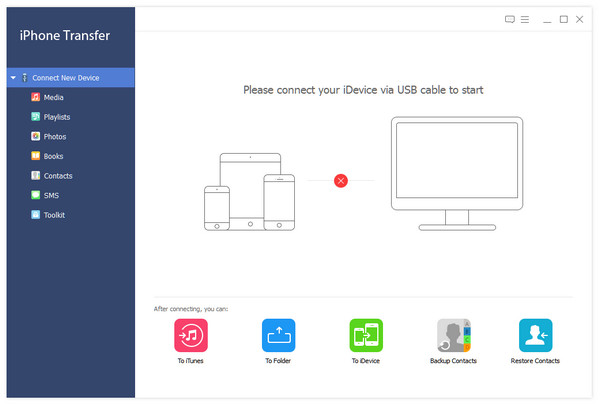
Connect your iPod to PC and launch the program
Connect the iPod to your PC by cable and then launch the program, all the files in your iPod will be detected and sorted out automatically, for example video, music, photos, contacts, etc. In addition, you can choose targeted files to back up and preview it before backup. See step 4.
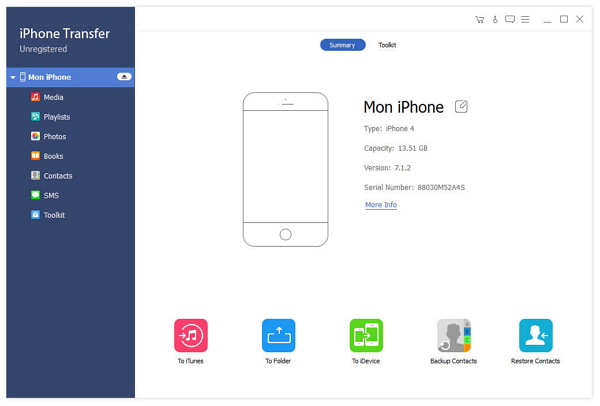
Scan iPod data
After connected your iPod to computer, iPod transfer software will scan your iPod automatically. You will see the content in the interface such as video, messages, photos, etc.
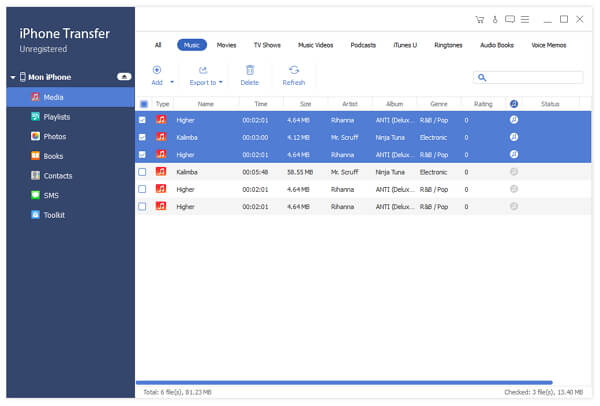
Select the target files
Choose the songs you want to transfer to PC. This transferring software supports you to preview and edit music before you performed.
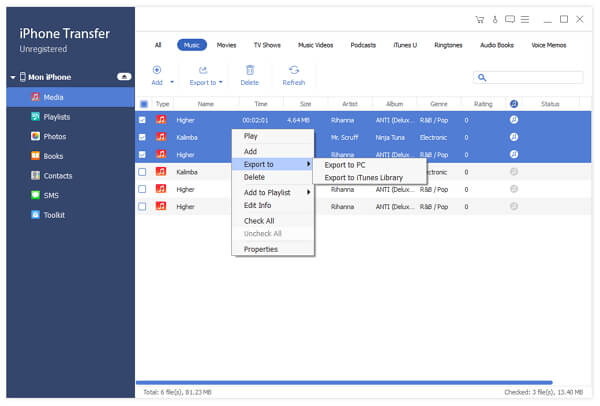
Start to export music to computer
Click the Backup button and then you can back up your music from iPod to your computer conveniently.

 How to Rip DVD to Computer on Windows
How to rip a DVD with easy-to-use DVD Ripper software? Just a few clicks to rip DVD to computer with super fast speed.
 How to Convert DVD to MP4 for Windows/Mac
This tutorial shows you how to convert DVD to MP4 on Windows and Mac. Just check out the detail solution to rip the MP4.
 How to Rip a DVD with 3 Easy Methods
You want to watch it on your phone, tablet, somewhere else. You can follow this tutorial to rip a DVD to digital videos.
 Magic DVD Ripper Review and Best Alternatives
Software similar to Magic DVD Ripper? Learn multiple best alternative programs have features similar the DVD ripper.
 Click here to join the discussion and share your comments
